

A disavow file tells Google to ignore specific backlinks pointing to your website, protecting your rankings from toxic link damage. Most sites never need one. But when you’re facing a manual penalty or sustained negative SEO attack, this tool becomes essential for recovery.
The disavow tool is powerful—and risky if misused. Disavowing legitimate links can hurt your rankings more than the bad links themselves. Understanding exactly when to use it, and when to leave it alone, separates successful recoveries from costly mistakes.
This guide walks you through identifying toxic backlinks, creating a properly formatted disavow file, submitting it to Google, and monitoring results. You’ll learn the exact process SEO professionals use to clean up link profiles without damaging organic performance.
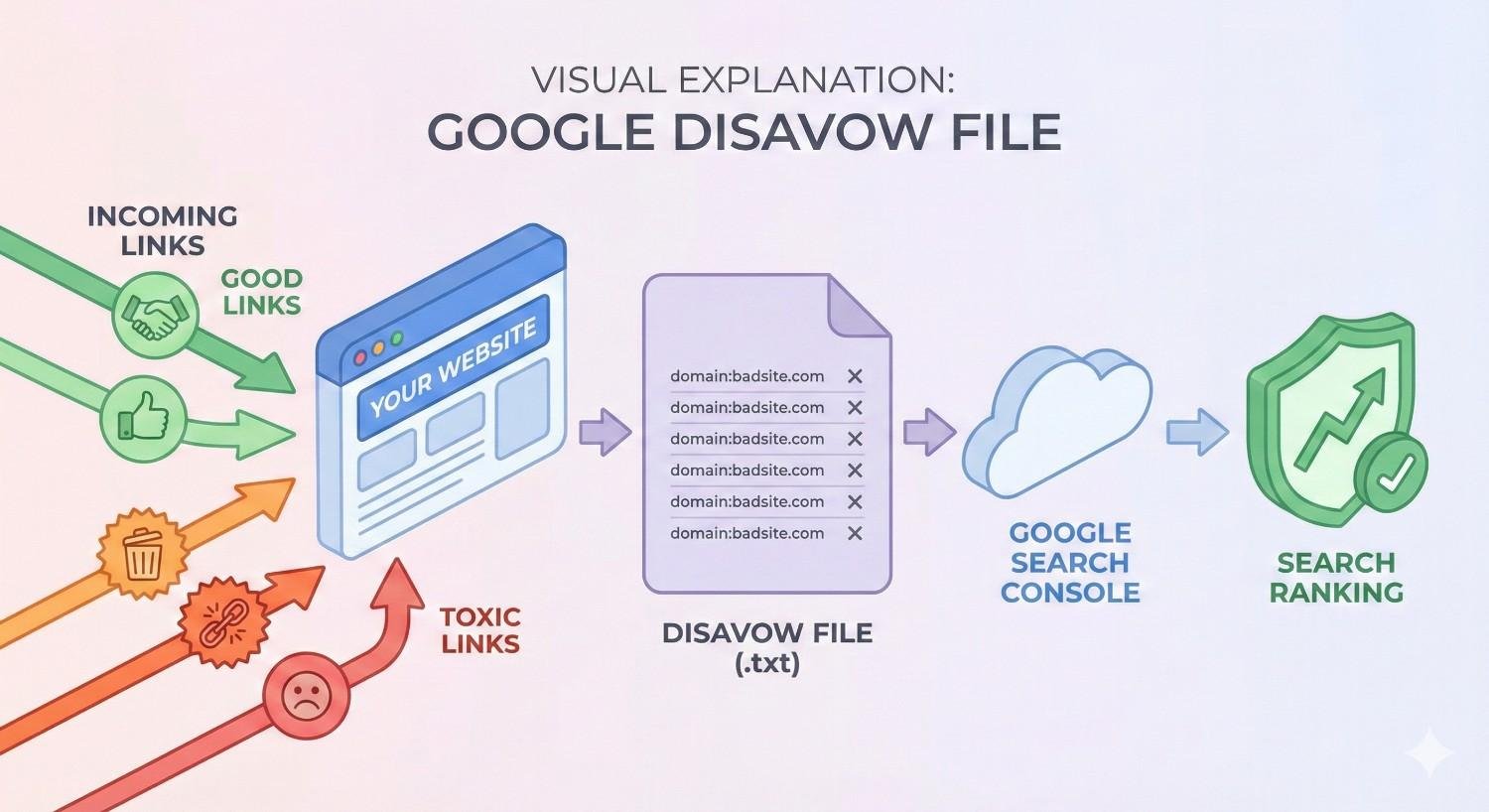
What Is a Google Disavow File?
A Google disavow file is a plain text document you upload to Google Search Console asking the search engine to ignore specific backlinks when evaluating your site. Think of it as telling Google: “I know these links exist, but please don’t count them when determining my rankings.”
Google introduced the disavow tool in 2012 after the Penguin algorithm update penalized sites with manipulative link profiles. Before this tool existed, webmasters had no way to distance themselves from spammy links they couldn’t remove manually.
The disavow file doesn’t remove links from the internet. Those links still exist. It simply instructs Google’s algorithms to discount them when calculating your site’s authority and relevance signals.
How the Disavow Tool Works
When you submit a disavow file, Google adds those URLs or domains to an internal list associated with your property. During subsequent crawls and index updates, Google’s systems reference this list and exclude the specified links from ranking calculations.
The process isn’t instant. Google must recrawl both your site and the disavowed linking pages before changes take effect. This typically requires multiple crawl cycles over weeks or months.
Google’s John Mueller has repeatedly emphasized that the tool works at the link level, not the page level. Disavowing a link doesn’t affect how Google views the linking page itself—only how that specific link influences your site’s evaluation.
The disavow tool operates on a “trust but verify” basis. Google generally honors disavow requests but reserves the right to use its own judgment about link quality. In some cases, Google may already be ignoring links you’re trying to disavow.
Disavow File Format and Structure
Google requires disavow files to follow strict formatting rules. The file must be a plain text document (.txt) encoded in UTF-8 or 7-bit ASCII format. Maximum file size is 2MB, with a limit of 100,000 lines including comments.
Each line contains either a URL to disavow or a domain-level directive. Comments begin with a hash symbol (#) and help you document your decisions for future reference.
Basic file structure looks like this:
Copy
# Spam links from link network – identified March 2025
domain:spammysite.com
domain:linkfarm.net
# Individual pages with paid links
http://example.com/sponsored-post-123
http://anothersite.com/paid-review
The domain: prefix tells Google to disavow all links from that entire domain, including subdomains. Without this prefix, Google only disavows the specific URL listed.
File encoding matters. Creating your disavow file in Microsoft Word or rich text editors can introduce hidden characters that cause upload failures. Use plain text editors like Notepad, TextEdit (in plain text mode), or code editors.
When You Should Use a Disavow File
The disavow tool exists for specific situations—not routine link profile maintenance. Google’s algorithms have become sophisticated at identifying and ignoring low-quality links automatically. Most sites never need to disavow anything.
Use the disavow tool when you have clear evidence that toxic backlinks are actively harming your rankings, and you’ve exhausted manual removal options first.
Signs You Have a Toxic Backlink Problem
Ranking drops alone don’t indicate a toxic backlink problem. Many factors affect rankings. Look for these specific patterns:
Sudden traffic collapse coinciding with algorithm updates, particularly core updates or spam-focused updates. Check your analytics against Google’s algorithm update history to identify correlations.
Manual action notification in Google Search Console. This is the clearest signal. Navigate to Security & Manual Actions > Manual Actions to check. A message about “unnatural links to your site” confirms Google has identified problematic backlinks.
Rapid backlink growth from irrelevant or low-quality sources you didn’t build. Use Google Search Console’s Links report or third-party tools to identify sudden spikes in referring domains.
Foreign language links from countries where you don’t operate, especially from gambling, pharmaceutical, or adult content sites. These often indicate negative SEO attacks or your site being scraped by spam networks.
Exact-match anchor text overoptimization where an unnatural percentage of your backlinks use your target keywords as anchor text. Natural link profiles show diverse anchor text patterns.
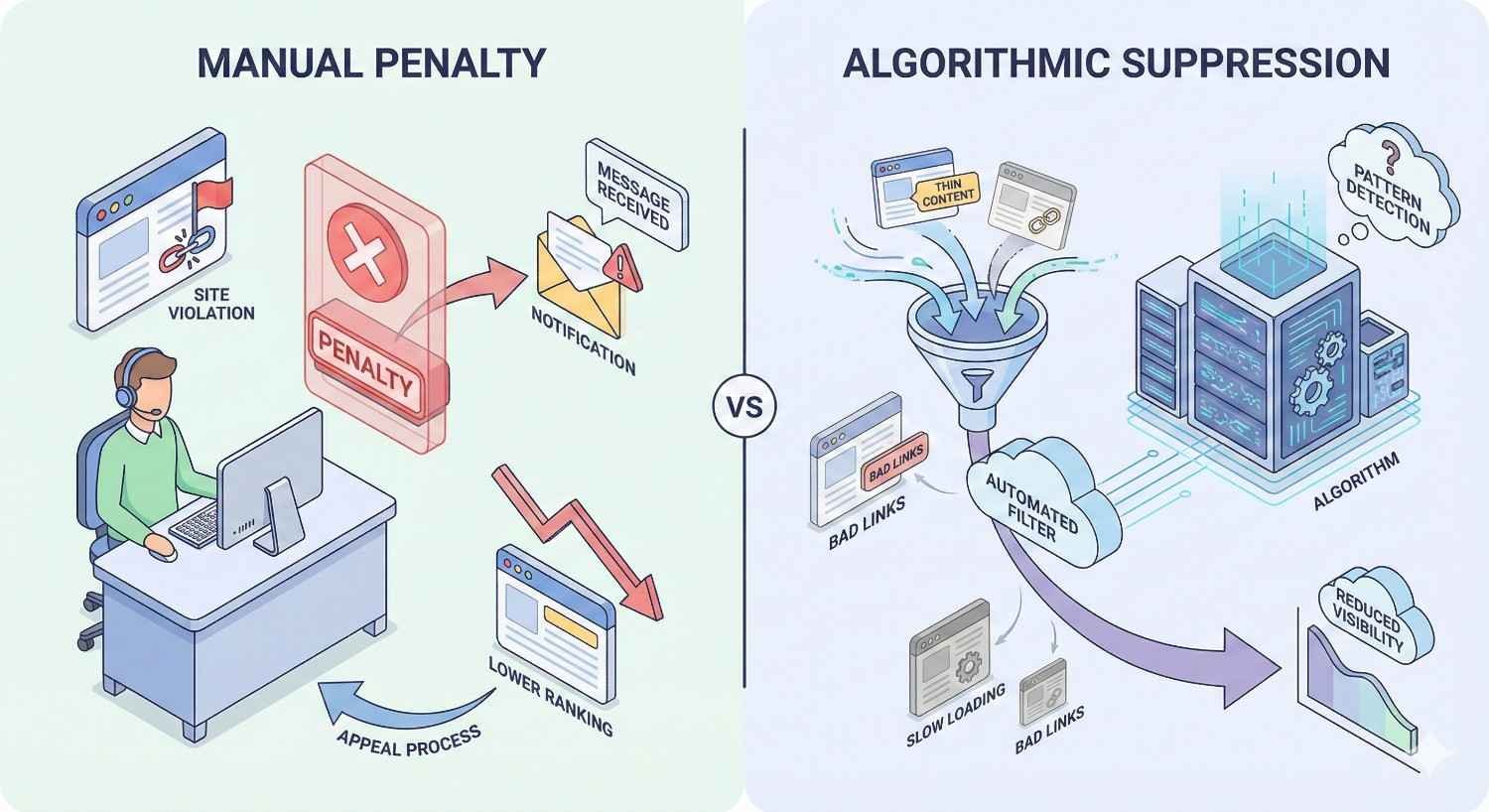
Manual Penalty vs. Algorithmic Suppression
Understanding the difference between manual penalties and algorithmic suppression determines your response strategy.
Manual penalties result from human reviewers at Google identifying violations of their guidelines. You’ll receive a notification in Search Console explaining the issue. Recovery requires fixing the problem and submitting a reconsideration request. Disavow files are often essential for manual penalty recovery.
Algorithmic suppression happens automatically when Google’s systems detect patterns associated with manipulation. No notification appears. Your rankings simply decline. Recovery requires improving your overall link profile quality, but Google may eventually ignore problematic links without intervention.
Manual penalties demand immediate action. Algorithmic issues may resolve themselves as Google’s systems improve at identifying and discounting bad links automatically.
According to Google’s documentation, manual actions require explicit reconsideration requests after addressing the underlying issues. Algorithmic changes don’t—your site recovers automatically once the problems are resolved.
When Google Recommends Disavowing
Google explicitly recommends using the disavow tool in limited circumstances:
After receiving a manual action for unnatural links pointing to your site. The reconsideration request process typically requires demonstrating you’ve attempted to remove bad links and disavowed those you couldn’t remove.
When you’ve participated in link schemes and want to clean up your profile proactively. If you previously bought links, participated in link exchanges, or used private blog networks, disavowing those links shows Google you’re distancing yourself from past practices.
During active negative SEO attacks where competitors or malicious actors are building spammy links to your site at scale. While Google claims to handle most negative SEO automatically, sustained attacks may warrant proactive disavowing.
Google’s Gary Illyes has stated that the disavow tool is “really for people who have done something wrong in the past” or are experiencing “really weird link attacks.” For most sites, he recommends leaving the tool alone.
When NOT to Use a Disavow File
The disavow tool causes more problems than it solves when used unnecessarily. Avoid disavowing in these situations:
Normal low-quality links that every website accumulates naturally. Scraped content, automated directories, and random spam links exist in virtually every backlink profile. Google ignores these automatically.
Links you’re unsure about. When in doubt, don’t disavow. Accidentally disavowing legitimate links from relevant sites damages your rankings. The risk of over-disavowing exceeds the risk of keeping questionable links.
Competitor links you’re jealous of. Some site owners disavow links simply because they come from sites they don’t like or consider low-quality. Unless those links are actively harming you, leave them alone.
As a preventive measure. Don’t disavow links “just in case.” The tool is reactive, not proactive. Wait until you have evidence of actual harm.
Without attempting manual removal first. Google expects you to try removing links before disavowing. Jumping straight to disavow signals you haven’t done due diligence.
How to Identify Toxic Backlinks
Identifying genuinely toxic backlinks requires systematic analysis, not gut feelings. A link looking “spammy” doesn’t make it harmful. Focus on patterns and evidence rather than individual link aesthetics.
Backlink Audit Tools and Data Sources
Start with Google Search Console’s Links report. Navigate to Links > Top linking sites to see domains linking to you. This data comes directly from Google and shows what they’re actually counting.
Export this data, then supplement with third-party tools for deeper analysis:
Ahrefs provides comprehensive backlink data with spam indicators and historical link acquisition patterns. Their “Referring Domains” report shows domain-level metrics that help identify problematic sources.
Semrush offers a Backlink Audit tool that automatically flags potentially toxic links based on multiple signals. Their toxicity scoring system helps prioritize review efforts.
Moz provides spam score metrics at the domain level, helping identify sites with characteristics associated with manipulation.
Majestic offers Trust Flow and Citation Flow metrics that reveal discrepancies between link quantity and quality.
No single tool catches everything. Cross-reference findings across multiple sources. A link flagged as toxic by one tool but clean by others warrants manual review rather than automatic disavowing.
Red Flags: What Makes a Backlink Toxic
Toxic backlinks share identifiable characteristics. Look for these patterns across your link profile:
Spam Score Indicators
High spam scores from tools like Moz suggest a domain exhibits characteristics common to manipulative sites. These include thin content, excessive outbound links, hidden text, and aggressive monetization.
However, spam scores are probabilistic, not definitive. A high spam score means the domain resembles spam sites—not that it definitely is one. Manual verification remains essential.
Domains with spam scores above 60-70% warrant closer inspection. Those above 80% are strong disavow candidates if they’re also irrelevant to your niche.
Link Scheme Patterns
Link schemes leave recognizable footprints:
Private Blog Networks (PBNs) often share hosting, registration details, or design templates. Links from multiple sites with identical layouts or content structures suggest coordinated manipulation.
Link exchanges create reciprocal patterns where sites link to each other unnaturally. Check if sites linking to you also receive links from you or your other properties.
Paid link networks frequently use specific anchor text patterns, link from “sponsored post” or “guest post” pages, or cluster links to multiple unrelated sites on the same pages.
Article directories and web 2.0 spam involve mass-created profiles and posts on platforms like Blogger, WordPress.com, or article submission sites, often with keyword-stuffed content.
Unnatural Anchor Text Distribution
Natural backlink profiles show diverse anchor text. Most links use brand names, URLs, or generic phrases like “click here” or “this website.” Exact-match keyword anchors typically represent a small percentage.
Unnatural profiles show:
- Over-optimized anchors: More than 10-15% of links using exact-match target keywords
- Repetitive patterns: The same anchor text appearing across dozens of unrelated sites
- Commercial intent mismatch: Transactional anchor text from informational or unrelated content
Analyze your anchor text distribution using any major backlink tool. Compare against competitors in your space to establish baseline expectations for your industry.

Manual Review vs. Automated Detection
Automated tools flag potential issues. Human judgment determines actual toxicity.
Automated detection excels at scale. When you have thousands of referring domains, tools help prioritize which ones deserve attention. Set thresholds (spam score above 60, domain authority below 10, etc.) to create a review queue.
Manual review catches context that algorithms miss. A link from a low-authority site might be legitimate if it’s a genuine small business in your industry. A link from a high-authority site might be toxic if it’s clearly paid placement.
For each flagged link, ask:
- Is this site relevant to my industry or audience?
- Does the linking page have legitimate content?
- Would a human visitor find this link useful?
- Is there any indication of payment or manipulation?
When uncertain, err toward keeping the link. Google’s systems are better at ignoring irrelevant links than recovering from accidentally disavowed good ones.
How to Create a Disavow File (Step-by-Step)
Creating an effective disavow file requires methodical preparation. Rushing this process leads to mistakes that can damage your rankings more than the toxic links themselves.
Step 1: Export Your Backlink Profile
Gather comprehensive backlink data from multiple sources:
From Google Search Console:
- Navigate to Links > Top linking sites
- Click “Export external links” in the top right
- Download the full list of linking domains and pages
From third-party tools: Export referring domains and backlinks from Ahrefs, Semrush, or your preferred tool. Include metrics like domain authority, spam score, and anchor text.
Consolidate data into a single spreadsheet. Remove duplicates and create columns for:
- Linking domain
- Specific URL (if available)
- Anchor text
- Spam score/toxicity rating
- Your assessment (keep/review/disavow)
- Notes
This master document becomes your audit trail and disavow decision record.
Step 2: Analyze and Flag Toxic Links
Work through your consolidated list systematically:
First pass: Automated filtering Flag links meeting obvious toxic criteria:
- Spam score above 70%
- Domains in foreign languages (if you don’t operate there)
- Known link networks or PBN patterns
- Exact-match anchor text from irrelevant sites
Second pass: Manual review Examine flagged links individually. Visit the linking pages when possible. Determine whether the link represents genuine editorial choice or manipulation.
Third pass: Pattern identification Look for clusters of links sharing characteristics:
- Same registrar or hosting
- Similar site designs
- Identical content structures
- Coordinated anchor text
Document your reasoning for each disavow decision. This documentation proves essential if you need to file a reconsideration request or revisit decisions later.
Step 3: Attempt Manual Link Removal First
Before disavowing, try removing links directly. Google expects this effort, especially for manual penalty recovery.
Find contact information for linking sites. Check for contact pages, WHOIS data, or social media profiles.
Send removal requests that are professional and specific. Include:
- The exact URL containing the link
- Your URL being linked to
- A polite request for removal
- Your contact information
Template example:
Copy
Subject: Link Removal Request
Hello,
I’m contacting you regarding a link on your website pointing to [your URL].
Page containing the link: [their URL]
We’re conducting a backlink audit and would appreciate if you could remove this link. If removal isn’t possible, please let me know.
Thank you for your time.
[Your name]
[Your contact info]
Document all outreach attempts. Screenshot emails, record dates, and note responses. This documentation supports reconsideration requests.
Wait 2-4 weeks for responses before proceeding to disavow. Many webmasters ignore removal requests, but the attempt matters for demonstrating good faith.
Step 4: Format Your Disavow File Correctly
Create your disavow file using a plain text editor. Follow Google’s exact formatting requirements.
Disavowing Individual URLs
Use the full URL when you want to disavow a specific page but keep other links from that domain:
Copy
http://example.com/spammy-page-with-link
https://anothersite.com/paid-post-123
Include the protocol (http:// or https://). URLs without protocols may not be processed correctly.
Disavowing Entire Domains
Use the domain: directive when all links from a site are problematic:
Copy
domain:spammysite.com
domain:linkfarm.net
This disavows all links from the domain and its subdomains. Use domain-level disavowing for:
- Sites entirely dedicated to link schemes
- Domains with multiple toxic pages linking to you
- Sites you have no legitimate relationship with
Adding Comments and Organization
Comments help you understand past decisions when reviewing your file later:
Copy
# Disavow file for example.com
# Last updated: March 2025
# Contact: seo@example.com
# Link network identified during March 2025 audit
# Removal requests sent 2/15/25, no response
domain:linknetwork1.com
domain:linknetwork2.com
domain:linknetwork3.com
# Paid guest posts from 2023 – removal confirmed impossible
http://guestpostsite.com/sponsored-content-123
http://guestpostsite.com/sponsored-content-456
# Negative SEO attack – ongoing since January 2025
domain:attacksite1.com
domain:attacksite2.com
Organize entries logically. Group by type, date identified, or removal attempt status. Future you will appreciate the clarity.
Step 5: Validate File Format Before Upload
Before uploading, verify your file meets all requirements:
Encoding check: Open the file in a text editor and confirm it’s saved as UTF-8 or ASCII. Special characters or formatting from word processors cause failures.
Line ending check: Use standard line breaks. Mixed line endings (Windows vs. Mac vs. Linux) can cause parsing issues.
Syntax check: Verify every line is either:
- A comment starting with #
- A full URL (http:// or https://)
- A domain directive (domain:example.com)
Size check: Confirm the file is under 2MB and contains fewer than 100,000 lines.
Manual review: Read through the entire file. Check for typos in domain names, missing protocols, or accidentally included legitimate sites.
Consider having a colleague review your file before submission. Fresh eyes catch mistakes you’ve become blind to.
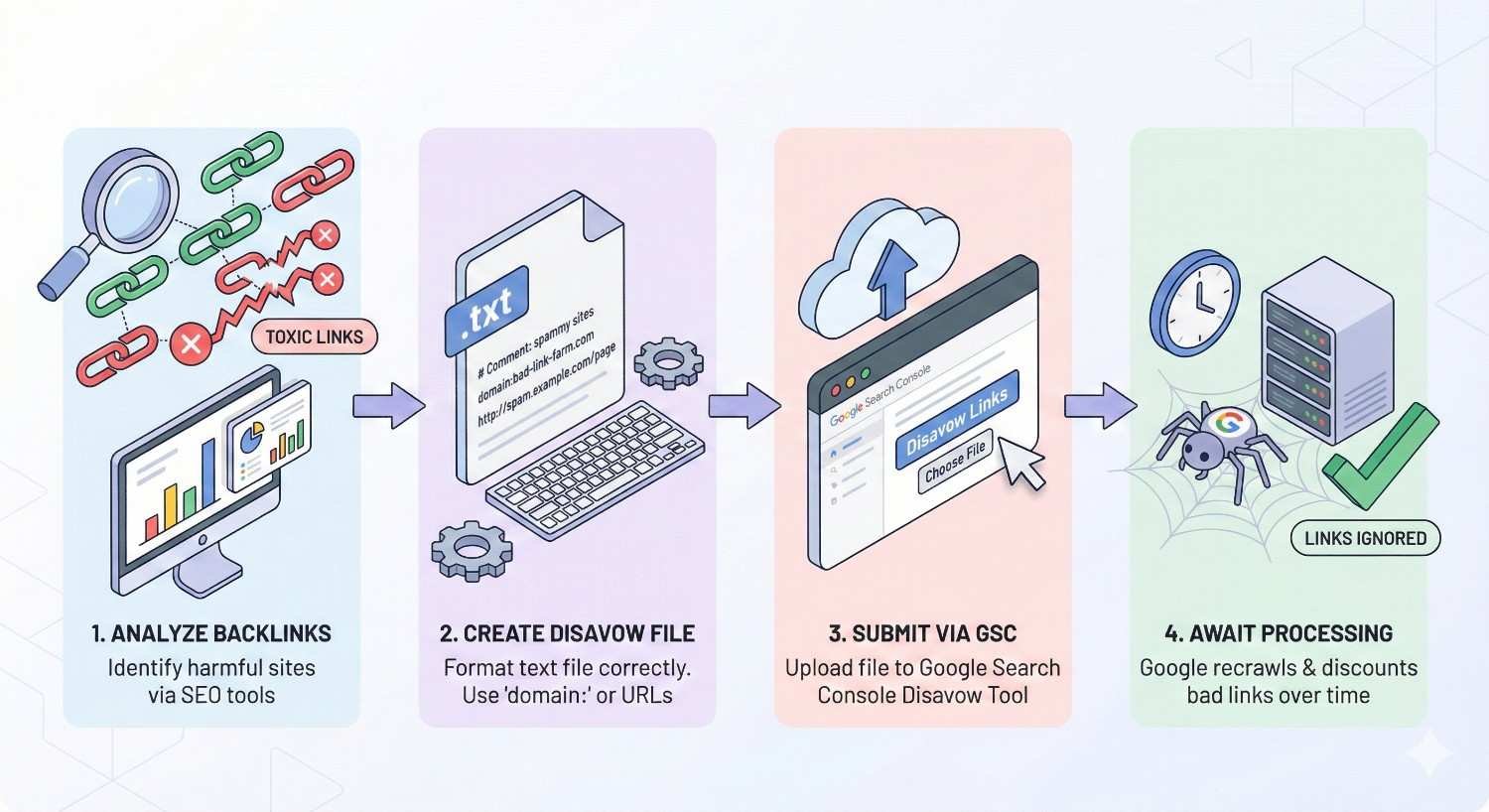
How to Submit a Disavow File to Google
Submitting your disavow file requires access to Google Search Console with owner-level permissions for the property.
Accessing Google Search Console Disavow Tool
The disavow tool isn’t accessible through the main Search Console interface. Access it directly at:
https://search.google.com/search-console/disavow-links
Select the property you want to disavow links for. You must have owner-level verification—editor or user permissions aren’t sufficient.
If you manage multiple properties (www vs. non-www, http vs. https), submit the disavow file to your primary property. Google associates disavow data with the canonical version of your site.
Uploading Your Disavow File
The upload process includes multiple confirmation steps:
- Click “Select property” and choose your verified domain
- Read Google’s warning about the tool’s power and risks
- Click “Upload disavow list”
- Select your .txt file
- Review any errors or warnings Google identifies
- Confirm submission
Google validates the file format during upload. Common errors include:
- Invalid URL format: Missing protocols or malformed URLs
- Encoding issues: Non-UTF-8 characters
- Empty lines: Some systems flag excessive blank lines
If errors appear, fix them in your source file and re-upload. Don’t proceed with a file containing errors.
What Happens After Submission
After successful upload, Google confirms receipt but provides no timeline for processing. Behind the scenes:
Immediate: Google stores your disavow file and associates it with your property. The file replaces any previously uploaded disavow file entirely.
During crawling: When Googlebot encounters pages you’ve disavowed, it notes the disavow instruction. The link’s influence on your rankings begins decreasing.
Over time: As Google recrawls both your site and the disavowed linking pages, the disavow takes fuller effect. Complete processing typically requires multiple crawl cycles.
You won’t receive confirmation when processing completes. Monitor your rankings and Search Console data for signs of improvement.
How Long Does a Disavow File Take to Work?
Patience is essential after submitting a disavow file. Results don’t appear overnight, and expecting immediate changes leads to unnecessary anxiety and premature additional actions.
Google’s Processing Timeline
Google doesn’t publish official processing timelines, but industry experience suggests:
Initial processing: 2-4 weeks for Google to incorporate your disavow file into their systems and begin applying it during crawls.
Visible impact: 4-12 weeks before ranking changes become noticeable, depending on how frequently Google crawls your site and the disavowed pages.
Full effect: 3-6 months for complete processing, especially if disavowed pages are crawled infrequently.
These timelines assume no other ranking factors change simultaneously. Algorithm updates, competitor actions, and your own site changes all influence rankings independently.
Recrawling and Reindexing Requirements
Disavow effectiveness depends on crawl frequency:
Your site must be recrawled for Google to reassess your link profile. Sites with frequent content updates get crawled more often. Static sites may wait longer between crawls.
Disavowed pages must also be recrawled. If a spammy site linking to you is rarely crawled, Google may not process that specific disavow for months.
You cannot force Google to recrawl specific external pages. Focus on what you control—maintaining your site’s crawlability and continuing to publish quality content.
Monitoring Recovery After Disavowing
Track these metrics to assess disavow effectiveness:
Search Console performance: Monitor impressions, clicks, and average position for your target keywords. Look for gradual improvement trends rather than sudden jumps.
Organic traffic: Use Google Analytics to track organic sessions over time. Compare month-over-month and year-over-year to account for seasonality.
Ranking tracking: Monitor specific keyword positions using your preferred rank tracking tool. Focus on keywords that dropped when you identified the toxic link problem.
Manual action status: If you submitted a reconsideration request, check Search Console for Google’s response. Successful reconsideration confirms your disavow file addressed the issues.
Create a baseline before submitting your disavow file. Document current rankings, traffic, and Search Console metrics so you can measure changes accurately.
Common Disavow File Mistakes to Avoid
The disavow tool’s power makes mistakes costly. These errors cause more ranking damage than the toxic links they’re meant to address.
Disavowing Good Links by Accident
The most damaging mistake is disavowing legitimate backlinks. This happens when:
Over-relying on automated tools: Spam score algorithms flag legitimate sites that happen to share characteristics with spam. A small business blog with low domain authority isn’t necessarily toxic.
Disavowing entire domains carelessly: Using domain: when only specific pages are problematic removes all link value from that domain, including legitimate editorial links.
Misunderstanding link quality: Links from sites you don’t recognize aren’t automatically bad. Many legitimate sites link to content without the site owner’s knowledge.
Prevention: Review every disavow decision manually. When uncertain, keep the link. Visit linking pages to verify they’re actually problematic.
Incorrect File Formatting Errors
Formatting mistakes cause partial or complete upload failures:
Wrong file type: Saving as .doc, .rtf, or other formats instead of plain .txt Encoding issues: Using non-UTF-8 encoding or including special characters Missing protocols: Writing “example.com/page” instead of “http://example.com/page” Typos in domain directive: Writing “Domain:” or “DOMAIN:” instead of lowercase “domain:”
Prevention: Use a plain text editor. Validate format before uploading. Test with a small file first if you’re unsure about your process.
Using Disavow as a First Resort
Jumping to disavow without attempting removal first creates problems:
Reconsideration request rejection: Google expects documented removal attempts before accepting disavow-based reconsideration requests.
Unnecessary disavowing: Some site owners will remove links if asked. You might disavow links that could have been removed entirely.
Incomplete cleanup: Manual outreach sometimes reveals additional problematic links or patterns you missed in your audit.
Prevention: Always attempt manual removal first. Document all outreach. Wait 2-4 weeks for responses before disavowing.
Not Documenting Your Disavow Decisions
Poor documentation creates long-term problems:
Forgotten reasoning: Six months later, you won’t remember why you disavowed specific domains. Was it a mistake? Should you remove them from the file?
Reconsideration complications: Manual action recovery requires explaining your cleanup process. Without documentation, you can’t demonstrate due diligence.
Team confusion: If someone else takes over SEO, they inherit a disavow file with no context about what’s in it or why.
Prevention: Comment your disavow file thoroughly. Maintain a separate spreadsheet documenting each decision, the evidence supporting it, and removal attempt outcomes.
How to Update or Remove a Disavow File
Disavow files aren’t permanent. Regular maintenance ensures your file remains accurate and doesn’t accidentally harm your rankings.
When to Update Your Disavow File
Update your disavow file when:
New toxic links appear: Ongoing negative SEO attacks or continued spam require adding new entries.
You discover mistakes: If you accidentally disavowed legitimate links, remove them promptly.
Previously toxic sites improve: Rarely, a site you disavowed might clean up and become legitimate. Consider removing them.
Your link profile changes: Major site changes, rebranding, or new link building efforts warrant reviewing your disavow file for relevance.
Schedule quarterly disavow file reviews as part of your regular SEO maintenance.
How to Add New Links to an Existing File
Google’s disavow tool replaces your entire file with each upload. You cannot append to an existing file.
Process for updates:
- Download your current disavow file from the disavow tool
- Add new entries to the downloaded file
- Update comments to reflect the changes
- Upload the complete updated file
Important: Always start with your existing file. Uploading a new file without your previous entries removes all previous disavows.
Maintain a master copy of your disavow file locally. Don’t rely solely on downloading from Google—keep version-controlled backups.
How to Remove or Cancel a Disavow File
To remove your disavow file entirely:
- Access the disavow tool
- Select your property
- Click “Cancel disavow” or upload an empty file
Removing your disavow file tells Google to resume counting all previously disavowed links. This is appropriate when:
- You’ve determined the disavow was unnecessary
- The toxic links have been removed from the web
- You want to start fresh with a new analysis
Warning: Removing a disavow file that was addressing genuine toxic links will likely cause ranking problems to return. Only remove if you’re confident the underlying issues are resolved.
Disavow File Best Practices
Following established best practices maximizes disavow effectiveness while minimizing risk.
Conservative vs. Aggressive Disavowing
Conservative approach: Disavow only links with clear evidence of manipulation or harm. Accept that some questionable links will remain. Trust Google to ignore most low-quality links automatically.
Aggressive approach: Disavow anything that looks potentially problematic. Cast a wide net to ensure all toxic links are caught.
Recommendation: Start conservative. Google’s algorithms handle most spam automatically. Aggressive disavowing risks removing legitimate links and signals distrust in Google’s ability to evaluate links.
Reserve aggressive disavowing for severe situations: active manual penalties, sustained negative SEO attacks, or recovery from known link scheme participation.
Documentation and Record-Keeping
Maintain comprehensive records:
Disavow decision log: Spreadsheet documenting every domain/URL considered, the decision made, evidence supporting it, and date.
Removal outreach log: Record of all removal request emails, dates sent, and responses received.
Version history: Dated copies of each disavow file version uploaded.
Performance tracking: Baseline metrics before disavowing and ongoing tracking afterward.
Store documentation securely and ensure team members can access it. This information proves invaluable during audits, reconsideration requests, or when onboarding new team members.
Regular Backlink Monitoring Schedule
Proactive monitoring catches problems before they escalate:
Weekly: Quick check of Search Console for new linking domains. Flag anything unusual for review.
Monthly: Comprehensive backlink audit using third-party tools. Compare against previous month to identify trends.
Quarterly: Full disavow file review. Verify all entries remain appropriate. Add new toxic links identified during monthly audits.
After major events: Algorithm updates, traffic drops, or manual action notifications warrant immediate comprehensive review.
Automate where possible. Set up alerts in your backlink tools for sudden spikes in new referring domains or links from specific countries.
Combining Disavow with Link Cleanup Outreach
Disavowing and manual removal work together:
Parallel processing: Don’t wait for removal responses before disavowing. Send removal requests and prepare your disavow file simultaneously.
Prioritize removal for high-value situations: If a toxic link comes from a site that also has legitimate links to you, pursue removal rather than domain-level disavowing.
Document removal successes: When sites remove links, note this in your records. You may be able to remove those entries from future disavow file versions.
Follow up on non-responses: Send second removal requests after 2 weeks. Some webmasters respond to persistence.
The combination demonstrates thorough due diligence—essential for manual action recovery and good practice regardless.
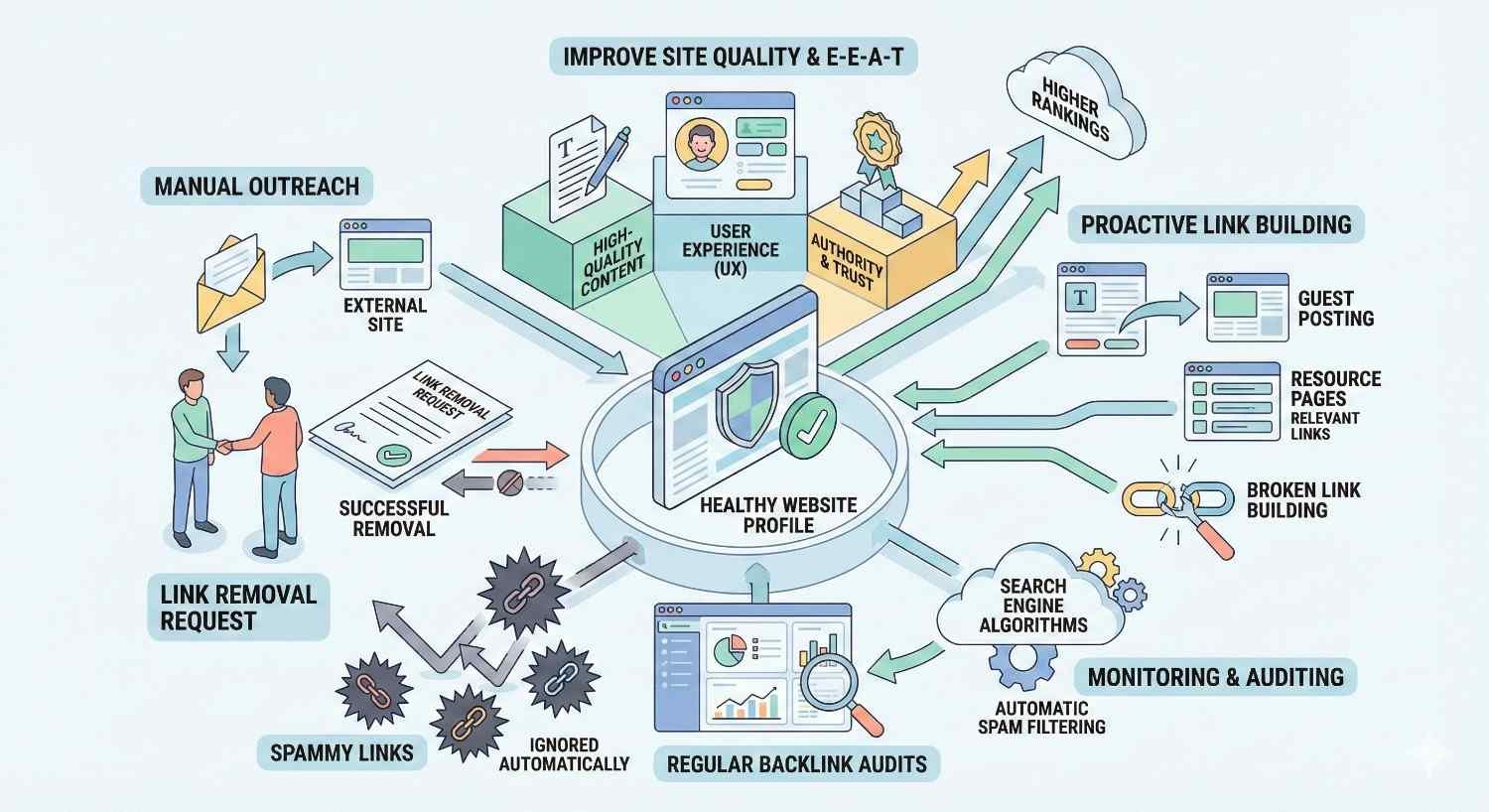
Alternatives to Using a Disavow File
The disavow tool isn’t always the right solution. Consider these alternatives before reaching for the nuclear option.
Manual Link Removal Outreach
Direct removal eliminates links entirely rather than just asking Google to ignore them.
Advantages:
- Permanent solution—the link no longer exists
- Demonstrates proactive cleanup to Google
- Removes the link from all search engines, not just Google
Process:
- Identify contact information for linking sites
- Send professional, specific removal requests
- Follow up after 2 weeks if no response
- Document all attempts
Success rates vary. Legitimate sites often comply. Spam sites rarely respond. Expect 10-30% removal success rates for mixed link profiles.
Building Fresh High-Quality Links
Sometimes the best response to toxic links is dilution rather than removal.
Concept: If toxic links represent a small percentage of your profile, building more high-quality links reduces their proportional impact.
When this works:
- Toxic links are limited in number
- No manual penalty exists
- Your site has strong content worth linking to
When this doesn’t work:
- Active manual penalty requiring cleanup
- Toxic links dominate your profile
- Ongoing negative SEO adding links faster than you can build
Focus link building on earning editorial links from relevant, authoritative sites in your industry. Quality matters more than quantity.
When to Wait for Google to Ignore Bad Links
Google’s systems increasingly identify and discount manipulative links automatically.
Consider waiting when:
- No manual penalty exists
- Toxic links represent a small percentage of your profile
- Rankings haven’t noticeably declined
- The links are obviously spam that Google likely ignores already
Monitor while waiting:
- Track rankings for signs of decline
- Watch Search Console for manual action notifications
- Continue regular backlink audits
Google’s John Mueller has stated that for most sites, “you probably don’t need to worry about” random spam links. The disavow tool exists for exceptional situations, not routine maintenance.
When to Get Professional Help with Disavowing
Some situations exceed DIY capabilities. Recognizing when to seek expert assistance prevents costly mistakes.
Complex Penalty Scenarios
Professional help is warranted when:
Multiple manual actions affect your site simultaneously. Coordinating recovery across link-based and content-based penalties requires experienced strategy.
Reconsideration requests fail repeatedly. If Google rejects your requests, something in your approach isn’t working. Fresh expert perspective identifies blind spots.
Site history is unclear. Inherited sites or those with multiple past owners may have unknown link building history. Professionals have tools and experience to uncover hidden problems.
Stakes are high. If organic traffic represents significant revenue, the cost of professional help is minor compared to extended ranking loss.
Large-Scale Negative SEO Attacks
Sustained attacks building thousands of toxic links require specialized response:
Volume management: Manually reviewing thousands of links isn’t practical. Professionals have workflows and tools for efficient large-scale analysis.
Attack pattern identification: Experienced practitioners recognize attack signatures and can predict future attack vectors.
Ongoing monitoring: Attacks often continue after initial cleanup. Professionals establish monitoring systems to catch new attacks quickly.
Legal considerations: Some attacks warrant legal action. Professionals can document evidence appropriately and connect you with relevant legal resources.
How SEO Agencies Approach Disavow Strategy
Professional agencies bring systematic approaches:
Comprehensive auditing: Using multiple data sources, proprietary tools, and manual review processes refined through hundreds of client engagements.
Risk assessment frameworks: Evaluating each link against established criteria rather than gut feelings. Consistent methodology reduces errors.
Documentation standards: Creating audit trails that satisfy Google’s reconsideration requirements and provide clear records for future reference.
Recovery tracking: Establishing baselines, monitoring progress, and adjusting strategy based on results rather than assumptions.
Ongoing management: Providing continued monitoring and maintenance rather than one-time cleanup.
When evaluating agencies, ask about their disavow experience specifically. Request case studies showing penalty recovery. Understand their methodology before engaging.
Conclusion
Disavow files serve a specific purpose: telling Google to ignore backlinks that are actively harming your rankings. Most sites never need one. When you do need it, proper execution—thorough auditing, attempted manual removal, correct formatting, and patient monitoring—determines success.
The key is restraint. Disavowing legitimate links damages rankings more than keeping questionable ones. Start conservative, document everything, and trust Google’s algorithms to handle routine spam automatically. Reserve the disavow tool for genuine toxic link problems with clear evidence of harm.
At White Label SEO Service, we help businesses navigate complex backlink situations, from penalty recovery to negative SEO defense. If your link profile needs professional attention, our team brings the systematic approach and experience to clean it up correctly. Contact us to discuss your specific situation.
Frequently Asked Questions
How do I know if I need to use a disavow file?
You likely need a disavow file if you’ve received a manual action notification in Google Search Console for unnatural links, or if you’ve experienced significant ranking drops coinciding with identifiable toxic backlink acquisition. Most sites with normal spam links don’t need to disavow—Google ignores these automatically.
Can disavowing links hurt my rankings?
Yes. Disavowing legitimate links removes their positive ranking contribution. This is why conservative disavowing is recommended. Only disavow links with clear evidence of manipulation or harm. When uncertain about a link’s quality, keep it rather than risk accidentally disavowing something valuable.
How long does it take for a disavow file to work?
Expect 4-12 weeks before seeing noticeable ranking changes, with full effect taking 3-6 months. The timeline depends on how frequently Google crawls your site and the disavowed pages. There’s no way to speed up this process—patience and continued monitoring are essential.
Should I disavow links from low domain authority sites?
Not automatically. Low domain authority doesn’t equal toxic. Many legitimate small businesses, blogs, and niche sites have low authority metrics but provide genuine editorial links. Focus on manipulation signals—spam patterns, link schemes, irrelevant content—rather than authority scores alone.
Can I undo a disavow file if I make a mistake?
Yes. Upload a new disavow file without the mistakenly included entries, or remove your disavow file entirely through the disavow tool. Google will resume counting previously disavowed links during subsequent crawls. However, recovery from disavow mistakes takes time—the same weeks-to-months timeline applies.
Do I need to disavow links for a new website?
Rarely. New websites typically don’t have toxic backlink problems unless they inherited a penalized domain or someone is actively attacking them. Focus on building quality content and earning legitimate links rather than worrying about the random spam links every site accumulates.
What’s the difference between disavowing a URL and a domain?
Disavowing a URL (http://example.com/page) only affects that specific page’s link to your site. Disavowing a domain (domain:example.com) affects all links from that domain and its subdomains. Use domain-level disavowing when an entire site is problematic; use URL-level when only specific pages are issues.