

Migrating from HTTP to HTTPS protects your website visitors, preserves your search rankings, and builds the trust signals Google now expects from every legitimate business online. A poorly executed migration can tank organic traffic for months. A properly planned one maintains visibility while adding encryption.
This guide walks you through the complete HTTPS migration process. You’ll learn certificate selection, server configuration, redirect implementation, and post-migration monitoring. Whether you manage a small business site or enterprise platform, these steps protect your SEO investment.
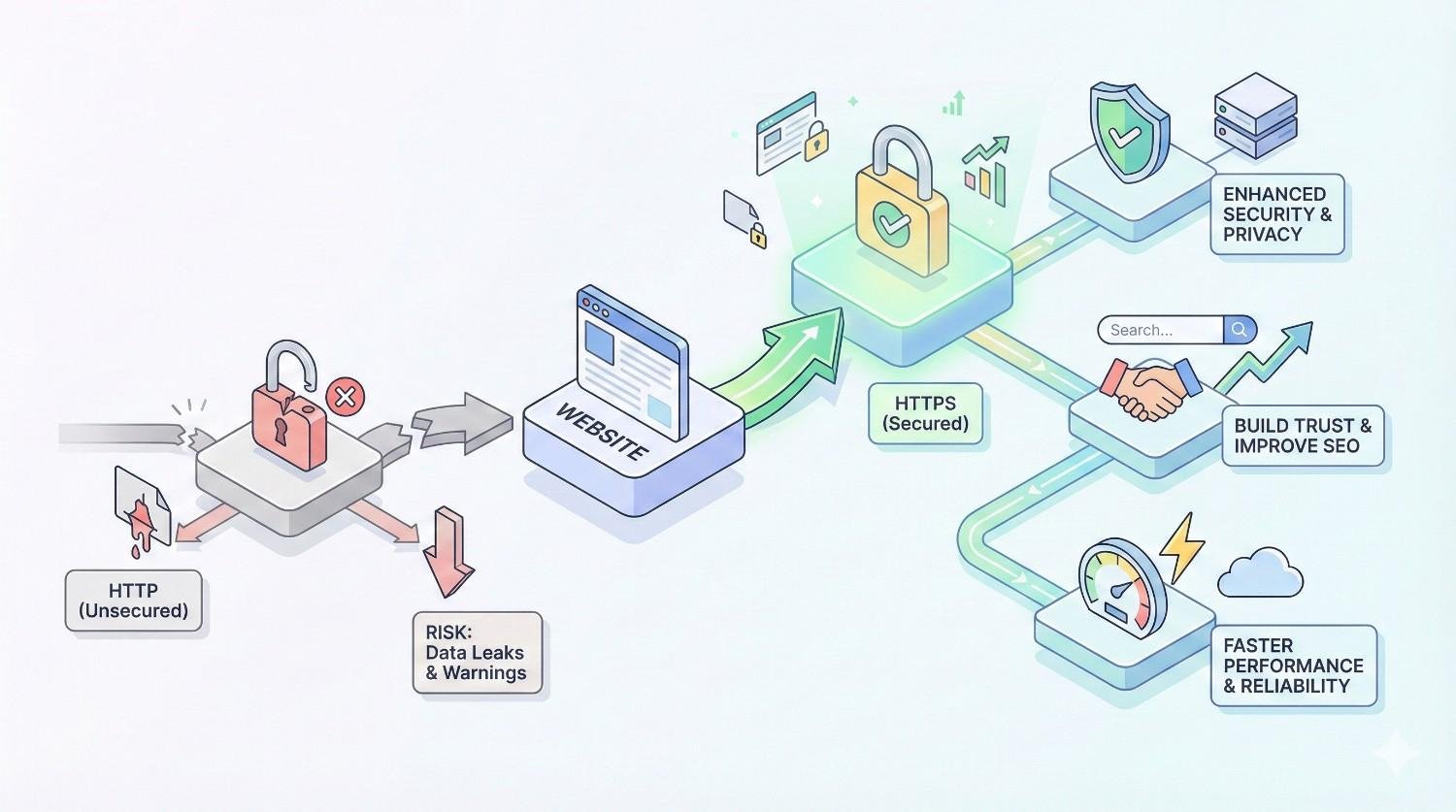
What Is HTTPS and Why It Matters for Your Website
HTTPS represents the secure version of the Hypertext Transfer Protocol that powers web communication. The “S” stands for secure, indicating that data traveling between browsers and servers receives encryption protection. Understanding this protocol shift helps you appreciate why migration isn’t optional anymore.
Understanding HTTP vs HTTPS Protocol Differences
HTTP transmits data in plain text. Anyone intercepting the connection can read usernames, passwords, credit card numbers, and form submissions. HTTPS wraps that same data in TLS encryption before transmission.
The technical difference involves a handshake process. When browsers connect to HTTPS sites, they verify the server’s identity through its SSL/TLS certificate. This verification prevents man-in-the-middle attacks where hackers impersonate legitimate websites.
Port numbers differ too. HTTP uses port 80 by default. HTTPS uses port 443. Your server configuration must account for this when setting up secure connections.
Visual indicators matter for user trust. Chrome, Firefox, Safari, and Edge all display padlock icons for HTTPS sites. HTTP sites receive “Not Secure” warnings that damage credibility immediately.
SSL/TLS Certificate Encryption Explained
SSL certificates create encrypted tunnels between browsers and servers. Despite the name, modern certificates actually use TLS (Transport Layer Security) protocol. SSL is technically deprecated, but the terminology persists.
Encryption works through public-key cryptography. Your certificate contains a public key that browsers use to encrypt data. Only your server’s private key can decrypt it. This asymmetric encryption ensures secure communication even over public networks.
Certificate authorities (CAs) validate your identity before issuing certificates. This validation ranges from simple domain ownership verification to extensive organization background checks. The validation level determines which certificate type you receive.
Certificate chains establish trust hierarchies. Your certificate links to intermediate certificates, which connect to root certificates pre-installed in browsers. This chain of trust lets browsers verify your site’s legitimacy automatically.
SEO and Security Benefits of HTTPS Migration
Google confirmed HTTPS as a ranking signal in 2014. While initially described as a “lightweight” factor, secure sites consistently outperform HTTP equivalents in competitive searches. The ranking benefit compounds with other quality signals.
Beyond rankings, HTTPS enables modern web features. HTTP/2 protocol requires encryption. Service workers for offline functionality need HTTPS. Progressive web app features demand secure contexts. Staying on HTTP limits your technical capabilities.
User behavior metrics improve on HTTPS sites. Visitors stay longer when they see security indicators. Form completion rates increase. E-commerce conversion rates rise when checkout pages display padlock icons.
Referral data preservation requires HTTPS. When traffic moves from HTTPS sites to HTTP sites, referrer information gets stripped. You lose attribution data in analytics. HTTPS-to-HTTPS traffic maintains complete referral paths.
Pre-Migration Planning and Requirements
Successful migrations start with thorough preparation. Rushing into certificate installation without planning causes redirect loops, mixed content errors, and ranking drops. Invest time upfront to protect your organic traffic investment.
Choosing the Right SSL/TLS Certificate Type
Domain Validated (DV) certificates offer the fastest, cheapest option. Certificate authorities verify only that you control the domain. Validation takes minutes. DV certificates work perfectly for blogs, informational sites, and small business websites.
Organization Validated (OV) certificates require business verification. CAs confirm your organization exists and owns the domain. This process takes one to three days. OV certificates display company information when users inspect the certificate details.
Extended Validation (EV) certificates demand the most rigorous verification. CAs verify legal existence, physical address, and operational status. The process takes one to two weeks. EV certificates previously displayed green address bars, though browsers have largely removed this visual distinction.
Wildcard certificates secure unlimited subdomains under one domain. A certificate for *.example.com covers shop.example.com, blog.example.com, and any other subdomain. Wildcards simplify management for complex site architectures.
Multi-domain certificates (SAN certificates) cover multiple distinct domains. One certificate can secure example.com, example.net, and differentbrand.com. This option suits businesses managing multiple properties.
Technical Prerequisites and Server Requirements
Server software must support TLS 1.2 or higher. TLS 1.0 and 1.1 are deprecated and create security vulnerabilities. Check your Apache, Nginx, or IIS version supports modern protocols.
Dedicated IP addresses were historically required for SSL. Server Name Indication (SNI) technology now allows multiple certificates on shared IPs. Most modern browsers support SNI, but verify your hosting environment’s capabilities.
Server processing power affects HTTPS performance. Encryption requires CPU resources. While modern hardware handles this easily, older servers or high-traffic sites may need optimization. Enable session resumption to reduce handshake overhead.
Firewall and security configurations need updates. Port 443 must be open for HTTPS traffic. Load balancers require SSL termination configuration. CDN settings need certificate installation at edge servers.
Creating a Comprehensive Migration Checklist
Document every URL on your site. Crawl tools like Screaming Frog export complete URL lists. This inventory becomes your redirect mapping foundation. Include images, PDFs, and other assets in your crawl.
Identify all internal links. Search your database and templates for hardcoded HTTP URLs. Content management systems often store absolute URLs in content fields. These need updating during migration.
List external integrations. Payment processors, analytics tools, marketing platforms, and third-party scripts all need HTTPS compatibility verification. Some older integrations may not support secure connections.
Map your redirect strategy. Every HTTP URL needs a corresponding HTTPS destination. Complex sites with URL structure changes require detailed mapping spreadsheets. Simple migrations use pattern-based redirects.
Schedule your migration window. Choose low-traffic periods when possible. Have team members available for immediate troubleshooting. Communicate the timeline to stakeholders who might notice temporary issues.
Backup and Rollback Strategy Planning
Create complete site backups before migration. Database exports, file system copies, and configuration snapshots enable recovery if problems occur. Store backups in locations accessible even if the server fails.
Document current server configurations. Export Apache .htaccess files, Nginx configuration blocks, and any custom settings. These documents let you restore previous states quickly.
Plan your rollback triggers. Define what problems justify reverting to HTTP. Significant traffic drops, widespread functionality breaks, or security vulnerabilities might warrant rollback. Set clear decision criteria.
Test rollback procedures before migration. Verify you can actually restore from backups. Practice the process so you can execute quickly under pressure. Time your restoration to understand realistic recovery windows.
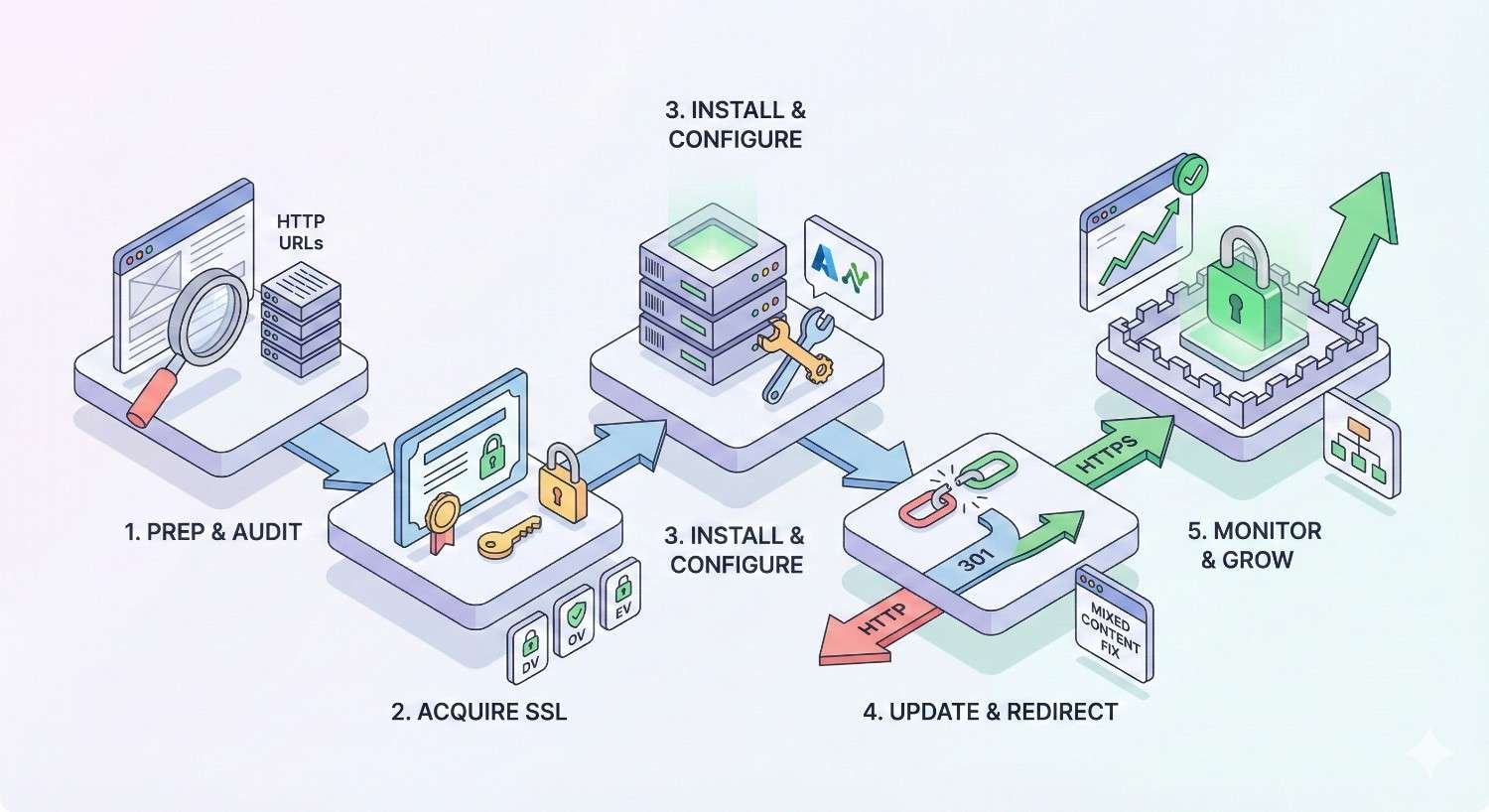
Step-by-Step HTTPS Migration Process
Execute these steps in order. Skipping steps or changing sequence causes problems. Each step builds on previous ones. Document your progress and verify completion before proceeding.
Step 1: Purchase and Install SSL/TLS Certificate
Select your certificate provider based on validation needs and budget. Let’s Encrypt offers free DV certificates. Commercial providers like DigiCert, Comodo, and GlobalSign offer paid options with additional features and support.
Generate a Certificate Signing Request (CSR) on your server. This process creates your private key and the request file sent to certificate authorities. Keep your private key secure. Never share it or store it in accessible locations.
Submit your CSR to the certificate authority. Complete any required validation steps. DV certificates may require email verification or DNS record creation. OV and EV certificates need documentation submission.
Download your issued certificate files. You’ll typically receive your certificate, intermediate certificates, and possibly a root certificate. The exact files depend on your CA and server type.
Install certificates on your server. Apache uses SSLCertificateFile, SSLCertificateKeyFile, and SSLCertificateChainFile directives. Nginx uses ssl_certificate and ssl_certificate_key parameters. Follow your server’s specific installation documentation.
Verify installation before proceeding. Access your site via HTTPS and check for certificate errors. Use online tools like SSL Labs to confirm proper configuration. Fix any issues before continuing.
Step 2: Update Internal Links to HTTPS
Search your database for HTTP URLs pointing to your own domain. WordPress sites can use plugins like Better Search Replace. Custom applications need database queries to identify and update links.
Update template files and theme code. Header logos, footer links, navigation menus, and hardcoded URLs in templates need HTTPS versions. Check CSS files for background image URLs.
Review content management system settings. WordPress stores site URL and home URL in options. Update these to HTTPS. Other CMS platforms have similar configuration settings.
Update canonical tags across all pages. Canonical URLs must point to HTTPS versions. Incorrect canonicals confuse search engines about your preferred URL version.
Check embedded media and assets. Images, videos, iframes, and other embedded content need HTTPS sources. Mixed content warnings appear when HTTPS pages load HTTP resources.
Step 3: Implement 301 Redirects from HTTP to HTTPS
Configure server-level redirects for best performance. Server redirects execute faster than application-level redirects. They also catch requests that bypass your CMS.
Apache servers use .htaccess or virtual host configuration:
apache
Copy
RewriteEngine On
RewriteCond %{HTTPS} off
RewriteRule ^(.*)$ https://%{HTTP_HOST}%{REQUEST_URI} [L,R=301]
Nginx servers use return directives in server blocks:
nginx
Copy
server {
listen 80;
server_name example.com www.example.com;
return 301 https://$server_name$request_uri;
}
Redirect both www and non-www versions. Decide your canonical domain version and redirect all variations. Users and search engines should reach one definitive HTTPS URL.
Avoid redirect chains. HTTP to HTTPS should be a single redirect. If you’re also changing www preference, combine into one redirect. Multiple redirects waste crawl budget and slow page loads.
Test redirects thoroughly. Check various URL patterns including deep pages, query strings, and trailing slashes. Verify redirects preserve URL paths correctly.
Step 4: Update Google Search Console and Analytics
Add your HTTPS property to Google Search Console. HTTPS and HTTP are treated as separate properties. You need both to monitor the transition and eventually see HTTPS data.
Submit your HTTPS sitemap to the new property. This helps Google discover your secure URLs faster. Keep the HTTP property active to monitor redirect processing.
Update Google Analytics settings. Change the default URL protocol to HTTPS in property settings. This ensures accurate tracking of your secure pages.
Review referral exclusion lists. Add HTTPS versions of your domain to prevent self-referrals. Payment processors and other redirect-heavy integrations may need exclusion updates.
Update any Google Ads destination URLs. Landing pages must use HTTPS to maintain ad approval and quality scores. Review all active campaigns for HTTP URLs.
Step 5: Update XML Sitemaps and Robots.txt
Generate new sitemaps with HTTPS URLs. Your sitemap should list only canonical HTTPS versions. Remove HTTP URLs from sitemap files.
Update sitemap location in robots.txt. The sitemap directive should point to your HTTPS sitemap URL. Verify robots.txt is accessible via HTTPS.
Review robots.txt directives. Ensure you’re not accidentally blocking HTTPS crawling. Some sites have separate robots.txt files for HTTP and HTTPS that need synchronization.
Submit updated sitemaps through Search Console. Use the HTTPS property to submit your new sitemap. Monitor indexing status to verify Google processes your secure URLs.
Step 6: Configure HSTS (HTTP Strict Transport Security)
HSTS tells browsers to always use HTTPS for your domain. After receiving the HSTS header, browsers automatically convert HTTP requests to HTTPS before sending them. This eliminates redirect latency for returning visitors.
Start with a short max-age value. Begin with 300 seconds (5 minutes) to test. Gradually increase to 31536000 (one year) after confirming everything works. HSTS mistakes are difficult to reverse.
Add the HSTS header to your server configuration:
Apache:
apache
Copy
Header always set Strict-Transport-Security “max-age=31536000; includeSubDomains”
Nginx:
nginx
Copy
add_header Strict-Transport-Security “max-age=31536000; includeSubDomains” always;
Consider HSTS preloading after extended testing. Preload submission adds your domain to browsers’ built-in HSTS lists. This provides protection even on first visits. However, preloading is essentially permanent. Only submit after thorough testing.
The includeSubDomains directive applies HSTS to all subdomains. Only use this if all subdomains support HTTPS. A single HTTP-only subdomain breaks functionality with this directive enabled.
Step 7: Update CDN and Third-Party Integrations
Configure your CDN for HTTPS delivery. Upload certificates to CDN edge servers or enable CDN-provided certificates. Cloudflare, AWS CloudFront, and other CDNs have specific SSL configuration processes.
Update CDN origin settings. Your CDN should fetch content from your HTTPS origin. Configure origin protocol policies to enforce secure connections throughout the delivery chain.
Review third-party script sources. Analytics, chat widgets, advertising pixels, and other external scripts need HTTPS versions. Contact vendors if they don’t offer secure endpoints.
Update API integrations. Webhooks, data feeds, and API callbacks may have hardcoded HTTP URLs. Update these endpoints in external systems that connect to your site.
Verify social sharing functionality. Open Graph tags, Twitter Cards, and other social metadata should reference HTTPS URLs. Test sharing to confirm previews display correctly.
Technical Configuration and Server Setup
Server configuration determines your HTTPS implementation’s security and performance. Default settings often leave vulnerabilities. Optimize your configuration for both security and speed.
Apache Server HTTPS Configuration
Enable required modules for SSL functionality. mod_ssl handles encryption. mod_headers enables security header configuration. mod_rewrite manages redirects.
apache
Copy
LoadModule ssl_module modules/mod_ssl.so
LoadModule headers_module modules/mod_headers.so
LoadModule rewrite_module modules/mod_rewrite.so
Configure your virtual host for HTTPS:
apache
Copy
<VirtualHost *:443>
ServerName example.com
DocumentRoot /var/www/html
SSLEngine on
SSLCertificateFile /path/to/certificate.crt
SSLCertificateKeyFile /path/to/private.key
SSLCertificateChainFile /path/to/chain.crt
SSLProtocol all -SSLv3 -TLSv1 -TLSv1.1
SSLCipherSuite ECDHE-ECDSA-AES128-GCM-SHA256:ECDHE-RSA-AES128-GCM-SHA256
SSLHonorCipherOrder on
Header always set Strict-Transport-Security “max-age=31536000”
</VirtualHost>
Disable outdated protocols. SSLv3, TLS 1.0, and TLS 1.1 have known vulnerabilities. Modern configurations support only TLS 1.2 and TLS 1.3.
Enable OCSP stapling for performance. This caches certificate validity checks, reducing connection overhead:
apache
Copy
SSLUseStapling on
SSLStaplingCache shmcb:/var/run/ocsp(128000)
Nginx Server HTTPS Configuration
Configure your server block for HTTPS:
nginx
Copy
server {
listen 443 ssl http2;
server_name example.com;
ssl_certificate /path/to/fullchain.pem;
ssl_certificate_key /path/to/private.key;
ssl_protocols TLSv1.2 TLSv1.3;
ssl_ciphers ECDHE-ECDSA-AES128-GCM-SHA256:ECDHE-RSA-AES128-GCM-SHA256;
ssl_prefer_server_ciphers off;
ssl_session_cache shared:SSL:10m;
ssl_session_timeout 1d;
ssl_session_tickets off;
add_header Strict-Transport-Security “max-age=31536000” always;
}
Enable HTTP/2 for performance benefits. The http2 parameter in the listen directive activates HTTP/2 protocol support. This requires HTTPS and provides multiplexing, header compression, and server push capabilities.
Configure session resumption for faster repeat connections. Session caching reduces handshake overhead for returning visitors. The shared cache allows multiple worker processes to access session data.
Enable OCSP stapling in Nginx:
nginx
Copy
ssl_stapling on;
ssl_stapling_verify on;
resolver 8.8.8.8 8.8.4.4 valid=300s;
resolver_timeout 5s;
WordPress HTTPS Migration Settings
Update WordPress Address and Site Address in Settings > General. Both fields should use HTTPS URLs. This change affects how WordPress generates internal links.
Install and configure an SSL plugin for comprehensive updates. Really Simple SSL automatically detects certificates and fixes common issues. It handles mixed content, updates internal links, and configures redirects.
Update wp-config.php for HTTPS enforcement:
php
Copy
define(‘FORCE_SSL_ADMIN’, true);
if (isset($_SERVER[‘HTTP_X_FORWARDED_PROTO’]) && $_SERVER[‘HTTP_X_FORWARDED_PROTO’] === ‘https’) {
$_SERVER[‘HTTPS’] = ‘on’;
}
The FORCE_SSL_ADMIN constant requires HTTPS for admin and login pages. The forwarded proto check handles load balancer and reverse proxy configurations where SSL terminates before reaching WordPress.
Run database search and replace for remaining HTTP URLs. Plugins like Better Search Replace or WP-CLI commands update serialized data safely. Direct database queries can corrupt serialized arrays.
Review theme and plugin settings. Some plugins store absolute URLs in their configuration. Check settings pages for HTTP references that need manual updates.
Fixing Mixed Content Warnings
Mixed content occurs when HTTPS pages load HTTP resources. Browsers block or warn about these insecure elements. Fixing mixed content is essential for full HTTPS implementation.
Identify mixed content sources using browser developer tools. Chrome’s Console tab displays mixed content warnings with specific URLs. The Security tab provides overview information about page security status.
Active mixed content (scripts, iframes) gets blocked by browsers. This breaks functionality. Passive mixed content (images, videos) displays warnings but loads. Both types need fixing.
Update hardcoded HTTP URLs in your content. Database search and replace handles most instances. Manual review catches URLs in widgets, theme options, and plugin settings.
Use protocol-relative URLs as a temporary fix. URLs starting with // inherit the page’s protocol. However, explicit HTTPS URLs are preferred for clarity and avoiding edge cases.
Configure Content Security Policy to report mixed content:
Copy
Content-Security-Policy-Report-Only: default-src https:; report-uri /csp-report
This header reports violations without blocking content, helping you identify remaining issues.
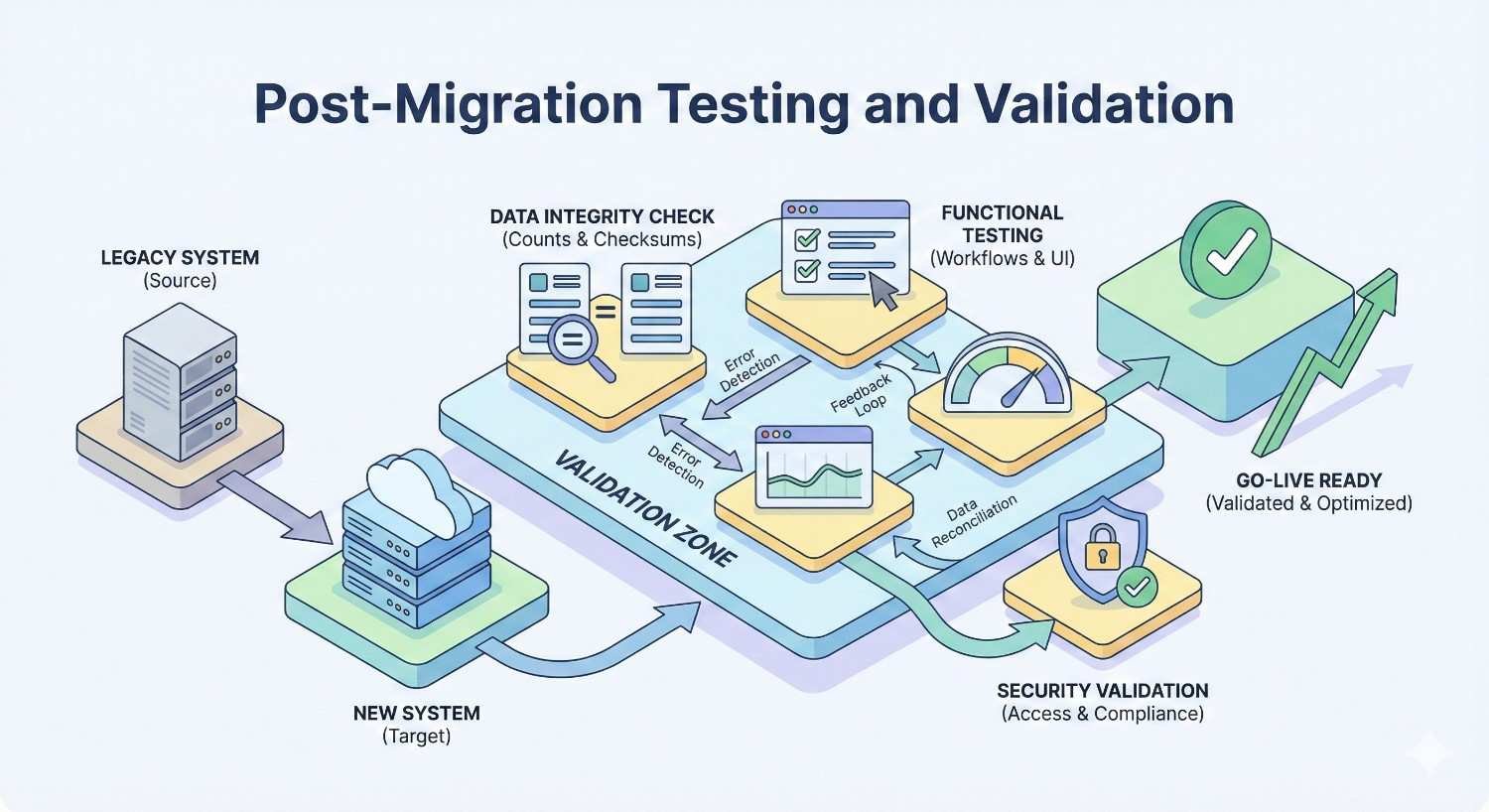
Post-Migration Testing and Validation
Testing confirms your migration succeeded. Skipping validation leads to undiscovered problems that hurt rankings and user experience. Systematic testing catches issues before they impact traffic.
SSL Certificate Installation Verification
Use SSL Labs Server Test for comprehensive analysis. This free tool grades your configuration and identifies vulnerabilities. Aim for an A or A+ rating. Address any warnings or configuration issues.
Verify certificate chain completeness. Incomplete chains cause errors in some browsers while working in others. SSL Labs identifies chain issues. Install any missing intermediate certificates.
Check certificate expiration dates. Set calendar reminders for renewal. Consider automated renewal through Let’s Encrypt or your hosting provider. Expired certificates cause immediate site access failures.
Test across multiple browsers. Chrome, Firefox, Safari, and Edge may handle certificates differently. Mobile browsers need testing too. Certificate issues sometimes appear only in specific browsers.
Verify certificate covers all required domains. Check that www and non-www versions work. Confirm subdomains are covered if using wildcard certificates. Missing domain coverage causes security warnings.
Redirect Chain Testing and Validation
Test redirect responses using curl or online tools:
bash
Copy
curl -I http://example.com
curl -I http://www.example.com
curl -I https://example.com
curl -I https://www.example.com
Verify all variations redirect to your canonical HTTPS URL with 301 status codes. Temporary 302 redirects don’t pass full link equity.
Check for redirect chains. HTTP to HTTPS should be one redirect. If you’re also canonicalizing www preference, combine into a single redirect. Tools like Redirect Checker identify chains.
Test deep page redirects. Verify that /old-page redirects to https://example.com/old-page, not just the homepage. Path preservation is essential for maintaining page-specific rankings.
Verify query string handling. URLs with parameters should redirect while preserving those parameters. Test URLs like http://example.com/page?id=123 to confirm proper handling.
Mixed Content Detection and Resolution
Run your site through Why No Padlock or similar scanners. These tools crawl pages and identify mixed content sources. Process results systematically, fixing each identified issue.
Check high-traffic pages manually. Homepage, category pages, and top landing pages deserve individual attention. Browser developer tools show mixed content warnings in real-time.
Review dynamically loaded content. AJAX requests, lazy-loaded images, and JavaScript-inserted content may load HTTP resources. Test interactive elements and scroll through pages to trigger dynamic loading.
Verify third-party embeds. YouTube videos, social media widgets, and embedded maps should use HTTPS. Update embed codes if providers offer secure versions.
Test forms and interactive elements. Form submissions, search functionality, and user-generated content features may reference HTTP endpoints. Verify all interactive features work over HTTPS.
Page Speed and Performance Testing
Compare load times before and after migration. HTTPS adds encryption overhead, but HTTP/2 benefits often compensate. Use WebPageTest or Google PageSpeed Insights for detailed analysis.
Enable HTTP/2 if not already active. HTTP/2 requires HTTPS but provides significant performance improvements. Multiplexing, header compression, and server push reduce load times.
Optimize TLS configuration for speed. Enable session resumption, OCSP stapling, and TLS 1.3 where supported. These optimizations reduce handshake latency.
Review Time to First Byte (TTFB) metrics. Significant TTFB increases may indicate server configuration issues. Certificate validation and encryption shouldn’t add more than 50-100ms.
Test from multiple geographic locations. CDN configuration affects HTTPS performance globally. Verify edge servers have proper certificate installation and configuration.
Cross-Browser and Device Compatibility Testing
Test on current versions of major browsers. Chrome, Firefox, Safari, Edge, and Opera should all display your site securely without warnings.
Verify mobile browser compatibility. iOS Safari, Chrome for Android, and Samsung Internet need testing. Mobile users represent significant traffic for most sites.
Check older browser versions if your audience requires support. Some legacy browsers don’t support modern TLS versions or SNI. Understand your audience’s browser distribution before deciding support levels.
Test on actual devices when possible. Emulators don’t always replicate real device behavior. Physical testing catches issues simulators miss.
Verify functionality across browsers. Forms, navigation, media playback, and interactive features should work consistently. HTTPS migration shouldn’t affect functionality, but testing confirms this.
Monitoring SEO Performance After HTTPS Migration
Post-migration monitoring identifies problems early. Rankings and traffic fluctuations are normal during transitions. Understanding expected patterns helps distinguish normal variation from actual problems.
Tracking Rankings and Organic Traffic Changes
Monitor rankings daily during the first two weeks. Use rank tracking tools to watch your most important keywords. Some fluctuation is normal as Google processes the migration.
Compare organic traffic week-over-week and year-over-year. Seasonal patterns affect traffic independently of migration. Year-over-year comparisons provide cleaner signals.
Segment traffic by landing page. Identify if specific pages experience unusual drops. Page-level issues may indicate redirect problems or mixed content on specific URLs.
Track branded versus non-branded keyword performance separately. Branded terms typically recover faster. Non-branded competitive terms may show more volatility during transition.
Document any ranking changes with timestamps. This documentation helps identify patterns and correlate changes with specific migration steps or fixes.
Monitoring Indexation Status in Search Console
Check Index Coverage reports in both HTTP and HTTPS properties. The HTTP property should show decreasing indexed pages as Google processes redirects. The HTTPS property should show increasing indexed pages.
Monitor for crawl errors. New 404 errors, redirect errors, or server errors indicate migration problems. Address errors promptly to prevent ranking impact.
Review the URL Inspection tool for specific pages. Check that Google sees your HTTPS URLs as canonical. Verify redirects are detected and processed correctly.
Watch for “Indexed, not submitted in sitemap” status. This may indicate Google found HTTPS URLs before your sitemap update. It’s generally not problematic but worth monitoring.
Track crawl stats for unusual patterns. Significant drops in crawl rate may indicate server issues or blocking problems. Increases suggest Google is actively processing your migration.
Expected Timeline for SEO Recovery
Initial fluctuations typically occur within the first one to two weeks. Google needs time to discover redirects, crawl HTTPS URLs, and update its index. Patience is essential during this period.
Most sites see stabilization within two to four weeks. Rankings return to pre-migration levels or improve slightly due to the HTTPS ranking signal. Larger sites may take longer.
Full index transition can take one to three months for large sites. Google doesn’t recrawl every page immediately. Deep pages with low crawl priority take longer to update.
Traffic recovery follows indexation. As Google indexes HTTPS versions and updates rankings, organic traffic normalizes. Monitor trends rather than daily fluctuations.
If rankings haven’t recovered after six weeks, investigate potential issues. Prolonged drops suggest technical problems rather than normal migration effects. Review redirects, canonicals, and Search Console errors.
Key Performance Metrics to Track
Organic sessions and users measure overall traffic health. Compare to pre-migration baselines. Account for seasonal patterns and other marketing activities.
Bounce rate and time on site indicate user experience. HTTPS shouldn’t negatively affect these metrics. Increases in bounce rate may suggest functionality problems.
Conversion rates matter most for business impact. Track goal completions, transactions, and lead submissions. HTTPS often improves conversion rates due to increased trust.
Page load times affect both rankings and user experience. Monitor Core Web Vitals through Search Console. Address any performance regressions from the migration.
Crawl budget utilization shows how efficiently Google crawls your site. Redirect chains and errors waste crawl budget. Clean migrations maintain or improve crawl efficiency.
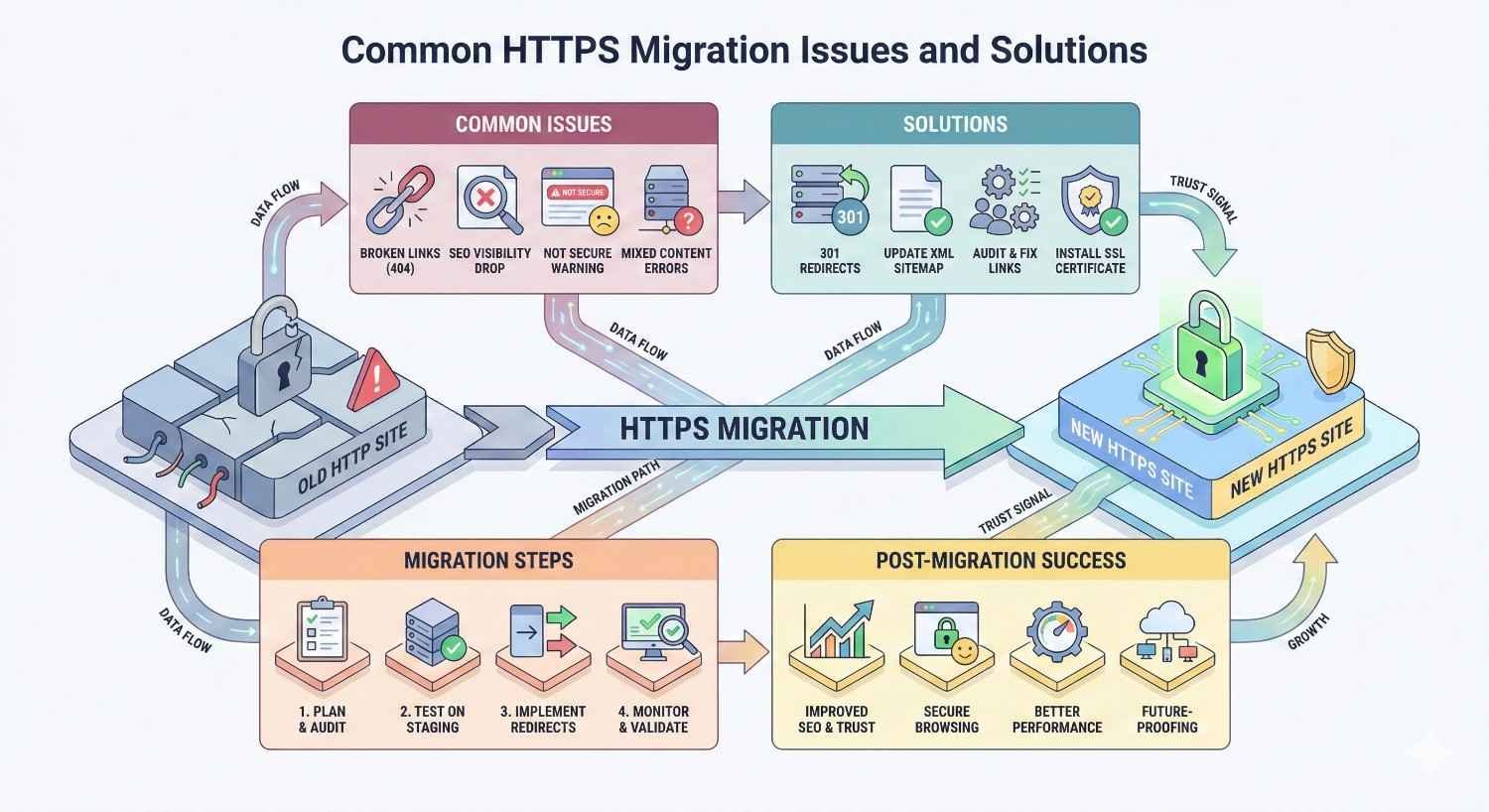
Common HTTPS Migration Issues and Solutions
Problems occur even with careful planning. Knowing common issues and solutions enables faster resolution. Most migration problems have straightforward fixes once identified.
Fixing Redirect Loops and Chain Issues
Redirect loops occur when URLs redirect to each other endlessly. Browser displays “too many redirects” errors. This typically happens when HTTP redirects to HTTPS while HTTPS redirects back to HTTP.
Check for conflicting redirect rules. CMS settings, .htaccess rules, and server configuration may all attempt redirects. Multiple redirect sources create conflicts.
Verify redirect conditions. Ensure redirects only trigger for HTTP requests. Check the HTTPS detection method matches your server environment. Load balancers and proxies may require header-based detection.
Example fix for Apache behind a load balancer:
apache
Copy
RewriteEngine On
RewriteCond %{HTTP:X-Forwarded-Proto} !https
RewriteRule ^(.*)$ https://%{HTTP_HOST}%{REQUEST_URI} [L,R=301]
Redirect chains occur when multiple redirects execute sequentially. HTTP to HTTPS to www to non-www creates a chain. Consolidate into single redirects for each source URL.
Use redirect testing tools to visualize chains. Screaming Frog, Redirect Checker, and similar tools show complete redirect paths. Identify where chains occur and consolidate.
Resolving Certificate Errors and Warnings
“Certificate not trusted” errors indicate chain problems. Install intermediate certificates to complete the trust chain. Your CA provides these certificates with your primary certificate.
“Certificate name mismatch” means the certificate doesn’t cover the requested domain. Verify your certificate includes all required domains. You may need a new certificate with additional SANs.
“Certificate expired” requires immediate renewal. Contact your CA or use automated renewal. Let’s Encrypt certificates expire every 90 days and should use automated renewal.
“Mixed content” warnings appear when HTTPS pages load HTTP resources. These aren’t certificate errors but affect the security indicator. Fix by updating resource URLs to HTTPS.
Self-signed certificate warnings occur in development environments. Production sites need CA-issued certificates. Browsers don’t trust self-signed certificates by default.
Addressing Ranking Drops After Migration
Verify redirects are working correctly. Use Search Console’s URL Inspection tool to check how Google sees your pages. Confirm 301 redirects are in place and functioning.
Check for accidental noindex tags. Migration processes sometimes introduce noindex directives. Crawl your HTTPS site and verify indexability.
Review canonical tags. Canonicals should point to HTTPS URLs. HTTP canonicals on HTTPS pages confuse search engines about your preferred version.
Confirm internal links updated to HTTPS. Internal links pointing to HTTP URLs create unnecessary redirects. Update links to point directly to HTTPS versions.
Monitor for crawl errors in Search Console. Server errors, 404s, and redirect errors prevent proper indexation. Address errors promptly.
Check that your HTTPS sitemap is submitted and processing. Verify sitemap URLs use HTTPS. Confirm Search Console shows the sitemap as successfully processed.
Troubleshooting Mixed Content Problems
Identify all mixed content sources systematically. Browser developer tools list specific URLs. Create a spreadsheet tracking each issue and its resolution.
Update database content for internal HTTP URLs. Search and replace tools handle most instances. Verify replacements don’t break serialized data.
Fix theme and plugin hardcoded URLs. Edit template files or update plugin settings. Some plugins store URLs in options that need manual updates.
Contact third-party providers about HTTP-only resources. Some services offer HTTPS versions not prominently advertised. Others may need to update their infrastructure.
Use Content Security Policy upgrade-insecure-requests as a temporary measure:
Copy
Content-Security-Policy: upgrade-insecure-requests
This header tells browsers to automatically upgrade HTTP requests to HTTPS. It’s a stopgap while you fix underlying issues, not a permanent solution.
HTTPS Migration Tools and Resources
The right tools simplify migration and reduce errors. Free options handle most needs. Premium tools offer additional features for complex migrations.
Free SSL Certificate Providers (Let’s Encrypt)
Let’s Encrypt provides free, automated, and open certificate authority services. Certificates are domain validated and trusted by all major browsers. The 90-day validity period encourages automated renewal.
Certbot automates Let’s Encrypt certificate management. It handles issuance, installation, and renewal for Apache and Nginx. Most hosting providers support Certbot or similar automation.
Installation varies by server and hosting environment. Shared hosting often provides one-click SSL through control panels. VPS and dedicated servers use command-line tools.
bash
Copy
sudo certbot –apache -d example.com -d www.example.com
Automated renewal prevents expiration issues. Certbot creates cron jobs or systemd timers for renewal. Test renewal with certbot renew –dry-run.
ZeroSSL and SSL For Free offer alternatives to Let’s Encrypt. These services provide free DV certificates through different interfaces. Some users prefer their web-based management.
SSL Testing and Validation Tools
SSL Labs Server Test provides comprehensive configuration analysis. It grades your setup, identifies vulnerabilities, and suggests improvements. Run tests after installation and configuration changes.
SSL Checker by SSL Shopper quickly verifies certificate installation. It shows certificate details, expiration dates, and chain completeness. Useful for quick verification without full analysis.
Why No Padlock scans pages for mixed content. It identifies specific HTTP resources preventing full HTTPS security. Essential for mixed content troubleshooting.
Observatory by Mozilla tests security headers and configuration. It checks HSTS, CSP, and other security features beyond basic SSL. Helps optimize overall security posture.
Chrome DevTools Security panel shows real-time security status. It identifies certificate issues, mixed content, and other security problems during browsing. Essential for manual testing.
Redirect Mapping and Testing Tools
Screaming Frog SEO Spider crawls sites and identifies redirect issues. It maps redirect chains, finds broken redirects, and exports URL lists. Essential for large site migrations.
Redirect Checker tools test individual URLs. They show complete redirect paths including status codes. Useful for verifying specific URL handling.
httpstatus.io tests multiple URLs simultaneously. Bulk testing saves time when verifying many redirects. It shows status codes and final destinations.
Google Sheets with IMPORTXML can test redirects at scale. Custom formulas check status codes for URL lists. Useful for ongoing monitoring.
Mixed Content Scanner Tools
JitBit SSL Check scans entire sites for mixed content. It crawls pages and reports HTTP resources. Provides exportable reports for systematic fixing.
Mixed Content Scan WordPress plugin identifies issues in WordPress sites. It checks posts, pages, and theme files. Useful for WordPress-specific migrations.
Chrome DevTools Console logs mixed content warnings. Filter by “Mixed Content” to see only relevant messages. Shows exact URLs causing issues.
CSP Evaluator helps configure Content Security Policy. It analyzes your CSP header and identifies potential issues. Useful when implementing CSP for mixed content reporting.
Platform-Specific Migration Guides
Different platforms require different approaches. Hosted platforms handle much of the technical work. Self-hosted solutions need manual configuration. Understanding your platform’s requirements ensures smooth migration.
Shopify HTTPS Migration Considerations
Shopify provides free SSL certificates for all stores. HTTPS is enabled by default on Shopify domains. Custom domains receive automatic certificate provisioning.
Verify your custom domain’s SSL status in Settings > Domains. Shopify shows certificate status and any issues. Most problems resolve automatically within 48 hours.
Update any hardcoded HTTP URLs in theme files. Liquid templates may contain absolute URLs needing updates. Check theme.liquid, header sections, and custom code.
Review third-party app integrations. Some apps may use HTTP endpoints. Contact app developers if you identify insecure connections.
Update external links pointing to your store. Marketing materials, social profiles, and partner sites should link to HTTPS URLs. While redirects handle old links, direct HTTPS links are preferred.
Magento HTTPS Migration Process
Configure base URLs in Stores > Configuration > Web. Set both secure and unsecure base URLs to HTTPS. Enable “Use Secure URLs on Storefront” and “Use Secure URLs in Admin.”
Update the database for any remaining HTTP references:
sql
Copy
UPDATE core_config_data SET value = REPLACE(value, ‘http://’, ‘https://’) WHERE value LIKE ‘%http://%’;
Clear all caches after configuration changes. Magento caches configuration extensively. Full cache flush ensures changes take effect.
Configure your web server for HTTPS. Magento doesn’t handle server-level SSL configuration. Follow Apache or Nginx configuration guides for your environment.
Review custom modules and themes for hardcoded URLs. Third-party extensions may contain HTTP references. Update or contact developers for fixes.
Wix and Squarespace HTTPS Setup
Wix provides automatic HTTPS for all sites. SSL certificates are provisioned and renewed automatically. No manual configuration required for basic setup.
Verify HTTPS is active in your Wix dashboard under Settings > SSL Certificate. The status should show as “Enabled.” Contact Wix support if issues persist.
Squarespace also provides automatic SSL for all sites. Certificates cover your Squarespace subdomain and any connected custom domains.
Check SSL status in Squarespace under Settings > Domains > SSL. Enable SSL if not already active. Custom domains may take up to 72 hours for certificate provisioning.
Both platforms handle redirects automatically. HTTP requests redirect to HTTPS without manual configuration. Verify by testing HTTP URLs in your browser.
Update external references to use HTTPS. Social media profiles, directory listings, and marketing materials should link to secure URLs.
Custom CMS HTTPS Implementation
Identify how your CMS stores and generates URLs. Configuration files, database settings, or code constants may control URL generation. Document current settings before changes.
Update base URL configuration to HTTPS. Most CMS platforms have central URL settings. Change these before updating content to ensure new content uses HTTPS.
Search database content for HTTP URLs. Custom CMS platforms vary in data storage. Write queries appropriate for your database schema.
Update template files and themes. Check all files for hardcoded URLs. Use protocol-relative or HTTPS URLs in templates.
Configure server-level redirects. Custom CMS platforms rarely handle redirects internally. Implement redirects in Apache, Nginx, or your web server.
Test thoroughly across all site functionality. Custom platforms may have unique features requiring specific attention. Test forms, user accounts, e-commerce, and any custom functionality.
Advanced HTTPS Security Configuration
Basic HTTPS provides encryption. Advanced configuration adds defense-in-depth security. These measures protect against sophisticated attacks and demonstrate security commitment.
Implementing Content Security Policy (CSP)
Content Security Policy controls which resources browsers can load. It prevents cross-site scripting (XSS) and data injection attacks. CSP also helps identify and eliminate mixed content.
Start with report-only mode to identify violations:
Copy
Content-Security-Policy-Report-Only: default-src ‘self’; report-uri /csp-report
This header logs violations without blocking content. Review reports to understand what policies you can enforce.
Gradually tighten policies based on your site’s needs:
Copy
Content-Security-Policy: default-src ‘self’; script-src ‘self’ https://trusted-cdn.com; style-src ‘self’ ‘unsafe-inline’; img-src ‘self’ data: https:; report-uri /csp-report
Common directives include:
- default-src: Fallback for other directives
- script-src: JavaScript sources
- style-src: CSS sources
- img-src: Image sources
- connect-src: AJAX, WebSocket, fetch sources
- frame-src: iframe sources
Avoid ‘unsafe-inline’ and ‘unsafe-eval’ when possible. These directives weaken CSP protection. Use nonces or hashes for necessary inline scripts.
Certificate Pinning Best Practices
Certificate pinning restricts which certificates browsers accept for your domain. It prevents attacks using fraudulently issued certificates. However, pinning carries significant risks.
HTTP Public Key Pinning (HPKP) is deprecated due to risks. Incorrect pinning can make sites permanently inaccessible. Browser vendors removed HPKP support.
Certificate Transparency (CT) provides similar protection with less risk. CT logs all issued certificates publicly. Browsers can verify certificates appear in CT logs.
Expect-CT header enables Certificate Transparency enforcement:
Copy
Expect-CT: max-age=86400, enforce, report-uri=”https://example.com/ct-report”
For mobile apps, implement pinning in application code. App-level pinning doesn’t carry the same risks as browser pinning. You control updates and can recover from mistakes.
Monitor Certificate Transparency logs for your domains. Services like crt.sh and Facebook’s CT monitoring alert you to new certificates. Unexpected certificates may indicate compromise.
TLS Version and Cipher Suite Optimization
Disable TLS 1.0 and TLS 1.1. These versions have known vulnerabilities. Modern browsers support TLS 1.2 and 1.3. Only legacy systems require older versions.
Enable TLS 1.3 for improved security and performance. TLS 1.3 reduces handshake round trips and removes vulnerable cipher suites. Most modern servers and browsers support it.
Configure strong cipher suites. Prefer ECDHE key exchange for forward secrecy. Use AES-GCM or ChaCha20-Poly1305 for encryption. Avoid CBC mode ciphers.
Mozilla SSL Configuration Generator provides tested configurations. Select your server software and security level. It generates appropriate configuration for your environment.
Test configuration changes with SSL Labs. Verify your changes achieve desired security level. Address any warnings or vulnerabilities identified.
Security Headers Configuration
Implement comprehensive security headers beyond HSTS:
Copy
Strict-Transport-Security: max-age=31536000; includeSubDomains; preload
X-Content-Type-Options: nosniff
X-Frame-Options: DENY
X-XSS-Protection: 1; mode=block
Referrer-Policy: strict-origin-when-cross-origin
Permissions-Policy: geolocation=(), microphone=(), camera=()
X-Content-Type-Options prevents MIME type sniffing. Browsers respect declared content types rather than guessing. This prevents certain attack vectors.
X-Frame-Options controls iframe embedding. DENY prevents all framing. SAMEORIGIN allows framing by same-origin pages. Use CSP frame-ancestors for more granular control.
Referrer-Policy controls referrer header information. strict-origin-when-cross-origin provides good privacy while maintaining analytics functionality.
Permissions-Policy (formerly Feature-Policy) controls browser features. Disable features your site doesn’t need. This reduces attack surface and improves privacy.
Test security headers with securityheaders.com. This tool grades your header configuration and suggests improvements. Aim for an A or A+ rating.
HTTPS Migration Cost and Timeline Planning
Understanding costs and timelines enables proper budgeting and expectation setting. Costs vary significantly based on certificate type, site complexity, and whether you handle migration internally or hire help.
SSL Certificate Pricing Comparison
Free certificates from Let’s Encrypt suit most websites. They provide the same encryption as paid certificates. The main limitations are 90-day validity and domain validation only.
Domain Validated (DV) paid certificates cost $10-100 annually. Paid options offer longer validity periods, warranties, and support. Some include site seals for trust indicators.
Organization Validated (OV) certificates range from $50-200 annually. The additional cost covers organization verification. OV certificates display company information in certificate details.
Extended Validation (EV) certificates cost $100-500 annually. Extensive verification justifies higher prices. EV certificates previously provided green address bars, though this visual distinction has been removed by most browsers.
Wildcard certificates add $50-200 to base prices. They cover unlimited subdomains, simplifying management for complex sites. Calculate whether wildcard or multiple standard certificates is more economical.
Multi-year purchases often include discounts. However, certificate validity is now limited to one year maximum. Multi-year purchases provide discounted renewals, not extended validity.
Development and Implementation Costs
DIY migration costs primarily time. Simple sites take 2-4 hours for technical users. Complex sites may require 10-20 hours or more. Factor in your hourly value when comparing to professional help.
Freelance developers charge $50-150 per hour for migration work. Simple migrations might cost $200-500. Complex sites with custom development may cost $1,000-5,000.
Agency migration services range from $500-5,000 depending on complexity. Agencies provide project management, testing, and ongoing support. They’re appropriate for business-critical sites.
Hosting provider migration services vary widely. Some hosts offer free migration assistance. Others charge $50-200 for basic migration support.
Hidden costs include potential downtime, traffic loss during issues, and opportunity cost of staff time. Factor these into total cost calculations.
Realistic Migration Timeline Expectations
Simple sites migrate in one to two days. This includes certificate installation, redirect configuration, and basic testing. WordPress sites with plugins can be faster.
Medium complexity sites take three to seven days. Multiple subdomains, custom applications, and extensive content require more time. Testing across environments adds to timeline.
Large enterprise sites may take two to four weeks. Extensive testing, stakeholder coordination, and phased rollouts extend timelines. Complex integrations require careful migration.
Post-migration monitoring continues for four to eight weeks. Rankings stabilize over this period. Ongoing attention catches delayed issues.
Plan for contingencies. Unexpected issues extend timelines. Build buffer time into project schedules. Having rollback plans ready reduces pressure if problems occur.
ROI and Business Impact Analysis
Security benefits prevent costly breaches. Data breach costs average millions for affected companies. HTTPS encryption protects customer data and reduces liability.
SEO benefits provide ongoing traffic value. Even small ranking improvements compound over time. Calculate the value of increased organic traffic against migration costs.
Conversion rate improvements often justify migration alone. Studies show HTTPS sites convert better than HTTP equivalents. Calculate potential revenue increase from improved conversion rates.
Trust indicators affect brand perception. Security warnings damage credibility. Professional appearance supports premium pricing and customer confidence.
Compliance requirements may mandate HTTPS. PCI DSS requires encryption for payment data. GDPR and other regulations expect reasonable security measures. Non-compliance carries significant penalties.
When to Hire Professional SEO Help for HTTPS Migration
Some migrations benefit from professional assistance. Recognizing when to seek help prevents costly mistakes. Professional support provides expertise, accountability, and peace of mind.
Complex Site Migration Scenarios
Multiple domains and subdomains increase complexity. Coordinating certificates, redirects, and configurations across properties requires careful planning. Mistakes affect multiple sites simultaneously.
Custom applications need specialized attention. Unique codebases may have unexpected HTTP dependencies. Developers familiar with the application should handle migration.
High-traffic sites can’t afford extended issues. Revenue loss during problems justifies professional help. Experts minimize downtime and resolve issues faster.
Sites with extensive SEO history have more at stake. Years of link building and ranking work can be damaged by poor migration. Professional oversight protects this investment.
International sites with multiple languages and regions add complexity. Hreflang tags, regional domains, and CDN configurations require coordinated updates.
Enterprise-Level Migration Requirements
Enterprise sites often have change management processes. Migrations must follow approval workflows and documentation requirements. Professionals understand enterprise environments.
Multiple stakeholder coordination requires project management. Marketing, IT, legal, and executive teams may all have input. Professional services include stakeholder management.
Compliance requirements add documentation needs. Regulated industries require audit trails and security verification. Professionals provide appropriate documentation.
Integration with enterprise systems requires specialized knowledge. ERP, CRM, and other systems may connect to websites. Ensuring continued functionality requires careful testing.
Service level agreements may require guaranteed uptime. Professional services can provide SLAs and accountability. Internal teams may not offer the same guarantees.
Risk Mitigation and Professional Support
Professional services include insurance and accountability. If problems occur, you have recourse. Internal mistakes may have no remedy.
Experience reduces unknown risks. Professionals have seen many migrations and know common pitfalls. They anticipate problems before they occur.
Dedicated resources ensure focused attention. Internal teams juggle multiple priorities. Professional services dedicate resources to your migration.
Post-migration support provides ongoing assistance. Issues may emerge weeks after migration. Professional services include support periods for addressing delayed problems.
Documentation and knowledge transfer benefit future maintenance. Professionals document their work. This documentation helps internal teams maintain the implementation.
How Our SEO Agency Manages HTTPS Migrations
We begin with comprehensive site audits. Our team documents current configurations, identifies potential issues, and creates detailed migration plans. Nothing proceeds without thorough preparation.
Our migration process follows proven methodologies. We’ve completed hundreds of migrations across various platforms and complexities. This experience informs our systematic approach.
We implement migrations during low-traffic windows. Careful scheduling minimizes potential impact. Our team monitors throughout the process and responds immediately to any issues.
Post-migration monitoring continues for eight weeks minimum. We track rankings, traffic, and technical metrics. Any anomalies trigger immediate investigation and resolution.
Our clients receive detailed documentation and training. We ensure your team understands the new configuration. Knowledge transfer enables confident ongoing management.
Conclusion
HTTPS migration protects your visitors, preserves your rankings, and positions your site for modern web capabilities. The process requires careful planning, systematic execution, and thorough testing. Shortcuts create problems that cost more to fix than doing it right initially.
Your organic traffic represents years of SEO investment. Protecting that investment during migration requires expertise and attention to detail. The technical steps are straightforward, but the stakes make professional guidance valuable for many organizations.
We help businesses execute flawless HTTPS migrations every day. White Label SEO Service provides comprehensive migration support from planning through post-migration monitoring. Contact us to discuss your migration needs and protect your search visibility.
Frequently Asked Questions
How long does an HTTPS migration take to complete?
Simple websites typically complete migration in one to two days, including certificate installation and redirect configuration. Complex sites with multiple subdomains or custom applications may require one to four weeks. Post-migration SEO stabilization takes an additional four to eight weeks regardless of site complexity.
Will HTTPS migration hurt my search rankings?
Properly executed migrations maintain or improve rankings. Temporary fluctuations during the first two to four weeks are normal as Google reprocesses your URLs. Significant or prolonged ranking drops indicate technical problems with redirects, canonicals, or other migration elements that need correction.
Do I need to buy an SSL certificate or are free ones sufficient?
Free certificates from Let’s Encrypt provide identical encryption to paid certificates and work perfectly for most websites. Paid certificates offer longer validity periods, warranties, customer support, and organization validation. Choose based on your support needs and whether you require OV or EV validation.
What causes mixed content warnings after HTTPS migration?
Mixed content occurs when HTTPS pages load resources like images, scripts, or stylesheets over HTTP. Common sources include hardcoded URLs in content, theme files, plugins, and third-party integrations. Fix by updating all resource URLs to HTTPS or using protocol-relative URLs.
How do I know if my HTTPS migration was successful?
Successful migrations show green padlock icons across all pages, no mixed content warnings in browser consoles, proper 301 redirects from all HTTP URLs, and stable or improving rankings within four to six weeks. Use SSL Labs for configuration testing and Search Console for indexation monitoring.
Should I implement HSTS immediately after migration?
Start HSTS with a short max-age value like 300 seconds to test. Gradually increase to one year after confirming everything works correctly. HSTS mistakes are difficult to reverse, so conservative implementation prevents locking users out if problems occur.
What’s the difference between SSL and TLS certificates?
SSL and TLS refer to the same certificates in practice. SSL is the older protocol name that persists in common usage. Modern certificates actually use TLS protocol, with TLS 1.2 and 1.3 being current standards. The terms are used interchangeably when discussing website security certificates.