

Mixed content errors silently undermine your website’s security, trigger browser warnings, and can cost you rankings in Google search results. When your HTTPS site loads resources over insecure HTTP connections, browsers flag your pages as “Not Secure,” blocking scripts and damaging user trust.
This technical SEO issue affects businesses across every platform, from WordPress to Shopify to custom-built applications. The good news: mixed content problems are entirely fixable with the right approach.
This guide walks you through identifying mixed content on your site, understanding why it matters for security and SEO, and implementing permanent fixes across any platform. You’ll get actionable steps, recommended tools, and prevention strategies to secure your website for better rankings and user confidence.
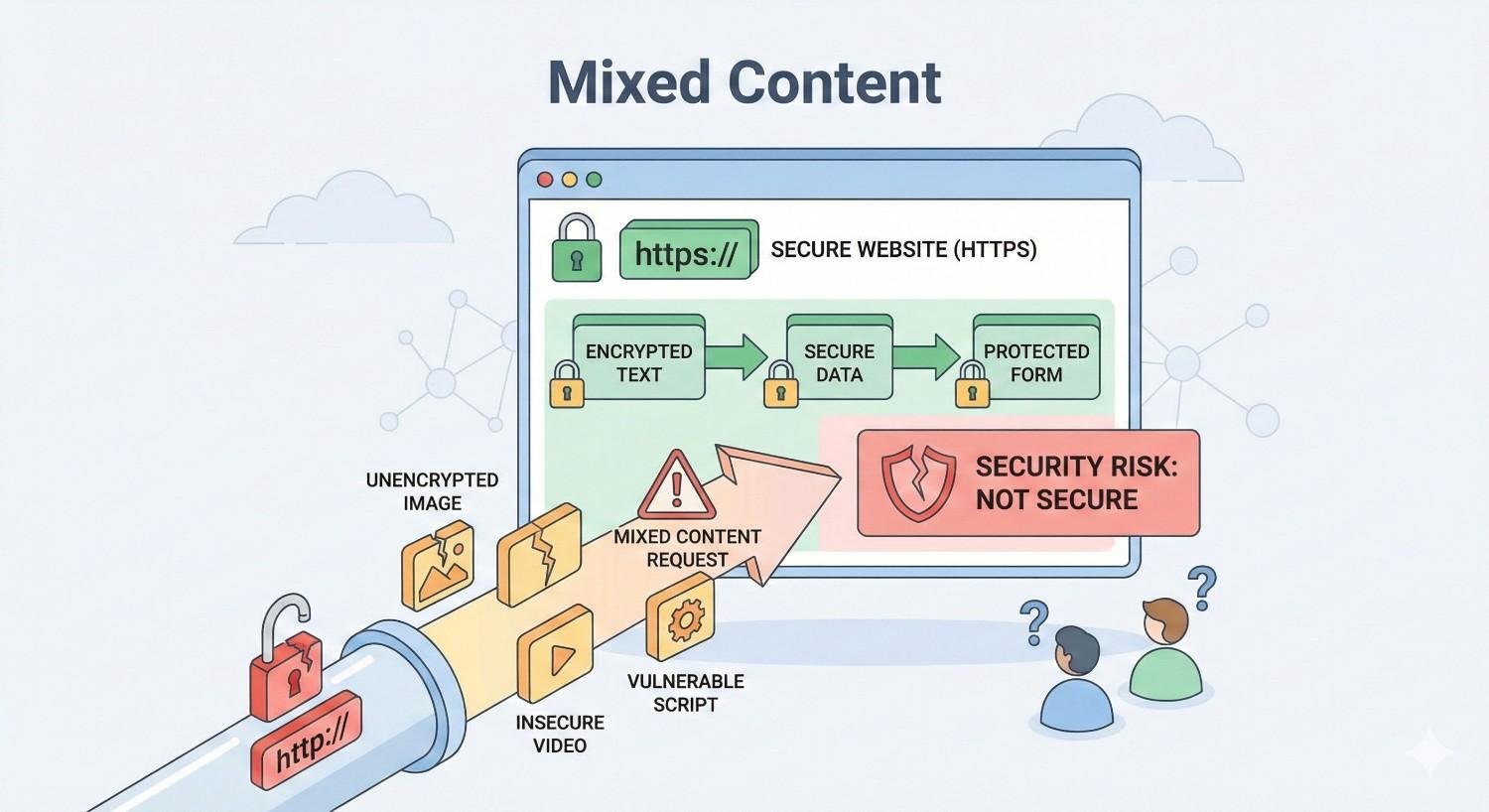
What Is Mixed Content?
Mixed content represents one of the most common yet overlooked technical SEO issues affecting websites today. Understanding what causes these errors and how they impact your site security is the first step toward resolving them permanently.
Definition of Mixed Content Errors
Mixed content occurs when a webpage served over a secure HTTPS connection loads subresources (images, scripts, stylesheets, or other files) through an insecure HTTP connection. Your browser establishes an encrypted connection to your server, but then your page requests additional resources without that same encryption.
The result is a security vulnerability. Attackers can intercept those unencrypted HTTP requests through man-in-the-middle attacks, potentially injecting malicious code or stealing sensitive data. Browsers recognize this risk and respond by either warning users or blocking the insecure content entirely.
From a technical perspective, mixed content breaks the chain of trust that HTTPS establishes. Your SSL certificate encrypts the initial connection, but every HTTP resource creates an unprotected pathway into your otherwise secure page.
How Mixed Content Occurs on Websites
Mixed content typically enters websites through several common pathways. The most frequent cause is migrating from HTTP to HTTPS without updating all internal references. Your database, theme files, and hardcoded URLs may still point to HTTP versions of resources.
Third-party integrations create another entry point. Embedding widgets, scripts, or media from external sources that don’t support HTTPS introduces mixed content even on well-maintained sites. Legacy content poses similar challenges, especially for sites with years of blog posts containing old image URLs or embedded media.
Content management systems add complexity. WordPress, for example, stores absolute URLs in the database. Simply installing an SSL certificate doesn’t automatically update those stored references. Every image, internal link, and media file inserted through the editor retains its original HTTP protocol unless specifically updated.
Developer workflows can introduce mixed content too. Copying code snippets from older tutorials, using outdated plugins, or referencing CDN resources without protocol-relative URLs all create potential issues.
HTTPS vs HTTP: Understanding the Security Gap
HTTP (Hypertext Transfer Protocol) transmits data in plain text. Anyone monitoring network traffic between your visitor and your server can read, intercept, or modify that data. This includes login credentials, form submissions, and any information exchanged during the session.
HTTPS adds TLS (Transport Layer Security) encryption to that connection. Data travels in encrypted form, readable only by the intended recipient. Even if intercepted, the information appears as meaningless characters without the decryption key.
The security gap between these protocols is absolute. There’s no partial encryption. When your HTTPS page loads an HTTP resource, that specific request travels unprotected. Attackers can exploit this single vulnerability to compromise your entire page.
Modern browsers treat this gap seriously. Google Chrome began marking HTTP sites as “Not Secure” in 2018, and subsequent updates have made these warnings increasingly prominent. Mixed content triggers similar warnings, even when your primary connection uses HTTPS.
Types of Mixed Content
Not all mixed content carries equal risk. Browsers categorize mixed content into two types based on the potential security impact, and understanding this distinction helps prioritize your remediation efforts.
Passive Mixed Content (Display Content)
Passive mixed content, also called “display” or “optionally-blockable” content, includes resources that cannot directly modify your page’s behavior or access sensitive data. These elements display information but don’t execute code or interact with your page’s DOM.
Images represent the most common form of passive mixed content. An HTTP image URL embedded in your HTTPS page loads the image without encryption. While attackers could theoretically replace that image with misleading content, they cannot use it to steal data or inject executable code.
Video Files loaded over HTTP fall into the same category. The video plays on your page, but the unencrypted connection only exposes the video content itself, not your page’s functionality or user data.
Audio Files follow identical patterns. Podcast embeds, background music, or sound effects loaded via HTTP create passive mixed content warnings without the severe security implications of active content.
Browsers typically allow passive mixed content to load while displaying a warning indicator. Your padlock icon may show a warning symbol, or the browser may display “Your connection to this site is not fully secure.” Users can still view the content, but the security indicator signals potential risk.
Active Mixed Content (Executable Content)
Active mixed content poses significantly greater security risks because these resources can execute code, modify your page, or access sensitive information. Browsers block active mixed content by default to protect users.
Scripts (JavaScript) loaded over HTTP can execute arbitrary code on your page. An attacker intercepting this request could inject malicious JavaScript that steals form data, redirects users, or installs malware. This represents the highest-risk mixed content type.
Stylesheets (CSS) might seem harmless, but CSS can modify page appearance in ways that facilitate phishing attacks. Attackers could hide legitimate content and display fake login forms, or use CSS expressions (in older browsers) to execute JavaScript.
Iframes load entire external pages within your page. An HTTP iframe gives attackers a window to display any content they choose, potentially mimicking your site’s design to capture credentials or spread malware.
XMLHttpRequests (AJAX calls) transmit data between your page and servers. HTTP requests expose this data to interception, potentially leaking user information, session tokens, or API credentials.
When browsers block active mixed content, affected functionality simply breaks. Scripts don’t execute, styles don’t apply, and AJAX requests fail. Users see a broken page without understanding why, leading to support requests and lost conversions.
Risk Levels: Passive vs Active Mixed Content
The distinction between passive and active mixed content determines both browser behavior and your remediation priority.
Active mixed content requires immediate attention. Blocked scripts and stylesheets break page functionality, directly impacting user experience and potentially preventing conversions. A checkout page with blocked JavaScript may fail to process payments. A contact form relying on AJAX validation may appear broken.
Passive mixed content allows more flexibility in your timeline, but still demands resolution. While browsers display warnings rather than blocking content, those warnings erode user trust. Security-conscious visitors may leave your site upon seeing “Not Secure” indicators, even if the actual risk is minimal.
From an SEO perspective, both types matter. Google’s algorithms consider site security as a ranking factor, and mixed content of any type signals incomplete HTTPS implementation. Resolving all mixed content, regardless of type, strengthens your security posture and search visibility.
Prioritize active mixed content fixes first to restore functionality, then systematically address passive mixed content to achieve full HTTPS compliance and remove all browser warnings.
Why Mixed Content Issues Matter for Your Website
Mixed content isn’t merely a technical checkbox. These errors create real consequences for security, user experience, and search performance that directly impact your business outcomes.
Security Vulnerabilities and Data Risks
Every HTTP resource on your HTTPS page creates an attack vector. Man-in-the-middle attacks exploit these unencrypted connections to intercept, modify, or inject content without detection.
Consider a login page with mixed content. Even if your form submission uses HTTPS, an attacker who compromises an HTTP script on that page can capture keystrokes, modify form destinations, or steal session cookies. The encrypted form submission becomes meaningless when the page itself is compromised.
E-commerce sites face particular risk. Product pages with HTTP images might seem harmless, but attackers could replace those images with misleading content or inject scripts through other mixed content vulnerabilities. Customer payment information, while processed securely, exists on pages that may have compromised integrity.
Data protection regulations add legal dimensions to these risks. GDPR, CCPA, and similar frameworks require appropriate security measures for handling personal data. Mixed content vulnerabilities could constitute inadequate protection, exposing your business to regulatory penalties.
Browser Warnings and Blocked Content
Modern browsers aggressively protect users from mixed content. Chrome, Firefox, Edge, and Safari all display warnings or block insecure resources, and these protections have strengthened over time.
Chrome displays a shield icon in the address bar when blocking mixed content, with options for users to manually load insecure content. Most users never discover this option, experiencing broken functionality instead. Firefox shows similar warnings and blocks active mixed content by default.
The visual indicators vary by browser and content type, but all communicate the same message: this site may not be safe. A broken padlock, warning triangle, or “Not Secure” label immediately signals risk to visitors, regardless of whether they understand the technical details.
These warnings appear even when your SSL certificate is valid and properly configured. Mixed content overrides your certificate’s trust signals, negating the investment you made in site security.
Impact on User Trust and Experience
Trust forms the foundation of online business. Visitors make split-second judgments about your credibility based on visual cues, and security warnings rank among the most damaging signals possible.
Research consistently shows that security indicators influence user behavior. Visitors who see “Not Secure” warnings are more likely to abandon forms, avoid purchases, and leave sites entirely. The specific conversion impact varies by industry and audience, but the direction is always negative.
Beyond warnings, mixed content can break actual functionality. A JavaScript library loaded over HTTP and blocked by the browser might power your navigation menu, form validation, or checkout process. Users experience these failures as bugs or poor design, not security measures.
Mobile users face additional challenges. Smaller screens make warning indicators more prominent relative to content, and mobile browsers may handle mixed content differently than desktop versions. Testing across devices reveals the full scope of user experience impact.
SEO Consequences of Mixed Content Errors
Google has confirmed HTTPS as a ranking signal since 2014, and subsequent algorithm updates have increased its importance. Mixed content undermines your HTTPS implementation, potentially affecting how search engines evaluate your site’s security.
Crawling and indexing can suffer when mixed content blocks essential resources. If Googlebot encounters a page where critical JavaScript is blocked, it may not render the page correctly, missing content that should be indexed. This affects JavaScript-heavy sites particularly.
Core Web Vitals measurements may reflect mixed content issues. Blocked resources can cause layout shifts, delayed interactivity, or loading failures that negatively impact your performance scores. These metrics directly influence search rankings.
Beyond direct ranking factors, mixed content affects the trust signals that support SEO success. Sites with security warnings generate fewer backlinks, lower engagement metrics, and reduced social sharing. These secondary effects compound the direct ranking impact over time.
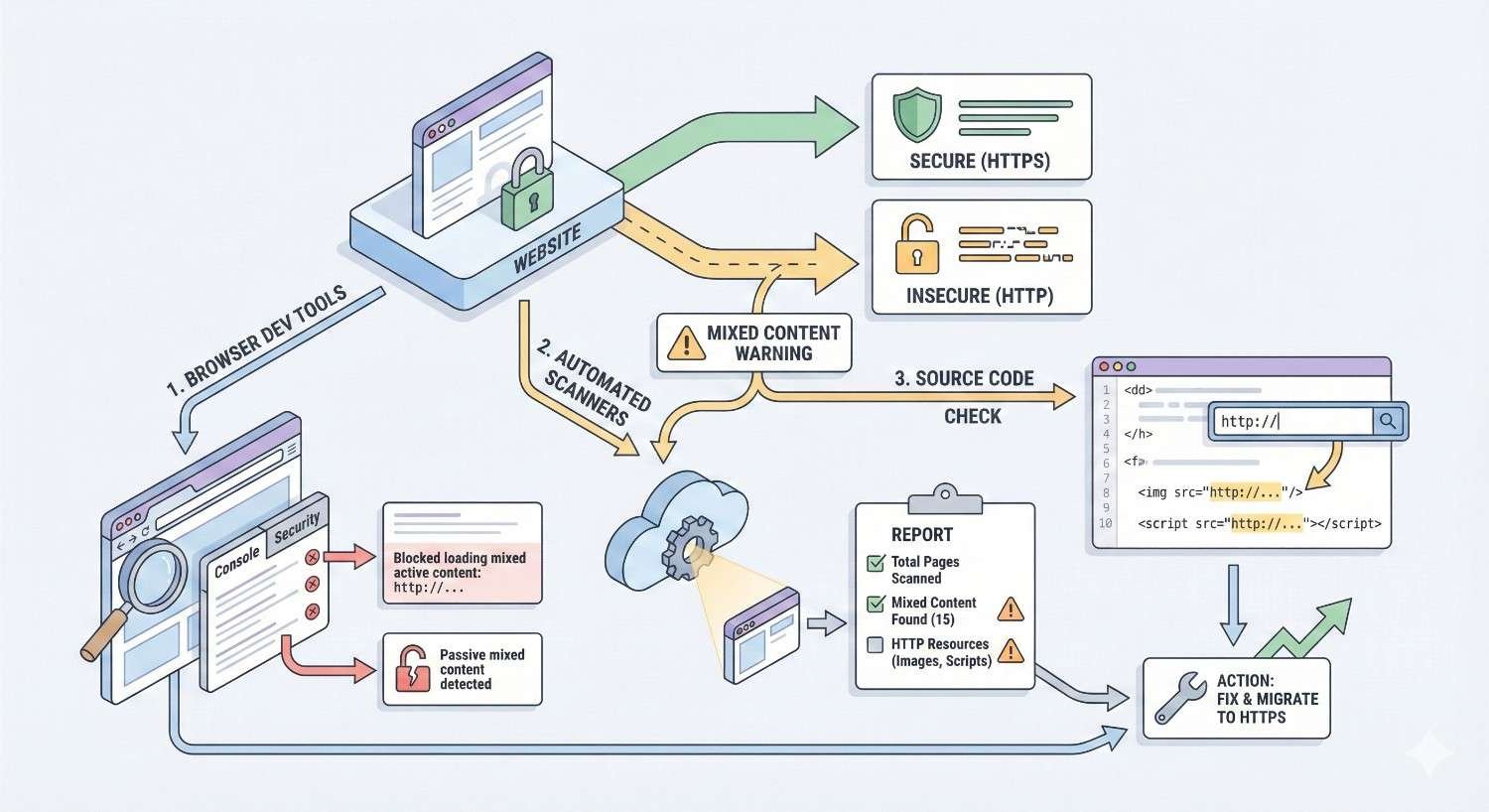
How to Identify Mixed Content on Your Website
Before fixing mixed content, you need to find it. Multiple detection methods exist, from browser-based inspection to automated site-wide auditing. Using several approaches ensures comprehensive discovery.
Using Browser Developer Tools (Chrome, Firefox, Edge)
Browser developer tools provide immediate visibility into mixed content on any page you visit. This method works well for spot-checking specific pages or investigating reported issues.
In Chrome, open Developer Tools (F12 or right-click and select “Inspect”), then navigate to the “Security” tab. This panel shows your connection security status and lists any mixed content detected on the current page. The “Network” tab provides additional detail, filtering requests by protocol.
Firefox’s developer tools offer similar functionality. Open the Web Developer Tools (F12), select the “Network” tab, and look for requests showing HTTP protocol on HTTPS pages. The console also displays mixed content warnings with specific resource URLs.
Edge uses Chromium’s developer tools, so the process mirrors Chrome exactly. Safari’s Web Inspector provides comparable functionality through its “Resources” and “Console” panels.
For each mixed content resource identified, note the URL, resource type, and where it’s referenced. This information guides your remediation efforts, helping you locate the source code or database entry that needs updating.
Checking the Browser Console for Errors
The browser console provides explicit mixed content warnings with actionable details. These messages identify exactly which resources trigger warnings and often indicate whether content was blocked or allowed with warnings.
Chrome’s console messages follow a consistent format: “Mixed Content: The page at ‘https://yoursite.com/page‘ was loaded over HTTPS, but requested an insecure resource ‘http://example.com/resource.js‘. This request has been blocked; the content must be served over HTTPS.”
These messages distinguish between blocked active content and warned passive content. Blocked resources require immediate attention since they affect functionality. Warned resources should be fixed but aren’t breaking your page.
Console messages also reveal the source file and line number where the insecure request originates. This detail accelerates troubleshooting, pointing you directly to the code that needs modification.
Keep the console open while navigating your site to catch mixed content that only appears on specific pages or after certain interactions. Dynamic content loaded via JavaScript may not trigger warnings until users take specific actions.
SSL Certificate and Padlock Indicators
Browser address bar indicators provide quick visual confirmation of mixed content presence without opening developer tools. Understanding these indicators helps you quickly assess any page’s security status.
A green or gray padlock indicates a fully secure connection with no mixed content. This is your target state for every page on your site.
A padlock with a warning symbol (often a yellow triangle) indicates passive mixed content. The page loaded, but some resources came over HTTP. Users see this warning, potentially affecting their trust.
A broken padlock, “Not Secure” label, or information icon indicates more serious issues. This may result from blocked active mixed content, certificate problems, or other security concerns.
Clicking the padlock or security indicator reveals additional details. Chrome shows “Connection is secure” or explains specific issues. This quick check helps verify fixes and identify pages needing attention.
Free Mixed Content Scanner Tools
Dedicated scanning tools automate mixed content detection across multiple pages, saving time compared to manual browser inspection.
Why No Padlock (whynopadlock.com) analyzes individual URLs, reporting all insecure resources found on the page. Enter any URL and receive a detailed breakdown of HTTP resources, their types, and source locations. This tool works well for investigating specific pages flagged by other methods.
JitBit SSL Checker crawls your site to find mixed content across multiple pages. Enter your homepage URL, and the tool follows internal links, checking each page for insecure resources. Results include the specific URLs causing issues and the pages where they appear.
SSL Labs (ssllabs.com) provides comprehensive SSL/TLS analysis, including mixed content detection. While primarily focused on certificate configuration, the tool identifies pages with mixed content as part of its security assessment.
These free tools suit small to medium sites with limited page counts. Larger sites benefit from more robust crawling solutions that handle thousands of pages efficiently.
Site-Wide Auditing with Screaming Frog & Sitebulb
Professional SEO crawlers provide the most thorough mixed content detection, especially for large or complex sites.
Screaming Frog SEO Spider crawls your entire site, identifying mixed content across all discovered pages. Configure the crawler to check for insecure content, then export results showing every affected URL and the specific resources causing issues. The tool handles JavaScript rendering, catching mixed content that only appears after client-side execution.
Sitebulb offers similar crawling capabilities with enhanced visualization. Its security audit features specifically flag mixed content, categorizing issues by severity and providing remediation guidance. The visual reports help communicate issues to stakeholders who may not understand technical details.
Both tools integrate with your broader technical SEO workflow. Run regular crawls to catch new mixed content introduced through content updates, plugin changes, or third-party modifications. Schedule automated crawls to maintain ongoing visibility.
For enterprise sites, consider combining crawler data with log file analysis. Server logs reveal which resources browsers actually request, potentially identifying mixed content that crawlers miss due to conditional loading or user-specific content.
Common Causes of Mixed Content Issues
Understanding why mixed content appears helps you fix current issues and prevent future occurrences. Most mixed content stems from a handful of common causes.
Hardcoded HTTP URLs in Source Code
Developers often hardcode absolute URLs in theme files, templates, and custom code. These references work fine on HTTP sites but become mixed content after HTTPS migration.
Common locations include:
- Theme header and footer files with logo images or script references
- Template files with hardcoded asset URLs
- Custom PHP, JavaScript, or CSS files with absolute paths
- Configuration files specifying resource locations
Search your codebase for “http://” to identify hardcoded references. Pay particular attention to your domain name combined with HTTP protocol, as these internal references should definitely use HTTPS.
Some hardcoded URLs reference external resources that may or may not support HTTPS. These require individual verification before updating.
Third-Party Embeds and Widgets
External services embedded on your site may serve content over HTTP, creating mixed content regardless of your own site’s configuration.
Common culprits include:
- Social media widgets and share buttons
- Analytics and tracking scripts
- Advertising networks and affiliate code
- Chat widgets and customer service tools
- Video embeds from older platforms
- Font services and icon libraries
Review all third-party code on your site. Check whether each service supports HTTPS and update embed codes accordingly. Some older services may not offer HTTPS, requiring you to find alternatives or remove the integration.
Third-party mixed content is particularly frustrating because you don’t control the external resource. Monitor these integrations regularly, as providers may change their URL structures or HTTPS support.
Content Management System (CMS) Configurations
CMS platforms store URLs in databases and configuration files. These stored references often retain HTTP protocol after SSL installation.
WordPress stores the site URL and home URL in the options table. If these remain HTTP, the CMS generates HTTP links throughout your site. Similar settings exist in Drupal, Joomla, and other platforms.
Plugin and theme settings may store absolute URLs for logos, backgrounds, or other assets. Each plugin potentially contains its own URL references that need updating.
CMS-generated content like menus, widgets, and dynamic elements pull URLs from database settings. A single misconfigured setting can create mixed content across your entire site.
Legacy Content and Database References
Years of content creation accumulate HTTP references throughout your database. Every image inserted through the media library, every internal link added to posts, and every embedded resource stores its URL at the time of creation.
A site with thousands of posts may contain tens of thousands of HTTP URLs in content fields. Manual updating is impractical; database-level find-and-replace operations are necessary.
Legacy content also includes:
- Old blog posts with embedded media
- Product descriptions with image references
- User-generated content in comments or forums
- Historical pages that rarely receive updates
Audit your oldest content specifically. Pages created before your HTTPS migration almost certainly contain HTTP references that newer content may avoid.
CDN and External Resource Links
Content delivery networks and external resource libraries require specific attention. These services host files you reference but don’t control.
CDN configurations may serve content over HTTP by default or based on the requesting protocol. Verify your CDN settings force HTTPS delivery regardless of how resources are requested.
External libraries like jQuery, Bootstrap, or Font Awesome may be referenced via HTTP URLs copied from outdated documentation. Update these references to HTTPS versions or use protocol-relative URLs.
Some CDN providers offer automatic HTTPS, while others require specific configuration or certificate installation. Review your CDN documentation to ensure proper HTTPS delivery.
Inline CSS and JavaScript References
Mixed content hides in unexpected places, including inline styles and scripts embedded directly in HTML.
Inline CSS with background images:
css
Copy
style=“background-image: url(‘http://example.com/image.jpg’)”
Inline JavaScript with resource URLs:
javascript
Copy
var imageUrl = ‘http://example.com/image.jpg’;
These inline references don’t appear in external files, making them harder to find through code searches. Browser developer tools catch them when pages load, but systematic discovery requires crawling tools that render JavaScript.
Template files, shortcodes, and dynamic content generators may produce inline references. Trace mixed content warnings back to their source, which may be a PHP function or JavaScript routine rather than static HTML.
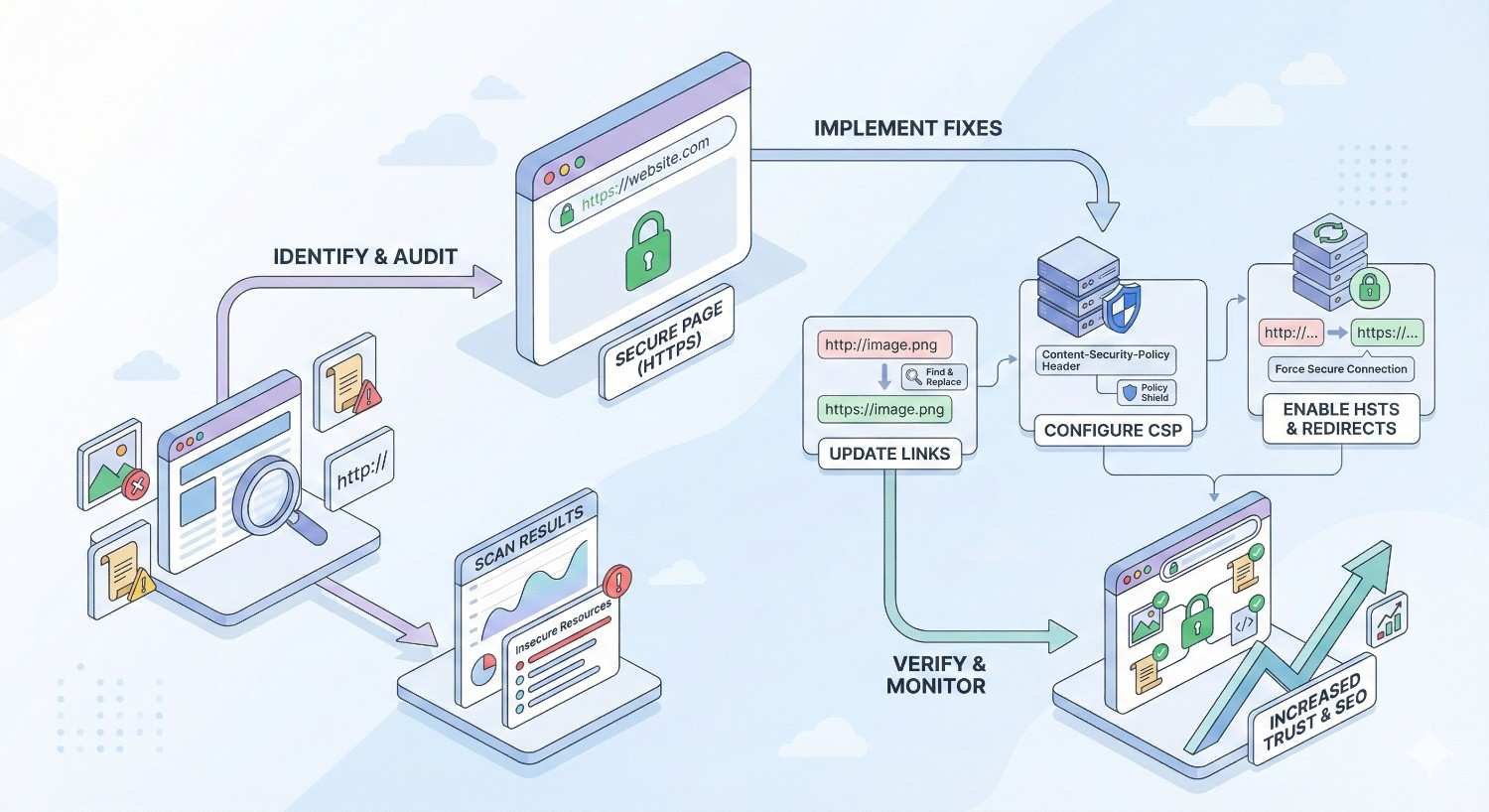
How to Fix Mixed Content Errors [Step-by-Step Guide]
Systematic remediation ensures you address all mixed content without breaking site functionality. Follow these steps in order for the most efficient resolution.
Step 1 – Audit and Document All Mixed Content
Before making changes, create a comprehensive inventory of mixed content across your site. This documentation guides your work and helps verify completion.
Run a full site crawl using Screaming Frog, Sitebulb, or similar tools. Export all mixed content findings to a spreadsheet, including:
- Page URL where mixed content appears
- Resource URL causing the issue
- Resource type (image, script, stylesheet, etc.)
- Whether content is blocked or warned
- Source location if identified
Supplement crawler data with manual checks of high-priority pages: homepage, key landing pages, checkout process, and contact forms. These pages deserve extra attention due to their business importance.
Categorize findings by cause: internal resources, third-party resources, database content, and hardcoded references. This categorization determines which fix approach applies to each issue.
Step 2 – Update Internal HTTP Links to HTTPS
Internal resources under your control are the easiest to fix. Update all references to your own domain from HTTP to HTTPS.
For CMS platforms, update site URL settings first:
- WordPress: Settings > General > WordPress Address and Site Address
- Drupal: Configuration > System > Basic site settings
- Joomla: Global Configuration > Server > Force HTTPS
These settings affect how your CMS generates URLs throughout the site. Correct configuration here prevents new mixed content from being created.
Update any hardcoded internal references in theme files, templates, and custom code. Search for your domain with HTTP protocol and replace with HTTPS.
Step 3 – Fix Hardcoded URLs in Theme and Template Files
Theme and template files often contain hardcoded URLs that survive CMS setting changes. These require manual updates or find-and-replace operations.
Common files to check:
- header.php, footer.php (WordPress)
- Template files for pages, posts, archives
- Custom page templates
- Sidebar and widget templates
- Email templates
Search each file for “http://” and evaluate each instance. Internal references should use HTTPS or relative URLs. External references require verification that HTTPS versions exist.
Consider using protocol-relative URLs (//example.com/resource.js) for resources that must work on both HTTP and HTTPS, though this approach has limitations discussed later.
After editing theme files, clear any caching to ensure changes take effect. Test affected pages to verify resources load correctly.
Step 4 – Update Database References (WordPress & CMS)
Database-stored URLs require bulk updates that manual editing can’t accomplish efficiently. Use database tools or plugins designed for this purpose.
For WordPress:
The Better Search Replace plugin safely updates URLs throughout your database. Install the plugin, then:
- Enter “http://yourdomain.com” in the search field
- Enter “https://yourdomain.com” in the replace field
- Select all database tables
- Run a dry run first to preview changes
- Execute the replacement
Alternatively, use WP-CLI for command-line database updates:
Copy
wp search-replace ‘http://yourdomain.com’ ‘https://yourdomain.com’
For other CMS platforms:
Most platforms offer similar plugins or direct database access. Use phpMyAdmin or your hosting control panel to run SQL queries:
sql
Copy
UPDATE table_name SET column_name = REPLACE(column_name, ‘http://yourdomain.com’, ‘https://yourdomain.com’);
Always backup your database before running bulk updates. Test thoroughly after changes to catch any unintended modifications.
Step 5 – Replace or Update Third-Party Resources
External resources require individual attention. For each third-party mixed content source:
- Check if the provider supports HTTPS
- Find updated embed codes or URLs
- Replace HTTP references with HTTPS versions
- Test that resources load correctly
Many services have transitioned to HTTPS-only delivery. Simply changing “http://” to “https://” in existing embed codes often works.
For services without HTTPS support:
- Find alternative providers offering secure delivery
- Host the resource yourself if licensing permits
- Remove the integration if it’s not essential
- Accept the mixed content warning if the resource is critical and irreplaceable
Document any third-party resources you cannot fix. These represent ongoing risks that may resolve as providers update their services.
Step 6 – Implement Protocol-Relative URLs (When Appropriate)
Protocol-relative URLs omit the protocol, allowing browsers to use whatever protocol loaded the page:
html
Copy
<script src=”//example.com/script.js“></script>
On HTTPS pages, this loads via HTTPS. On HTTP pages, it loads via HTTP.
When to use protocol-relative URLs:
- Resources that must work on both HTTP and HTTPS pages
- During migration when some pages haven’t moved to HTTPS yet
- External resources where you’re unsure of HTTPS support
When to avoid them:
- After full HTTPS migration (just use HTTPS explicitly)
- For resources you control (use HTTPS directly)
- When the external resource doesn’t support HTTPS (it will fail)
Modern best practice favors explicit HTTPS URLs over protocol-relative URLs. Once your site fully migrates to HTTPS, update protocol-relative URLs to explicit HTTPS for clarity and to avoid potential issues.
Step 7 – Configure Content Security Policy (CSP) Headers
Content Security Policy headers provide an additional layer of protection against mixed content. CSP tells browsers which resource sources are permitted, blocking unauthorized content.
A basic CSP header enforcing HTTPS:
Copy
Content-Security-Policy: upgrade-insecure-requests;
This directive instructs browsers to automatically upgrade HTTP requests to HTTPS. It’s a safety net that catches mixed content you might have missed.
More comprehensive CSP configurations specify allowed sources for each resource type:
Copy
Content-Security-Policy: default-src https:; script-src https: ‘unsafe-inline’; style-src https: ‘unsafe-inline’; img-src https: data:;
Implement CSP headers through:
- Server configuration (Apache, Nginx)
- .htaccess files
- CMS plugins
- CDN settings
Start with report-only mode to identify violations without blocking content:
Copy
Content-Security-Policy-Report-Only: upgrade-insecure-requests; report-uri /csp-report-endpoint
Review reports, fix identified issues, then switch to enforcement mode.
Step 8 – Test and Validate Fixes
Thorough testing confirms your fixes work without introducing new problems.
Immediate testing:
- Check previously affected pages in browser developer tools
- Verify padlock indicators show secure connection
- Confirm no console warnings appear
- Test site functionality (forms, checkout, navigation)
Comprehensive validation:
- Re-run your site crawler to verify all mixed content resolved
- Check pages across multiple browsers (Chrome, Firefox, Safari, Edge)
- Test on mobile devices
- Verify third-party integrations still function
Ongoing monitoring:
- Set up automated crawls to catch new mixed content
- Monitor Google Search Console for security issues
- Review browser console during regular site use
- Check after any content or code updates
Document your testing results. If issues persist, trace them back to specific resources and repeat the appropriate fix steps.
Platform-Specific Mixed Content Fixes
Different platforms require different approaches. These platform-specific instructions address the most common website systems.
Fixing Mixed Content in WordPress
WordPress powers a significant portion of websites, and its architecture creates specific mixed content challenges. Multiple solutions exist depending on your technical comfort level.
Using Really Simple SSL Plugin
Really Simple SSL offers the simplest WordPress mixed content fix. The plugin automatically detects and fixes most mixed content issues without manual intervention.
Installation and setup:
- Install Really Simple SSL from the WordPress plugin repository
- Activate the plugin
- Click “Go ahead, activate SSL!” when prompted
- The plugin handles URL updates and redirects automatically
The plugin works by:
- Updating WordPress site URLs to HTTPS
- Fixing mixed content in output buffers
- Setting up HTTP to HTTPS redirects
- Handling common edge cases automatically
For most WordPress sites, this plugin resolves mixed content immediately. However, it fixes issues at runtime rather than in the database, meaning HTTP URLs still exist in your content. For a cleaner solution, combine with database updates.
Better Search Replace for Database Updates
Better Search Replace performs permanent database updates, changing stored HTTP URLs to HTTPS throughout your WordPress installation.
Usage steps:
- Install and activate Better Search Replace
- Navigate to Tools > Better Search Replace
- Search for: http://yourdomain.com
- Replace with: https://yourdomain.com
- Select all tables (or specific tables if you know which contain issues)
- Check “Run as dry run” first
- Review dry run results
- Uncheck dry run and execute replacement
The plugin handles serialized data correctly, which is crucial for WordPress. Direct SQL queries can break serialized arrays, but Better Search Replace preserves data integrity.
Run the replacement for variations of your URL:
- http://yourdomain.com
- http://www.yourdomain.com
- Any other URL variations your site has used
Manual wp-config.php and .htaccess Edits
For complete control, manual configuration ensures HTTPS enforcement at the server level.
wp-config.php additions:
php
Copy
define(‘FORCE_SSL_ADMIN’, true);
if ($_SERVER[‘HTTP_X_FORWARDED_PROTO’] == ‘https’)
$_SERVER[‘HTTPS’] = ‘on’;
The first line forces HTTPS for admin areas. The second handles sites behind load balancers or proxies that terminate SSL.
.htaccess redirect rules:
apache
Copy
RewriteEngine On
RewriteCond %{HTTPS} off
RewriteRule ^(.*)$ https://%{HTTP_HOST}%{REQUEST_URI} [L,R=301]
These rules redirect all HTTP requests to HTTPS, ensuring visitors always reach the secure version regardless of which URL they enter.
Place redirect rules near the top of .htaccess, before WordPress rewrite rules. Test thoroughly after implementation to ensure redirects work without creating loops.
Fixing Mixed Content in Shopify
Shopify handles SSL certificates automatically, but mixed content can still occur through theme customizations and third-party apps.
Shopify’s platform serves all standard resources over HTTPS. Mixed content typically comes from:
- Custom theme code with hardcoded HTTP URLs
- Third-party apps embedding insecure resources
- External images or media referenced in product descriptions
- Custom HTML/Liquid code in pages or blog posts
To fix Shopify mixed content:
- Review theme code in Online Store > Themes > Edit code
- Search all files for “http://” references
- Update internal references to use Shopify’s asset URL filters
- Replace external HTTP URLs with HTTPS versions
For product descriptions and page content:
- Export products via CSV
- Find and replace HTTP URLs in the CSV
- Re-import the updated CSV
Third-party app issues require contacting app developers or finding alternative apps that serve content securely.
Fixing Mixed Content in Wix and Squarespace
These hosted platforms manage SSL automatically, limiting where mixed content can originate.
Wix mixed content sources:
- Custom HTML embeds with HTTP references
- External images added via URL
- Third-party widgets and integrations
Fix by editing custom code blocks and updating external resource URLs. Wix’s built-in elements use HTTPS automatically.
Squarespace mixed content sources:
- Code injection with HTTP URLs
- Markdown content with external HTTP images
- Custom CSS with HTTP background images
Review all code injection points (Settings > Advanced > Code Injection) and custom code blocks within pages. Update any HTTP references to HTTPS.
Both platforms offer limited server-level control. If mixed content persists from elements you can’t edit, contact platform support for assistance.
Fixing Mixed Content in Custom HTML/PHP Sites
Custom-built sites require manual updates across all files and database tables.
File-level fixes:
- Search all PHP, HTML, CSS, and JavaScript files for “http://”
- Evaluate each reference individually
- Update internal references to HTTPS or relative URLs
- Verify external resources support HTTPS before updating
Use command-line tools for efficient searching:
bash
Copy
grep -r “http://” /path/to/website –include=“*.php” –include=“*.html” –include=“*.css” –include=“*.js”
Database fixes: Run SQL updates for each table containing URLs:
sql
Copy
UPDATE content_table SET content_field = REPLACE(content_field, ‘http://yourdomain.com’, ‘https://yourdomain.com’);
Server configuration: Add HTTPS redirects to your server configuration:
Apache (.htaccess or httpd.conf):
apache
Copy
RewriteEngine On
RewriteCond %{HTTPS} off
RewriteRule ^(.*)$ https://%{HTTP_HOST}%{REQUEST_URI} [L,R=301]
Nginx:
nginx
Copy
server {
listen 80;
server_name yourdomain.com;
return 301 https://$server_name$request_uri;
}
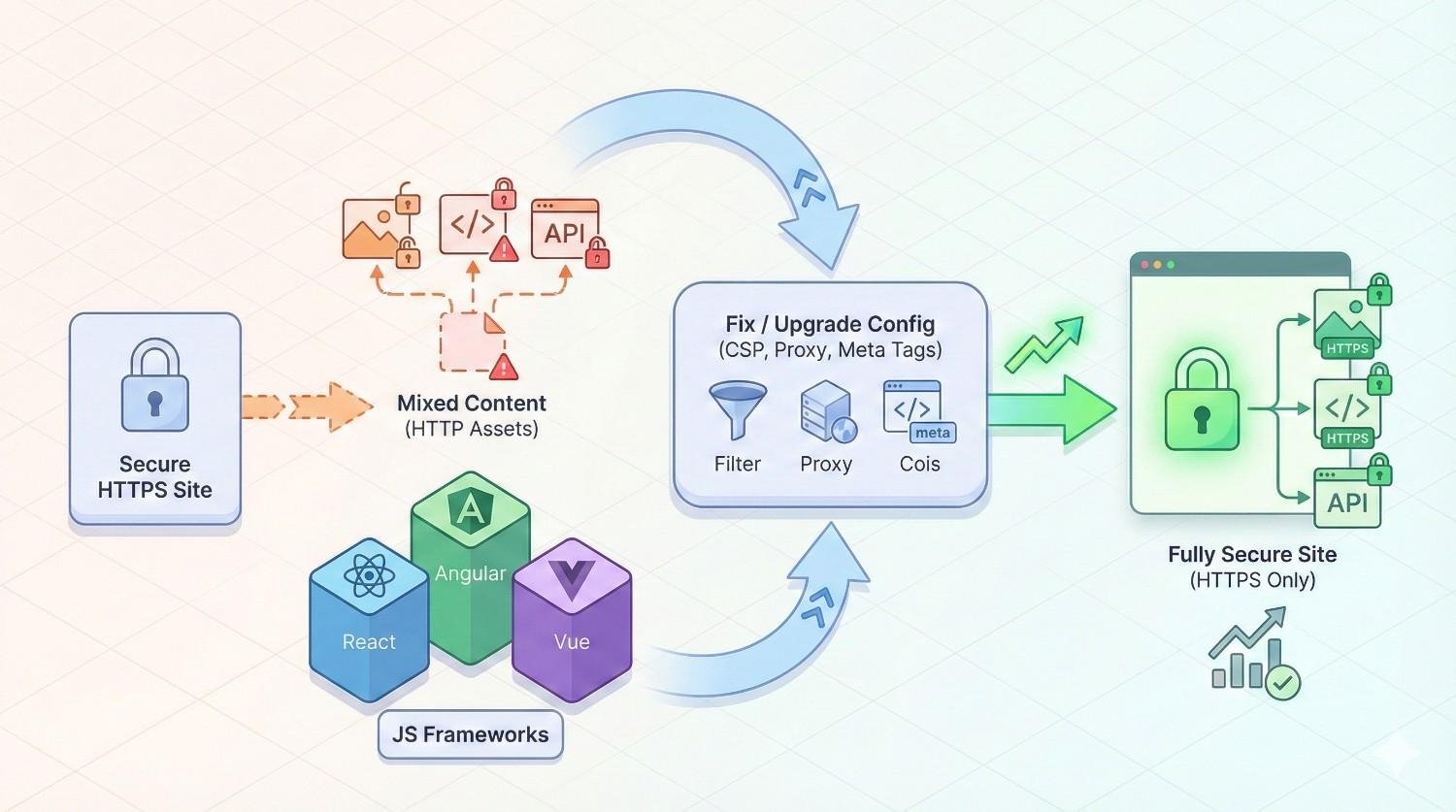
Fixing Mixed Content in JavaScript Frameworks (React, Angular, Vue)
Single-page applications built with JavaScript frameworks present unique challenges due to their build processes and dynamic content loading.
React applications:
- Check environment variables for API URLs
- Review public/index.html for hardcoded references
- Audit component files for HTTP URLs
- Update package.json proxy settings if applicable
Angular applications:
- Review environment.ts files for HTTP URLs
- Check angular.json for asset configurations
- Audit service files making HTTP requests
- Update any hardcoded URLs in components
Vue applications:
- Check vue.config.js for proxy and asset settings
- Review .env files for API endpoints
- Audit component files and Vuex stores
- Update any HTTP references in templates
For all frameworks:
- Use environment variables for URLs that differ between development and production
- Configure build processes to use HTTPS URLs in production builds
- Implement CSP headers appropriate for your framework
- Test production builds specifically for mixed content
Preventing Mixed Content Issues Going Forward
Fixing existing mixed content solves immediate problems. Prevention ensures issues don’t return.
Enforcing HTTPS with HSTS Headers
HTTP Strict Transport Security (HSTS) instructs browsers to only connect to your site via HTTPS, even if users type HTTP or click HTTP links.
Basic HSTS header:
Copy
Strict-Transport-Security: max-age=31536000; includeSubDomains
This tells browsers to use HTTPS exclusively for one year, including all subdomains.
Implementation methods:
- Apache: Add to .htaccess or server configuration
- Nginx: Add to server block configuration
- CDN: Configure through CDN dashboard
- Application: Set header in application code
HSTS considerations:
- Start with a short max-age (e.g., 300 seconds) during testing
- Increase gradually after confirming HTTPS works correctly
- The includeSubDomains directive affects all subdomains
- HSTS preloading provides maximum protection but requires commitment
Once HSTS is active, browsers refuse HTTP connections entirely. Ensure your HTTPS configuration is solid before enabling HSTS with long durations.
Setting Up Automatic HTTP to HTTPS Redirects
Server-level redirects ensure all traffic reaches HTTPS regardless of how visitors arrive.
301 redirects (permanent) are appropriate for HTTPS migration:
- They pass link equity to the HTTPS version
- Browsers cache them, reducing redirect overhead
- Search engines update their indexes accordingly
Implement redirects at the earliest possible point in your server stack. CDN-level redirects execute before requests reach your origin server, providing the fastest response.
Test redirects thoroughly:
- http://domain.com → https://domain.com
- http://www.domain.com → https://www.domain.com (or your preferred version)
- Deep pages redirect correctly
- No redirect loops occur
Monitor redirect performance. Excessive redirects slow page loading and may indicate configuration issues.
Content Security Policy Best Practices
CSP provides ongoing protection against mixed content and other security threats.
Recommended CSP approach:
- Start with report-only mode to understand your current resource usage
- Analyze reports to identify legitimate resources
- Build a policy that allows necessary resources while blocking others
- Test in report-only mode with your new policy
- Switch to enforcement mode
- Monitor for violations and adjust as needed
Key CSP directives for mixed content:
- upgrade-insecure-requests: Automatically upgrades HTTP to HTTPS
- block-all-mixed-content: Blocks all mixed content (stricter than browser defaults)
- default-src https:: Requires HTTPS for all resource types
Balance security with functionality. Overly restrictive policies break legitimate features. Start permissive and tighten gradually.
Developer and Content Team Guidelines
Human processes prevent mixed content as effectively as technical controls.
Developer guidelines:
- Always use HTTPS URLs in code
- Use relative URLs for internal resources when possible
- Verify third-party resources support HTTPS before integration
- Test in HTTPS environments during development
- Include mixed content checks in code review processes
Content team guidelines:
- Upload images through the CMS rather than linking external URLs
- Use the CMS media library for all assets
- Avoid copying embed codes from untrusted sources
- Report any security warnings encountered while editing
- Request review before adding third-party widgets
Document these guidelines and include them in onboarding for new team members. Regular reminders reinforce best practices.
Regular SSL and Security Audits
Ongoing monitoring catches mixed content before it affects users.
Audit schedule:
- Weekly: Automated crawler checks for mixed content
- Monthly: Manual review of high-traffic pages
- Quarterly: Comprehensive security audit including SSL configuration
- After changes: Check affected pages following any code or content updates
Audit components:
- Mixed content scanning across all pages
- SSL certificate validity and configuration
- HSTS header presence and settings
- CSP policy effectiveness
- Third-party resource security
Integrate security checks into your deployment pipeline. Automated tests can flag mixed content before code reaches production.
Mixed Content and SEO: What You Need to Know
Mixed content affects search performance through multiple mechanisms. Understanding these connections helps prioritize remediation efforts.
Google’s HTTPS Ranking Signal
Google confirmed HTTPS as a ranking signal in 2014 and has consistently emphasized site security since then. While HTTPS alone provides a modest ranking boost, mixed content can negate this benefit.
Google’s documentation emphasizes that HTTPS protects user data and provides authentication. Mixed content undermines both protections, potentially affecting how Google evaluates your site’s security implementation.
The ranking impact of mixed content specifically isn’t quantified publicly, but the principle is clear: incomplete HTTPS implementation doesn’t deliver the full security benefit that Google rewards.
Beyond direct ranking factors, Google’s emphasis on page experience includes security considerations. Sites with security warnings provide worse user experiences, which Google’s algorithms increasingly factor into rankings.
How Mixed Content Affects Crawling and Indexing
Googlebot renders pages to understand their content, and mixed content can interfere with this process.
When browsers block active mixed content, affected JavaScript doesn’t execute. If that JavaScript loads content, creates navigation, or modifies the page structure, Googlebot may not see your complete page.
Blocked resources can cause:
- Missing content that should be indexed
- Incomplete page rendering affecting quality assessment
- JavaScript errors that prevent proper page function
- Layout issues that affect mobile usability evaluation
Google Search Console’s URL Inspection tool shows how Googlebot renders your pages. Check important pages to ensure mixed content isn’t hiding content from search engines.
Passive mixed content is less likely to affect crawling directly, but the security warnings it generates may influence quality signals that affect rankings.
Core Web Vitals and Security Indicators
Core Web Vitals measure page experience through loading performance, interactivity, and visual stability. Mixed content can negatively impact all three metrics.
Largest Contentful Paint (LCP): Blocked images or resources may delay the largest content element from loading, increasing LCP times.
First Input Delay (FID) / Interaction to Next Paint (INP): Blocked JavaScript can affect interactivity measurements, either by preventing functionality or causing errors that slow response times.
Cumulative Layout Shift (CLS): Resources that fail to load can cause layout shifts as the page adjusts to missing elements.
Security indicators don’t directly factor into Core Web Vitals, but they affect the broader page experience that Google evaluates. A page with excellent Core Web Vitals but security warnings still provides a compromised user experience.
Building Trust Signals for Search Engines
Search engines evaluate trust through multiple signals, and security plays an important role.
Direct trust signals:
- Valid SSL certificate
- No mixed content warnings
- HSTS implementation
- Secure form handling
Indirect trust signals affected by security:
- User engagement metrics (bounce rate, time on site)
- Backlink acquisition (sites hesitate to link to insecure pages)
- Social sharing (users avoid sharing pages with warnings)
- Brand searches (security issues can damage reputation)
Building topical authority requires trust. Mixed content undermines the security foundation that supports other trust-building efforts. Resolving these issues removes a barrier to the trust signals that drive long-term SEO success.
Mixed Content Troubleshooting FAQ
Common questions arise during mixed content remediation. These answers address frequent challenges.
Why Does My Site Still Show “Not Secure” After Installing SSL?
Installing an SSL certificate enables HTTPS but doesn’t automatically update existing content. Your site shows “Not Secure” because pages still load resources over HTTP.
Common causes:
- Site URL settings still use HTTP
- Database contains HTTP URLs
- Theme files have hardcoded HTTP references
- Third-party resources load over HTTP
- Caching serves old HTTP content
Resolution steps:
- Update CMS site URL settings to HTTPS
- Run database find-and-replace for your domain
- Search theme files for HTTP references
- Clear all caches (browser, server, CDN)
- Check for remaining mixed content with browser tools
The SSL certificate provides the capability for HTTPS. You must also update all references to use that capability.
Can Mixed Content Break Website Functionality?
Yes. Active mixed content (scripts, stylesheets, iframes) is blocked by modern browsers, breaking any functionality that depends on those resources.
Examples of broken functionality:
- JavaScript libraries that power forms, sliders, or navigation
- CSS files that style page elements
- Payment processing scripts
- Analytics and tracking code
- Interactive widgets and tools
Passive mixed content (images, video, audio) typically loads with warnings rather than being blocked, so it’s less likely to break functionality directly.
Test your site thoroughly after HTTPS migration. Functionality that worked on HTTP may fail on HTTPS if dependent resources aren’t updated.
What If Third-Party Resources Don’t Support HTTPS?
When external resources don’t offer HTTPS versions, you have several options:
Option 1: Find alternatives Most reputable services now support HTTPS. Search for alternative providers offering the same functionality with secure delivery.
Option 2: Host locally If licensing permits, download the resource and host it on your own server. This gives you control over delivery protocol.
Option 3: Use a proxy Route requests through your server or a service that adds HTTPS. This adds complexity and potential performance impact.
Option 4: Remove the integration If the resource isn’t essential, removing it eliminates the mixed content issue entirely.
Option 5: Accept the warning For truly irreplaceable resources, you may need to accept mixed content warnings. Document this decision and monitor for when the provider adds HTTPS support.
Contact providers directly to request HTTPS support. Many services add HTTPS when customers request it.
How Do I Fix Mixed Content on Multiple Pages at Once?
Bulk fixes address mixed content efficiently across large sites.
Database updates: Use search-and-replace tools to update URLs throughout your database simultaneously. One operation can fix thousands of pages.
Theme/template fixes: Updating a template file fixes all pages using that template. Identify which templates contain mixed content and fix them once.
Server-level solutions: CSP headers with upgrade-insecure-requests automatically upgrade HTTP requests to HTTPS across your entire site.
CDN configuration: If your CDN serves resources, configuring it for HTTPS-only delivery fixes all resources it handles.
Combine approaches for comprehensive coverage. Database updates fix stored content, template fixes address structural issues, and CSP provides a safety net for anything missed.
Is Mixed Content the Same as an SSL Error?
No. These are distinct issues with different causes and solutions.
SSL errors indicate problems with your certificate or server configuration:
- Expired certificate
- Certificate doesn’t match domain
- Incomplete certificate chain
- Weak encryption protocols
- Server misconfiguration
Mixed content indicates your pages load insecure resources despite having a valid SSL certificate:
- HTTP images, scripts, or stylesheets
- Insecure third-party embeds
- Hardcoded HTTP URLs
You can have mixed content with a perfectly valid SSL certificate. You can also have SSL errors with no mixed content.
Diagnose which issue you’re facing:
- SSL errors prevent HTTPS connections entirely or show certificate warnings
- Mixed content allows HTTPS but shows “Not fully secure” or blocks specific resources
Fix SSL errors first, as they prevent HTTPS from working at all. Then address mixed content to achieve full security.
Tools and Resources for Managing Mixed Content
The right tools accelerate detection and remediation while reducing manual effort.
Recommended Browser Extensions
Browser extensions provide convenient mixed content detection during regular browsing.
HTTPS Everywhere (Electronic Frontier Foundation): Automatically switches sites to HTTPS when available and highlights security issues.
HTTP Header Live: Displays all HTTP headers including security headers, helping verify CSP and HSTS implementation.
Wappalyzer: Identifies technologies used on websites, helping understand what might cause mixed content.
These extensions integrate into your normal workflow, catching issues as you browse your site without requiring separate tools.
Command-Line and Developer Tools
Technical users benefit from command-line tools for efficient scanning and updating.
grep/find: Search files for HTTP references:
bash
Copy
grep -r “http://” /var/www/html –include=“*.php”
sed: Bulk replace in files:
bash
Copy
sed -i ‘s/http:\/\/example.com/https:\/\/example.com/g’ filename.php
curl: Test individual URLs for mixed content:
bash
Copy
curl -I https://example.com/page
OpenSSL: Verify SSL certificate configuration:
bash
Copy
openssl s_client -connect example.com:443
Combine these tools in scripts for automated checking and remediation across large codebases.
WordPress Plugins for HTTPS Management
WordPress-specific plugins simplify mixed content management.
Really Simple SSL: Automatic detection and fixing of most mixed content issues. Handles redirects and common edge cases.
Better Search Replace: Safe database search and replace with serialization support. Essential for bulk URL updates.
SSL Insecure Content Fixer: Specifically targets mixed content with multiple fix levels from simple to comprehensive.
WP Force SSL: Focuses on forcing HTTPS connections and redirects with minimal configuration.
Choose plugins based on your needs. Simple sites may need only Really Simple SSL. Complex sites benefit from combining multiple tools.
Enterprise-Level Security Monitoring Solutions
Large organizations require scalable solutions for ongoing security management.
Qualys SSL Labs: Comprehensive SSL/TLS testing and monitoring with detailed reports and recommendations.
Sucuri: Website security platform including malware scanning, firewall, and mixed content detection.
Cloudflare: CDN with automatic HTTPS, security features, and mixed content handling capabilities.
Detectify: Automated security scanning including mixed content detection as part of broader vulnerability assessment.
These solutions provide dashboards, alerts, and reporting suitable for enterprise security requirements and compliance needs.
When to Seek Professional Help for Mixed Content Issues
Some situations warrant expert assistance rather than DIY remediation.
Signs You Need Expert Technical SEO Support
Consider professional help when:
Complexity exceeds your expertise:
- Custom applications with intricate codebases
- Multiple interconnected systems and databases
- Legacy platforms with limited documentation
- High-risk sites where errors have significant consequences
Time constraints are critical:
- Mixed content actively harming conversions
- Security incidents requiring immediate response
- Compliance deadlines approaching
- Resource limitations preventing thorough internal work
Previous attempts failed:
- Fixes that didn’t resolve all issues
- Problems that keep recurring
- Unclear root causes despite investigation
- Conflicting advice from different sources
Scale requires efficiency:
- Thousands of pages with mixed content
- Multiple sites or properties to address
- Ongoing maintenance needs exceeding internal capacity
Professional assistance provides expertise, efficiency, and accountability that internal efforts may lack.
What to Expect from a Technical SEO Audit
A comprehensive technical SEO audit addressing mixed content includes:
Discovery phase:
- Full site crawl identifying all mixed content
- Server configuration review
- SSL certificate analysis
- Third-party integration inventory
Analysis phase:
- Root cause identification for each issue
- Risk assessment and prioritization
- Impact evaluation on security and SEO
- Remediation approach recommendations
Documentation:
- Detailed findings report
- Prioritized action items
- Step-by-step remediation instructions
- Resource requirements and timeline estimates
Implementation support:
- Guidance during fix implementation
- Testing and validation assistance
- Troubleshooting for unexpected issues
- Verification of successful resolution
Quality audits provide actionable insights, not just problem lists. Expect clear explanations and practical solutions.
How Our Team Resolves Mixed Content at Scale
White Label SEO Service approaches mixed content systematically, combining automated tools with expert analysis.
Our process:
- Comprehensive scanning across all pages, subdomains, and resource types
- Root cause analysis identifying why mixed content exists, not just where
- Prioritized remediation addressing highest-impact issues first
- Platform-appropriate solutions tailored to your specific technology stack
- Implementation support or direct execution depending on your needs
- Validation testing confirming complete resolution
- Prevention setup including monitoring and guidelines to prevent recurrence
We’ve resolved mixed content for sites ranging from small business websites to enterprise platforms with millions of pages. Our experience accelerates resolution while avoiding common pitfalls.
Conclusion: Securing Your Website for Better Rankings and Trust
Mixed content errors represent a solvable technical SEO challenge with meaningful impact on security, user experience, and search performance. The path from identification through remediation to prevention follows clear steps that any website can implement.
Understanding the distinction between passive and active mixed content helps prioritize efforts. Fixing blocked scripts and stylesheets restores functionality immediately, while addressing warned images and media completes your security posture. Both matter for achieving the full benefits of HTTPS implementation.
We help businesses resolve technical SEO issues like mixed content as part of comprehensive organic growth strategies. White Label SEO Service provides the expertise to identify, fix, and prevent mixed content while building the broader technical foundation that supports sustainable search visibility. Contact our team for a technical SEO audit that addresses mixed content and positions your site for long-term success.
Frequently Asked Questions
Does mixed content affect SEO rankings?
Yes, mixed content can negatively impact SEO rankings. Google uses HTTPS as a ranking signal, and mixed content indicates incomplete HTTPS implementation. Additionally, blocked resources may prevent proper page rendering, affecting how search engines understand and evaluate your content.
Will fixing mixed content improve my site speed?
Fixing mixed content doesn’t directly improve speed, but it can prevent slowdowns caused by blocked resources or browser security checks. Properly configured HTTPS with HTTP/2 support may actually improve loading performance compared to HTTP connections.
How long does it take to fix mixed content issues?
Simple sites with few issues can be fixed in hours. Complex sites with thousands of pages, multiple databases, and custom code may require days or weeks. The timeline depends on issue volume, site architecture, and available resources for implementation.
Can I ignore passive mixed content warnings?
While passive mixed content doesn’t break functionality, ignoring it isn’t recommended. Browser warnings erode user trust, and incomplete HTTPS implementation may affect SEO. Address all mixed content for full security benefits and clean browser indicators.
Why does mixed content appear after I already fixed it?
Mixed content can return through new content creation, plugin updates, theme changes, or third-party modifications. Implement prevention measures including team guidelines, CSP headers, and regular monitoring to catch and address new issues quickly.
Do all browsers handle mixed content the same way?
Browsers handle mixed content similarly but with some variations. All modern browsers block active mixed content and warn about passive mixed content. Specific warning appearances and user options differ between Chrome, Firefox, Safari, and Edge. Test across browsers to understand user experience.
Should I use a plugin or fix mixed content manually?
Plugins work well for standard CMS installations and provide quick resolution. Manual fixes offer more control and address issues at their source rather than at runtime. Many sites benefit from combining both approaches: plugins for immediate relief and manual updates for permanent resolution.