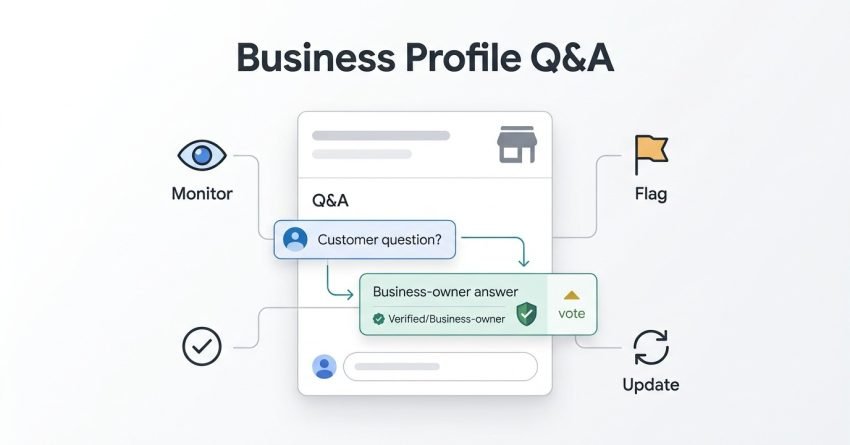
Google Business Profile’s Question and Answer feature is a public forum attached to your listing where anyone with a Google account can ask a question and anyone including competitors can answer it. I’ve watched businesses lose control of their own listing simply because nobody was checking this section. The Q&A feature on Google Business Profile lets customers publicly ask questions about a business, and both the business and the general public can respond, making it a semi-public FAQ that lives directly on the search results page.
Unmanaged Q&A sections quietly damage trust, accuracy, and conversion rates over time. A wrong answer sitting unanswered for months costs you customers you never even see. I treat this feature with the same seriousness as review management.
This guide covers what the Q&A feature is and how it works, how to monitor and respond to questions efficiently, how to proactively seed helpful FAQs, how to handle spam and inappropriate content, and how to build Q&A into your broader local SEO and customer experience strategy.
What Is the Q&A Feature on Google Business Profile?
Google Business Profile Q&A is a public section on a business listing where users submit questions and receive answers from the business owner, Google users, or other customers. I always tell clients that this is not a private inbox it’s a public conversation happening on your own storefront.
Anyone with a Google account can ask a question, and anyone with a Google account can answer it, regardless of whether they’ve ever interacted with the business. That openness is exactly what makes proactive monitoring non-negotiable.
Where Q&A Appears on Your Profile
The Q&A section sits below the business description and photos on both Google Search and Google Maps listings. It’s visible to anyone who searches your business name or finds you through a local pack result.
Questions with the most upvotes rise to the top, which means an old, unanswered, or inaccurate response can end up as the first thing a potential customer reads.
Who Can Ask and Answer Questions
Any signed-in Google user can post a question or answer, and this includes people who have never actually visited or used the business. I’ve seen competitors post misleading answers on rival listings, which is part of why active monitoring matters so much.
Business owners get a “Business Owner” tag next to their responses, giving their answers more visible authority than anonymous public replies.
Why Managing Q&A Matters for Local SEO and Reputation
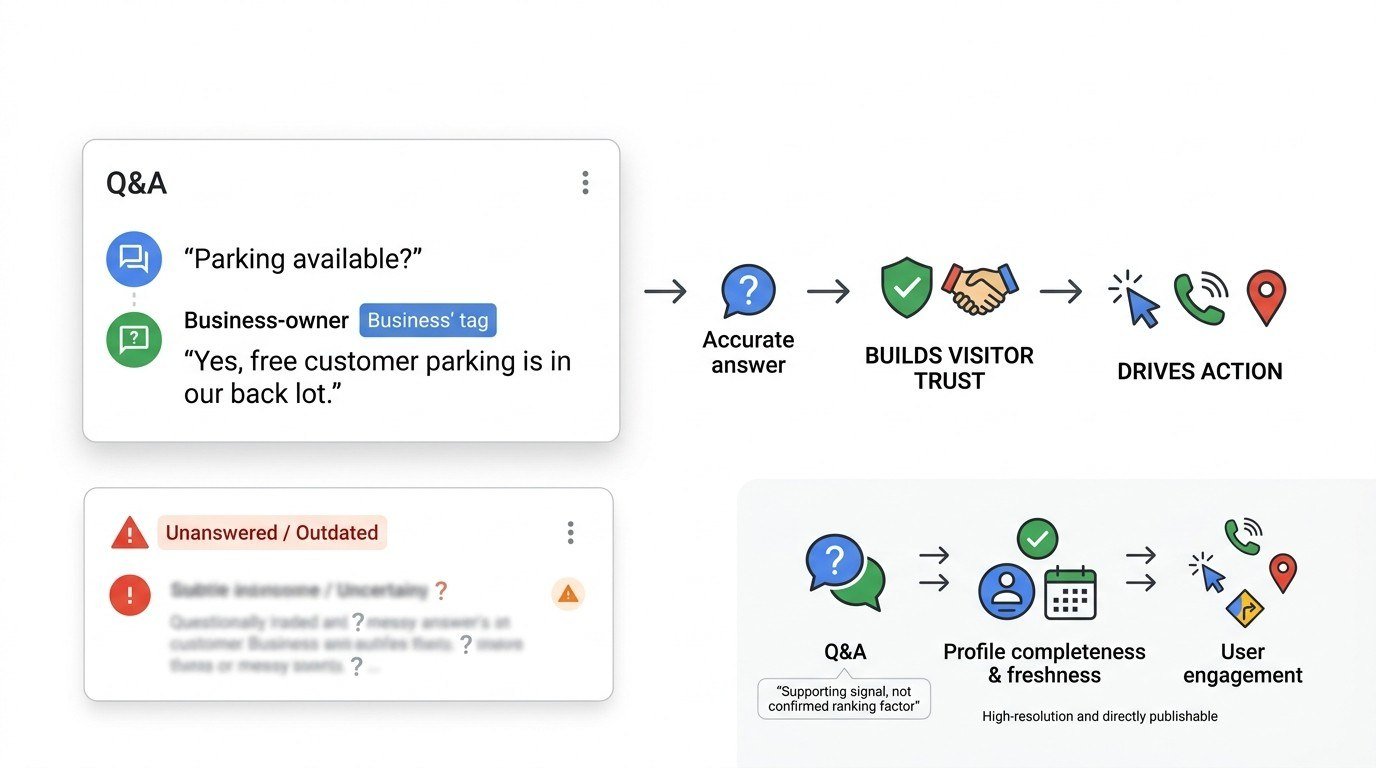
Managing Google Business Profile Q&A matters because it directly shapes purchase decisions and contributes to the trust signals search engines and users associate with a listing. I’ve watched a single well-placed answer shift a customer from hesitant to booked.
Untended Q&A sections accumulate outdated information, unanswered complaints, and sometimes outright false claims that sit at the top of your profile indefinitely.
How Q&A Influences Buyer Decisions
Buyers read Q&A sections specifically because they trust peer-generated content more than polished marketing copy. A prospective customer asking about parking availability or return policies is often one answer away from converting or bouncing to a competitor.
Fast, accurate, business-owner-tagged answers build the kind of on-the-spot confidence that generic website copy struggles to replicate.
The Connection Between Q&A and Local Rankings
Google has never confirmed Q&A as a direct local ranking factor, but engagement signals across a Business Profile including Q&A activity correlate with the overall profile completeness and freshness that local pack algorithms appear to reward. I treat it as a supporting signal rather than a primary one.
What’s undeniable is the indirect effect: well-managed profiles earn more clicks, calls, and direction requests, and that engagement is something Google can measure directly.
How to Find and Monitor Questions on Your Profile
You monitor questions on your Google Business Profile through the Google Maps app, a direct Google Search of your business name, or by setting up push notifications tied to your Google account. I check mine daily because a two-week gap can mean a wrong answer sat unchallenged that whole time.
There’s no single unified dashboard for this inside Google Business Profile Manager, which is exactly why most businesses miss questions until it’s too late.
Monitoring Through the Google Maps App
Open the Maps app, search your business, and scroll to the Questions & Answers section to see everything in real time. This is often faster than searching on desktop because the mobile app surfaces new questions more prominently.
I recommend checking this at least every few days if your profile gets any meaningful search volume.
Monitoring Through Google Search
Searching your exact business name on Google and clicking into the Knowledge Panel shows the same Q&A section, accessible without the Maps app. This method works well for a quick daily check from a desktop browser.
Both paths show identical data, so pick whichever fits your existing workflow.
Setting Up Notifications for New Questions
Google can send notifications for new questions through the Google Maps app if notifications are enabled for your business profile in your Google account settings. I still recommend a manual check on a schedule, since notification delivery isn’t always reliable enough to depend on alone.
Combining alerts with a recurring calendar reminder closes that gap.
How to Answer Questions on Google Business Profile
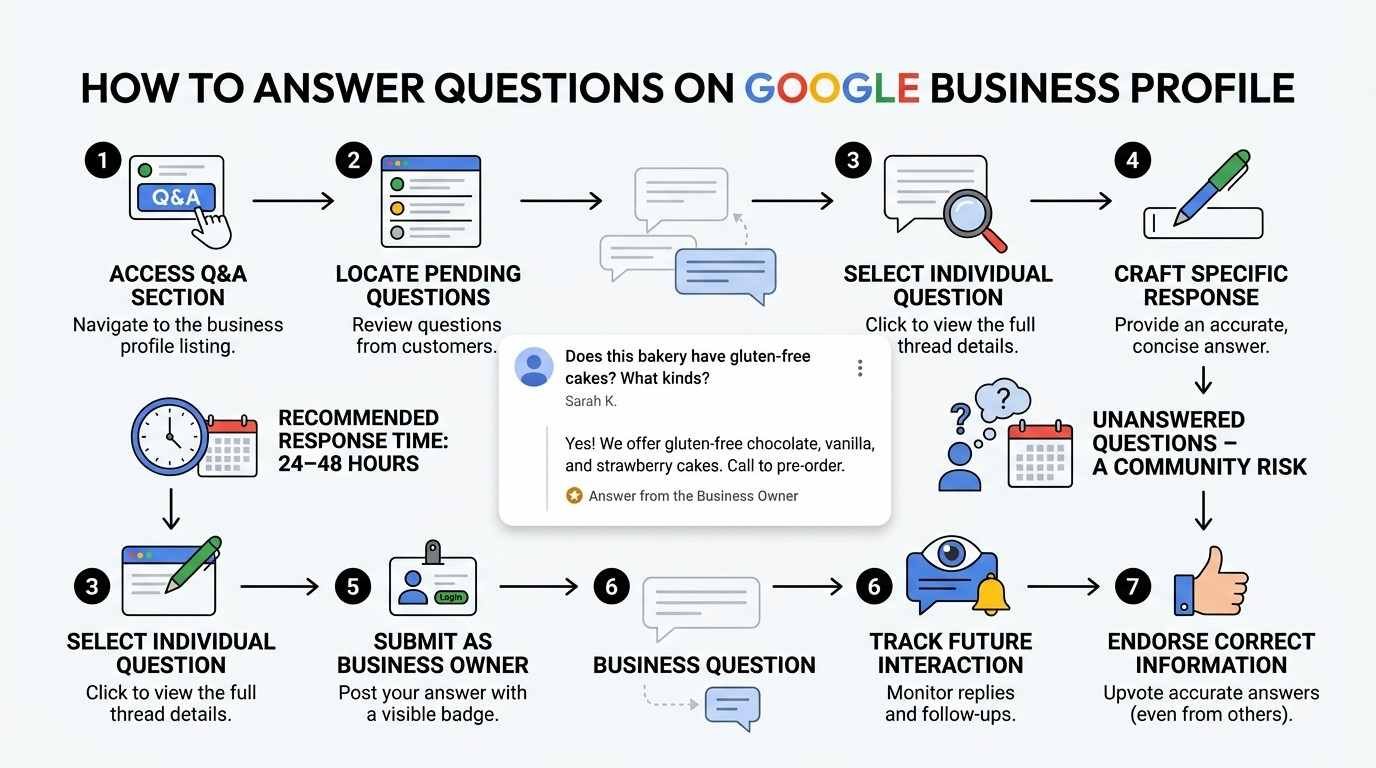
You answer a question by opening the Q&A section in Google Maps or Search, tapping the question, and submitting a response tagged with your Business Owner badge. A response tagged as coming from the business owner carries more visible authority than an anonymous public answer, which is exactly why claiming and monitoring your profile matters.
I always answer with specifics rather than vague reassurances; customers can tell the difference immediately.
Step-by-Step Answering Process
- Open the Q&A section on Maps or Search for your business listing.
- Locate the unanswered question, usually marked as unresponded.
- Tap or click into the question thread.
- Write a direct, specific answer to what was actually asked.
- Submit the response under your business owner account.
- Monitor for follow-up questions or replies to your answer.
- Upvote your own accurate answer if a competing answer outranks it.
Response Time Best Practices
I aim to answer within 24 to 48 hours because unanswered questions accumulate upvotes from other users who post their own, sometimes conflicting, answers. A question sitting unanswered for a week often already has an incorrect public answer attached to it by the time you get there.
Fast responses also signal to prospective customers that the business is active and attentive.
How to Post and Pre-Answer Your Own Questions
Business owners can post their own frequently asked questions and immediately answer them, effectively seeding a curated FAQ section before customers start asking. I do this for every new client profile in the first week, because an empty Q&A section is a missed opportunity, not a neutral one.
This tactic front-loads the most useful information parking, hours, policies before a real customer has to ask and wait for a reply.
Why Business Owners Seed Their Own Q&A
Seeding your own questions means you control the first impression of your Q&A section rather than leaving it blank or waiting for a stranger’s version of events. I typically seed five to ten questions covering the exact things customers ask on the phone every week.
This front-loads value into proactive FAQ seeding and reduces the volume of repetitive phone or email inquiries over time.
Writing Effective Answers That Build Trust and Convert
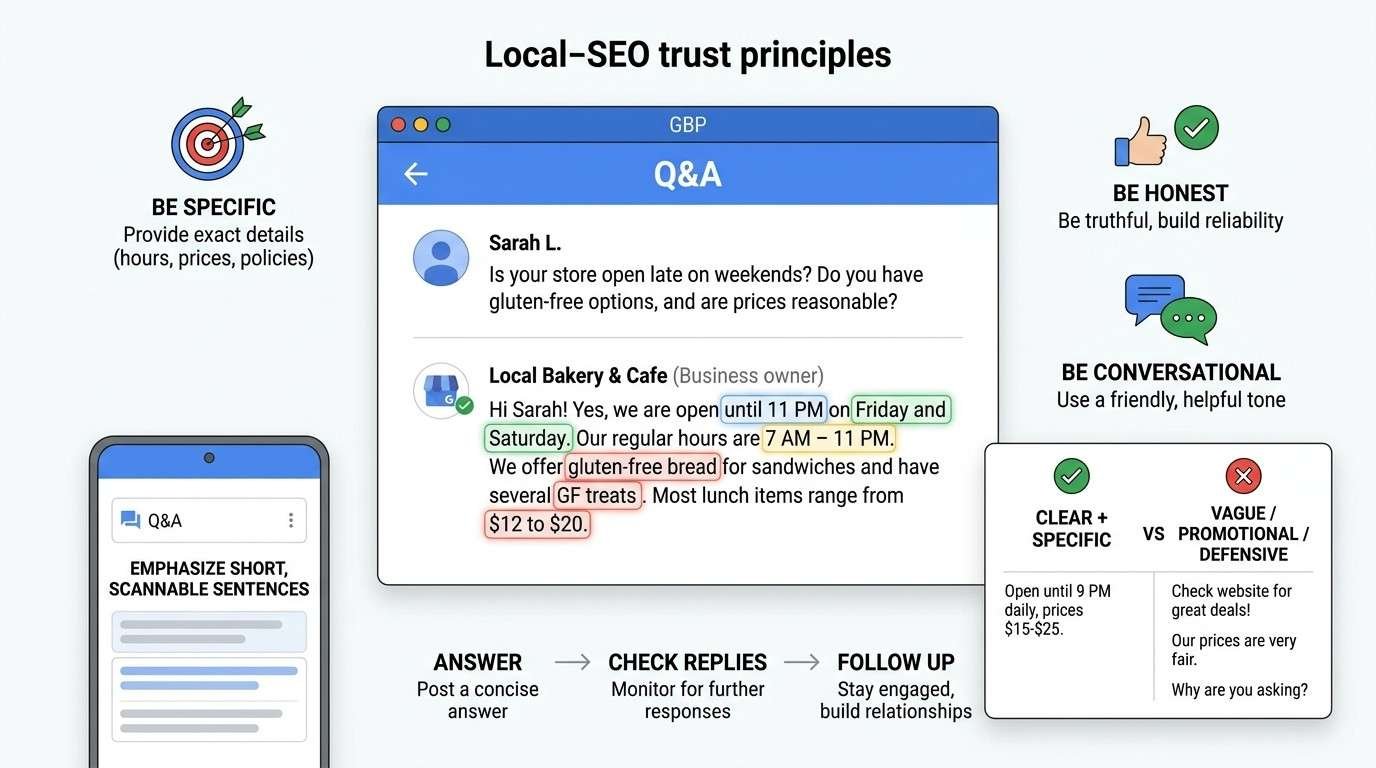
Effective Q&A answers are specific, honest, and written in a natural conversational tone rather than sounding like copied marketing language. An answer that reads like a canned corporate statement erodes the exact trust the Q&A feature is supposed to build.
I always name specific details: exact hours, exact prices, exact policies instead of vague phrases like “please call for details.”
Tone and Language Guidelines
Write answers the way you’d explain something to a customer standing at your counter, plain and direct. Avoid jargon, avoid overly promotional language, and avoid repeating your business name unnaturally inside the answer.
Short, clear sentences outperform long paragraphs here because most people are scanning on mobile.
Common Mistakes That Hurt Credibility
Businesses often ignore questions entirely, answer vaguely, or get defensive when a question implies a complaint. Any of these responses read poorly to the hundreds of silent readers who never post but do decide based on what they see.
I also see businesses answer once and never check back for follow-up replies, which leaves threads looking abandoned.
How to Upvote, Flag, or Remove Inappropriate Questions and Answers
Google allows users to flag questions or answers that violate its content policies, and the business owner can also upvote accurate answers to push them above lower-quality ones. Flagging does not guarantee removal. Google reviews flagged content against its own policy standards before taking action.
I flag anything that’s clearly spam, false, or defamatory the same day I see it, since delays only give it more time to accumulate visibility.
When and How to Flag Content
Tap the three-dot menu next to a question or answer and select the flag or report option, then choose the reason that matches the violation. This works the same way across both the Maps app and Google Search.
Keep a record of what you flagged and when, in case you need to escalate through Google Business Profile support channels later.
What Google Will and Won’t Remove
Google typically removes content that violates its policies on spam, hate speech, or personal information, but it generally won’t remove a question just because the answer is unflattering. I set that expectation with clients early, because “remove this bad review” thinking doesn’t transfer cleanly to Q&A.
Legitimate criticism phrased as a question usually stays up regardless of how it makes the business look.
Handling Spam, Fake Questions, and Competitor Sabotage
Spam and fake questions on Google Business Profile are handled through the same flagging system used for policy violations, followed by a fast, factual public correction. A false claim left unanswered in your Q&A section is often read as confirmation rather than an oversight.
I never argue publicly in the response; I state the correct fact plainly and move on.
Some businesses see direct sabotage from competitors posting misleading answers under the guise of a neutral customer. Responding calmly with the accurate information, then flagging the offending content separately, handles both the immediate damage and the long-term record.
Assigning Q&A Management to Team Members
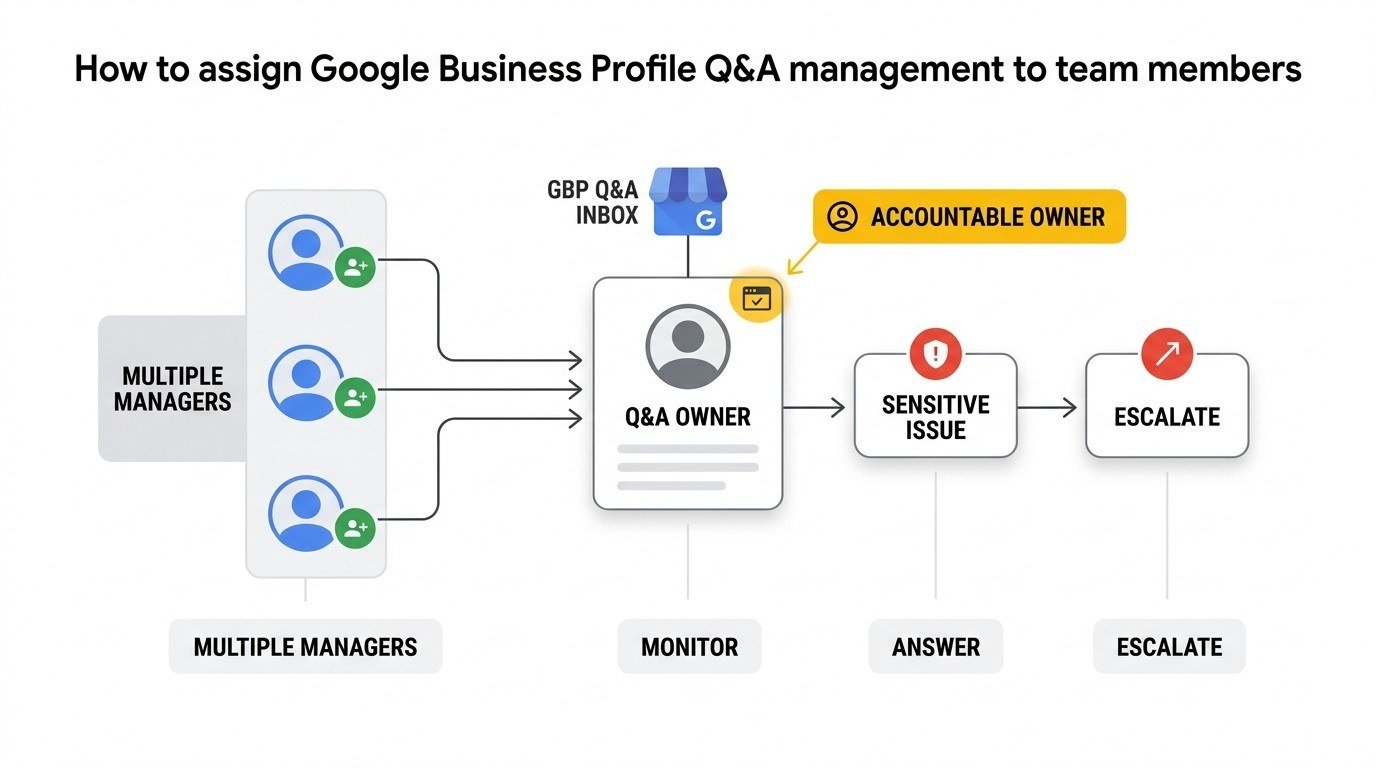
Larger businesses typically assign Q&A monitoring to a specific team member or rotate the responsibility across a customer service team using shared profile access. I recommend one clearly accountable owner rather than a rotating group, since split responsibility is how questions slip through unanswered.
Google Business Profile allows multiple managers on a single account, which makes delegation straightforward from a permissions standpoint.
Whoever owns this task needs both the authority to answer accurately and a fast escalation path for anything sensitive, like complaints framed as questions.
Using Q&A Data to Improve Customer Experience and Content Strategy
The questions customers repeatedly ask on your Google Business Profile double as a free, ongoing source of content and product ideas. I regularly pull recurring Q&A themes into website FAQ pages, blog topics, and even staff training material.
If the same question about return policy or parking comes up five times, that’s a signal your website isn’t answering it clearly enough on its own.
This turns a reactive management task into a genuine feedback loop between what customers actually want to know and what your other marketing content currently covers.
Common Mistakes Businesses Make With Google Q&A
The most common mistake is simply never checking the section, leaving it to accumulate outdated or incorrect public answers for months or years. I’ve inherited client profiles where the top-voted answer to a pricing question was three years out of date.
Other frequent mistakes include answering defensively, ignoring flagged spam, and never seeding helpful starter questions at all.
Q&A vs. Reviews: Understanding the Difference
Google Business Profile Q&A is a forward-looking, question-based feature meant to clarify information before a purchase, while reviews are retrospective feedback about a completed experience. Reviews reflect what already happened; Q&A shapes what happens next.
I treat them as two different tools solving two different moments in the customer journey.
How Each Feature Impacts Local SEO Differently
Reviews carry more documented weight as a local ranking signal, tied closely to rating volume and recency, while Q&A functions more as an engagement and trust layer. Both contribute to overall profile activity, which search engines can read as a freshness signal.
Treating Q&A as equally important to reviews, even without identical ranking weight, keeps the full customer decision journey covered.
Best Practices Checklist for Ongoing Q&A Management
| Practice | Frequency |
| Check for new questions | Every 2-3 days |
| Seed new FAQ-style questions | Monthly or after major changes |
| Flag spam or false content | Same day it’s found |
| Review top-voted answers for accuracy | Monthly |
| Delegate ownership to a named team member | Ongoing |
| Pull recurring questions into content strategy | Quarterly |
This checklist works as a recurring calendar task rather than a one-time setup, since the section stays live and public indefinitely.
Conclusion
Google Business Profile Q&A connects directly to buyer trust, profile completeness, and the local reputation signals search engines and customers both notice.
This feature works best as part of a broader local SEO and reputation strategy, alongside reviews, profile completeness, and consistent content updates.
We help businesses turn overlooked profile features into real growth. Reach out to White Label SEO Service to build a complete local visibility strategy.
Frequently Asked Questions
Can anyone answer questions on my Google Business Profile?
Yes, any signed-in Google user can answer a question on a public Business Profile, not just the business owner. This is why daily monitoring matters, since inaccurate answers can appear from anyone.
Can I delete a question someone asked on my profile?
Business owners cannot directly delete questions, but they can flag content that violates Google’s policies for review. Google decides whether flagged content gets removed based on its own guidelines.
How do I get notified when someone asks a question?
Google can send push notifications through the Maps app if notifications are enabled in your account settings. A manual check every few days is still recommended as a backup.
Is it okay to ask and answer my own questions?
Yes, business owners are permitted to post and answer their own questions to proactively seed helpful information. This practice is common and widely used to front-load useful FAQs.
Does answering questions affect my local search ranking?
Google hasn’t confirmed Q&A as a direct ranking factor, but it contributes to overall profile engagement and freshness signals. Active profiles generally see stronger visibility outcomes overall.
What should I do about fake or spam questions?
Flag the content through the three-dot menu and post a calm, factual correction publicly. Avoid arguing in the response and let the accurate information stand on its own.
How often should I check my Q&A section?
Checking every two to three days catches most new questions before they accumulate incorrect public answers. Daily checks are ideal for high-traffic listings.