Google Business Profile messaging is a free communication feature that lets customers send direct messages to a business through its Google Business Profile listing, appearing in Search and Maps. It connects potential customers to businesses at the exact moment they’re researching a purchase decision. I’ve watched this feature quietly become one of the fastest ways local businesses convert search visibility into real conversations.
Response speed here directly shapes customer trust and, in many cases, whether that lead converts at all. A slow or ignored inbox can undo months of local SEO work in a single missed conversation.
This guide covers what messaging is and why it matters, how to turn it on and what’s required first, the core features available once it’s active, how to manage conversations and avoid common problems, and how messaging fits into a broader local SEO and multi-location strategy.
What Is Google Business Profile Messaging?
Google Business Profile messaging is a native chat feature that lets verified businesses receive and reply to customer messages directly from their Google listing. I think of it as a lightweight help desk built straight into Search and Maps, no app download required for the customer.
How Messaging Fits Into Google Business Profile
Messaging sits alongside the other engagement tools on a profile, next to calls, direction requests, and review replies. It shows up as a “Message” button on mobile search results and Maps listings once enabled. The button only appears for businesses that have turned the feature on and verified their profile.
Why Messaging Matters for Local Businesses
Customers increasingly prefer messaging over phone calls, especially for quick questions about hours, pricing, or availability. A Google Business Profile listing with fast message response times signals to searchers that a business is active and responsive before they ever visit. That first impression often decides whether someone calls, books, or moves on to a competitor.
How to Enable Messaging on Google Business Profile
You enable Google Business Profile messaging through the Google Business Profile app or the Google Maps app under your business profile’s chat settings, since desktop management options are limited for this specific feature. I always tell clients to expect the toggle to live under a “Messages” or “Customer communication” tab rather than the main dashboard.
Enabling Messaging on Desktop
Desktop access to Google Business Profile management has shrunk over the past two years, and messaging setup is one of the features Google now restricts to mobile. You can still view and reply to messages that arrive through the Google Business Profile dashboard on desktop once the feature is turned on elsewhere.
Enabling Messaging via the Google Business Profile App
- Open the Google Business Profile app on your phone.
- Tap “Messages” from the bottom navigation bar.
- Select “Turn on” when prompted to enable customer messaging.
- Set a welcome message that greets new conversations automatically.
- Choose whether to allow message notifications to your email or phone.
- Confirm your business phone number is linked for SMS forwarding, if available.
- Save your settings and send a test message to confirm delivery.
Key Requirements Before You Turn On Messaging
A verified and fully complete Google Business Profile is required before the messaging option becomes available, since Google restricts communication features to confirmed business owners. I’ve seen unverified profiles simply not show the messaging toggle at all, which is the single most common setup complaint I hear.
Account Verification Requirements
Your business must have completed Google Business Profile verification through postcard, phone, email, or video verification before messaging unlocks. An unverified listing can still appear in search but loses access to owner-controlled features like messaging and posts.
Profile Completeness Requirements
Google expects a filled-out business category, address or service area, and active phone number before messaging activates reliably. Profiles missing these basics sometimes show the message button inconsistently across devices.
Core Features of Google Business Profile Messaging
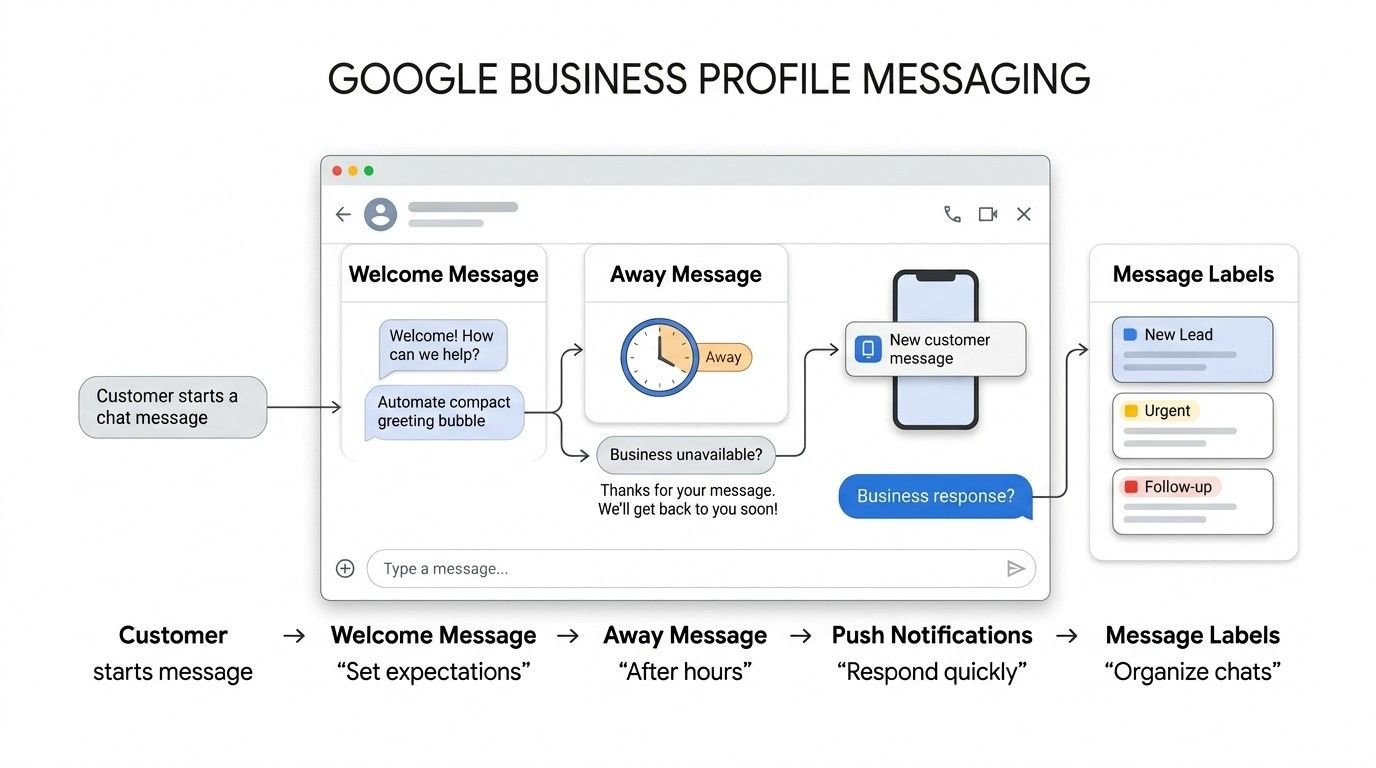
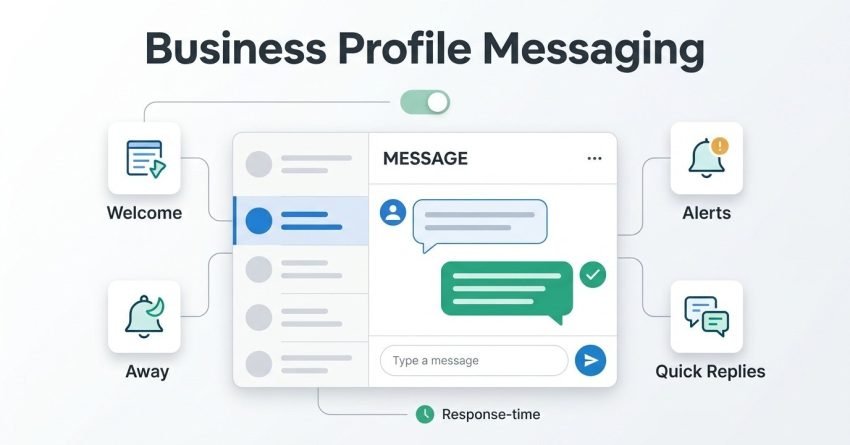
Google Business Profile messaging includes automated welcome messages, away messages, and real-time push notifications, giving businesses a lightweight way to manage customer conversations without a dedicated help desk tool.
| Feature | What It Does | Best Used For |
| Welcome Message | Auto-sends a greeting when a new chat starts | Setting expectations immediately |
| Away Message | Notifies customers when you’re unavailable | After-hours coverage |
| Push Notifications | Alerts the owner’s phone or email of new messages | Fast response times |
| Message Labels | Tags conversations by status (e.g., “answered”) | Organizing high message volume |
Welcome Messages
A welcome message fires automatically the moment a customer opens a new chat, before any human reply happens. I usually recommend one sentence that confirms typical response time, since that single line reduces frustrated follow-up messages.
Automated Away Messages
Away messages activate outside your posted business hours and tell customers when to expect a reply. This keeps a conversation alive overnight instead of it going cold.
Message Notifications
Push notifications route directly to the phone number or email tied to the Google Business Profile owner account, which matters most for solo operators checking messages between other tasks.
Managing and Responding to Customer Messages
Google Business Profile messages appear inside the Google Business Profile app’s Messages tab, where owners can reply in real time much like a standard texting app. Every reply is tied to the verified business account, not a personal number, unless SMS forwarding is enabled.
Response Time Expectations
Google displays a “usually responds in X” indicator on your listing based on historical reply speed, and this indicator is visible to anyone browsing your profile. A business consistently replying within an hour earns a noticeably different label than one that takes days, and that label alone can shift a searcher’s decision.
Message History and Archiving
All conversations are stored in the app and remain searchable, which helps when a customer references an earlier chat weeks later. Deleted conversations cannot be recovered, so I advise exporting anything important before archiving old threads.
Google Business Profile Messaging vs. Other Communication Channels
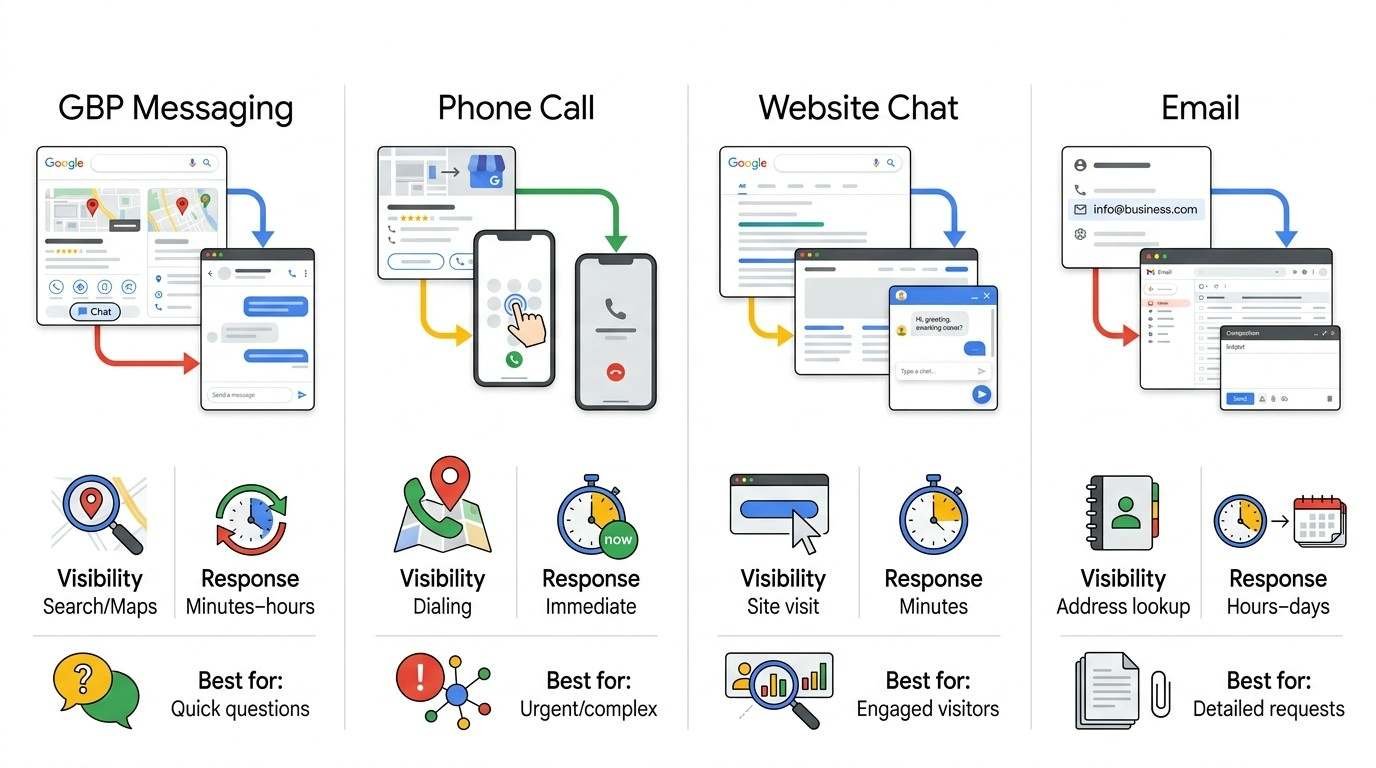
Google Business Profile messaging differs from phone calls, email, and website chat widgets by embedding the conversation directly inside the search result, removing the extra step of visiting a website first.
| Channel | Visibility | Response Expectation | Best For |
| GBP Messaging | Inside Search/Maps | Minutes to hours | Quick pre-purchase questions |
| Phone Call | Requires dialing | Immediate | Urgent or complex inquiries |
| Website Chat Widget | Requires site visit | Minutes | Site visitors already engaged |
| Requires address lookup | Hours to days | Detailed, non-urgent requests |
Best Practices for Using Messaging Effectively
Businesses that respond to Google Business Profile messages within an hour consistently see stronger engagement signals than those with slower reply patterns. I treat the messaging inbox the same priority level as a ringing phone during business hours.
Setting Response Time Expectations
A clear welcome message stating “we typically reply within 30 minutes” manages customer patience better than silence. This single habit prevents most of the frustration that leads to a bad review.
Using Message Templates
Saved replies for common questions like pricing, hours, or Google Business Profile service area details save significant time on repetitive conversations. I keep a running list of five or six templates that cover 80% of incoming questions.
Common Messaging Issues and How to Fix Them
The messaging feature commonly fails to appear due to an unverified profile, a suspended listing, or an account missing required category information. Most fixes take under ten minutes once the actual cause is identified.
Messaging Feature Missing or Grayed Out
This almost always traces back to incomplete verification or a business category that doesn’t support messaging, such as certain regulated industries. Checking your Google Business Profile verification status is the first troubleshooting step I run every time.
Notifications Not Appearing
Notification failures usually come down to app permission settings on the phone rather than anything wrong with the Google Business Profile itself. Confirming push notifications are allowed in the phone’s system settings resolves this in most cases.
Messaging Analytics and Performance Tracking
Google Business Profile provides basic messaging performance data, including response rate and response time, viewable directly within the app’s insights section. These numbers matter because Google surfaces the response-time badge publicly on your listing.
Tracking these metrics alongside broader Google Business Profile insights gives a fuller picture of how messaging contributes to overall profile engagement. I check this weekly for clients running high message volume.
How Messaging Supports Local SEO and Customer Engagement
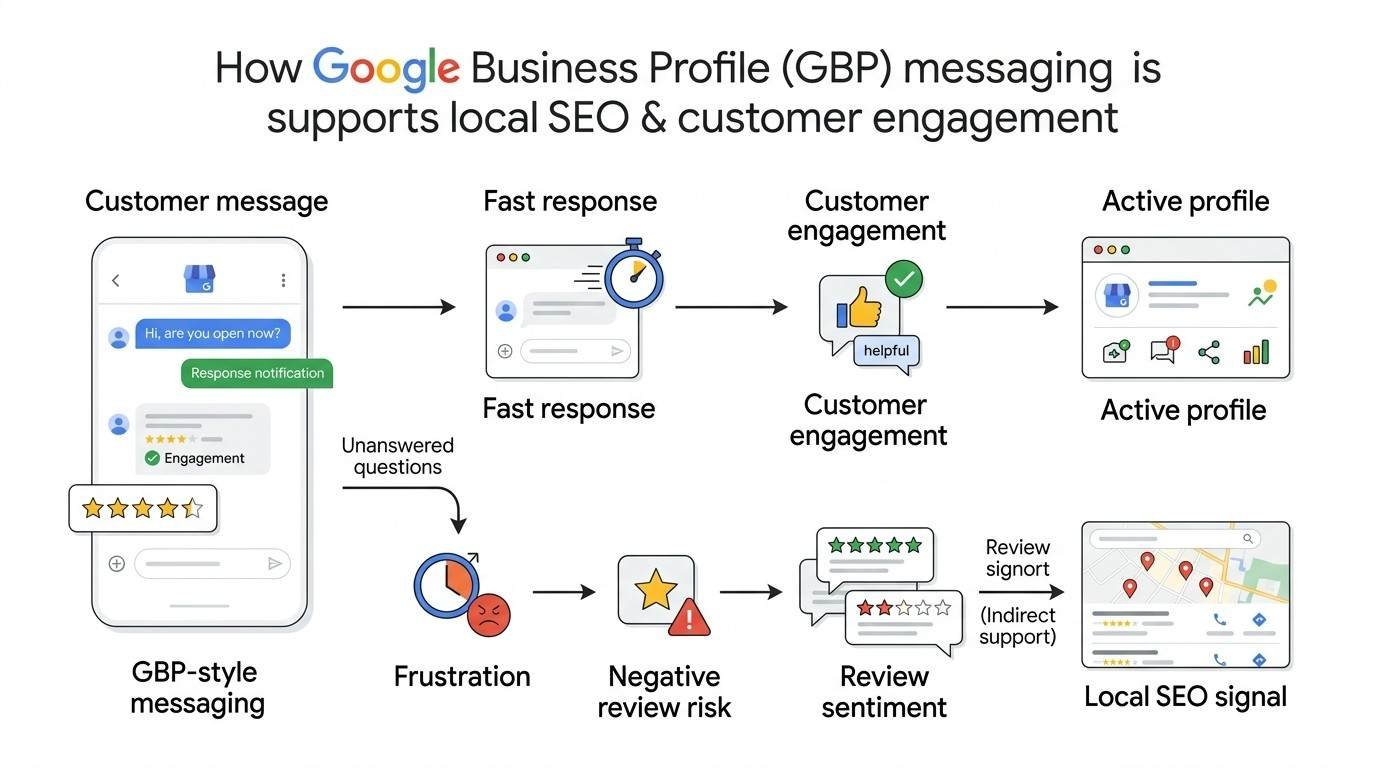
Google Business Profile messaging is a customer engagement signal that contributes to how active and responsive a listing appears, which indirectly supports local search performance. Profiles with consistent engagement tend to hold visibility better over time.
Fast reply habits also reduce the negative reviews that come from unanswered questions, and review sentiment remains one of the stronger local SEO ranking factors businesses can influence directly.
Privacy, Compliance, and Data Considerations
Google Business Profile messaging routes through Google’s servers and does not expose a business owner’s personal phone number to customers unless SMS forwarding is explicitly enabled. This keeps a layer of separation between business and personal communication channels by default.
Businesses handling sensitive customer information through chat should still apply the same data-handling care they would in email, since message content is stored and searchable within the account.
Google Business Profile Messaging for Multi-Location Businesses
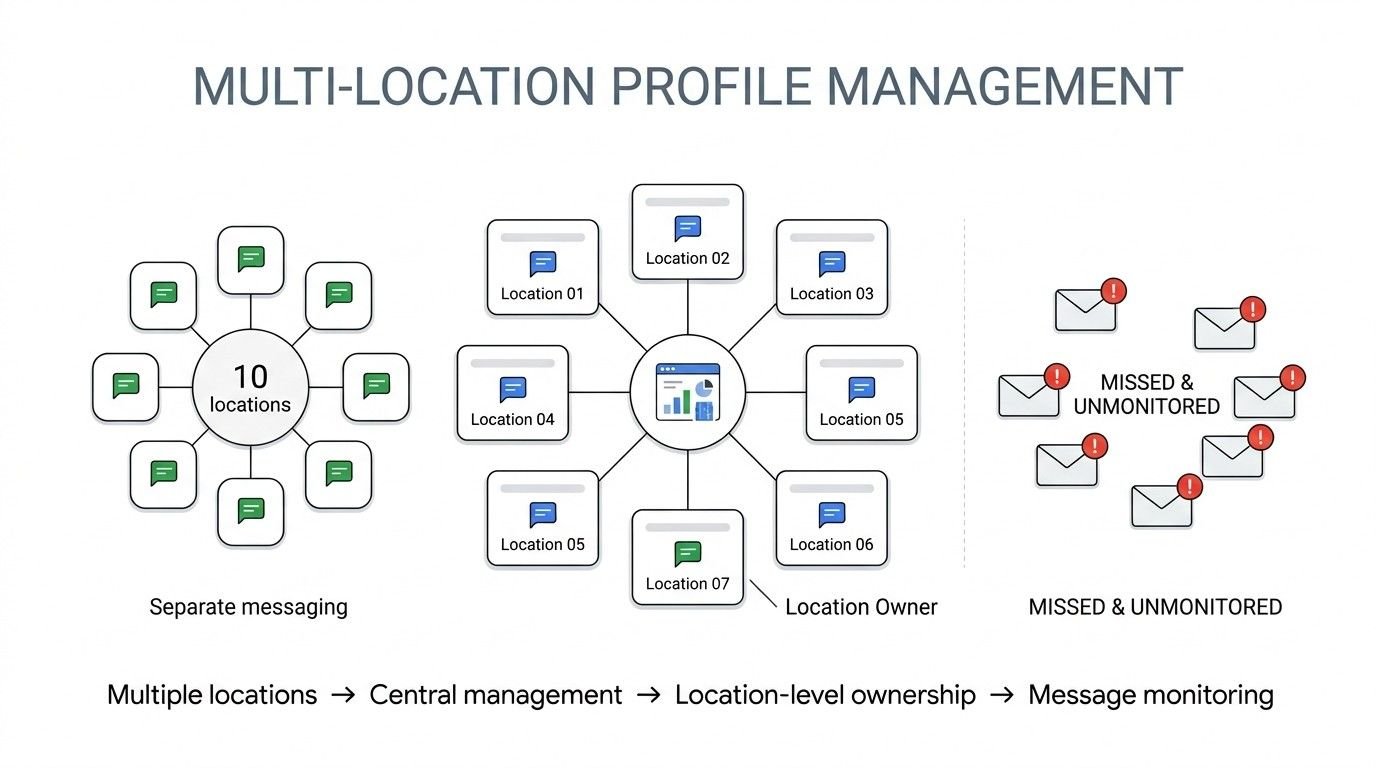
Multi-location businesses manage messaging separately for each verified listing, meaning a chain with ten locations needs ten individually configured messaging setups. This becomes a real operational question once message volume grows past what one person can monitor.
Centralizing this through Google Business Profile bulk management tools helps multi-location teams avoid missed messages at individual branches. I recommend assigning location-level ownership so no single inbox gets overlooked.
Conclusion
Google Business Profile messaging connects search visibility directly to real conversations, turning a listing into an active communication channel. It works best alongside strong local SEO fundamentals and consistent response habits.
We help businesses configure, optimize, and monitor these features as part of a broader growth strategy. Talk to White Label SEO Service to build a local presence that converts.
Frequently Asked Questions
How do I turn on messaging on Google Business Profile?
You enable messaging through the Google Business Profile app under the Messages tab by tapping “Turn on.” Desktop management doesn’t currently support activating this feature.
Is Google Business Profile messaging free?
Yes, Google Business Profile messaging is completely free for verified business owners to enable and use. There are no charges from Google for sending or receiving messages.
Can customers see my phone number through messaging?
No, customers cannot see your personal phone number unless you specifically enable SMS forwarding. Messages route through Google’s platform by default, keeping numbers private.
Why is the messaging feature not showing on my profile?
This typically happens when your profile isn’t fully verified or falls under a restricted business category. Completing verification usually resolves the issue within a few minutes.
How fast do I need to respond to Google Business messages?
There’s no strict requirement, but Google publicly displays your average response time on your listing. Faster replies, ideally under an hour, tend to build stronger customer trust.
Can I use messaging on multiple business locations?
Yes, but each verified location requires its own individual messaging setup. Larger businesses often assign location managers to keep every inbox monitored.
Does Google Business Profile messaging affect local rankings?
Messaging itself isn’t a confirmed direct ranking factor, but the engagement and review sentiment it drives can indirectly support local visibility. Active, responsive profiles tend to perform better overall.