A Google Business Profile is a free business listing that controls how a company appears on Google Search and Google Maps, including its name, hours, location, and reviews. I’ve set up hundreds of these profiles, and the ones done right always outperform the ones rushed through in five minutes.
Getting this wrong costs businesses real local visibility every single day. A single mistyped address or an unverified listing can bury a company below three competitors on the map pack.
This guide covers what a Google Business Profile actually is and how it fits into local search, what you need before you start, the exact setup and verification steps, and how to optimize and manage your profile once it’s live. I’ll also flag the mistakes I see most often.
What Is a Google Business Profile?
A Google Business Profile is a free tool that lets businesses manage how they appear across Google Search, Google Maps, and local search results. I think of it as the digital front door to a business it’s often the first thing a potential customer sees before they ever visit a website.
Google renamed the platform from Google My Business to Google Business Profile in 2022, folding profile management directly into Search and Maps instead of requiring a separate app. This shift streamlined the process but confused a lot of business owners who still search for the old name.
The profile directly influences whether a business shows up in the local map pack, the three-listing block that appears above organic results for location-based searches. Getting the profile right is foundational to any local SEO strategy, since Google pulls proximity, relevance, and prominence signals straight from the data entered here.
What You Need Before You Start Setup
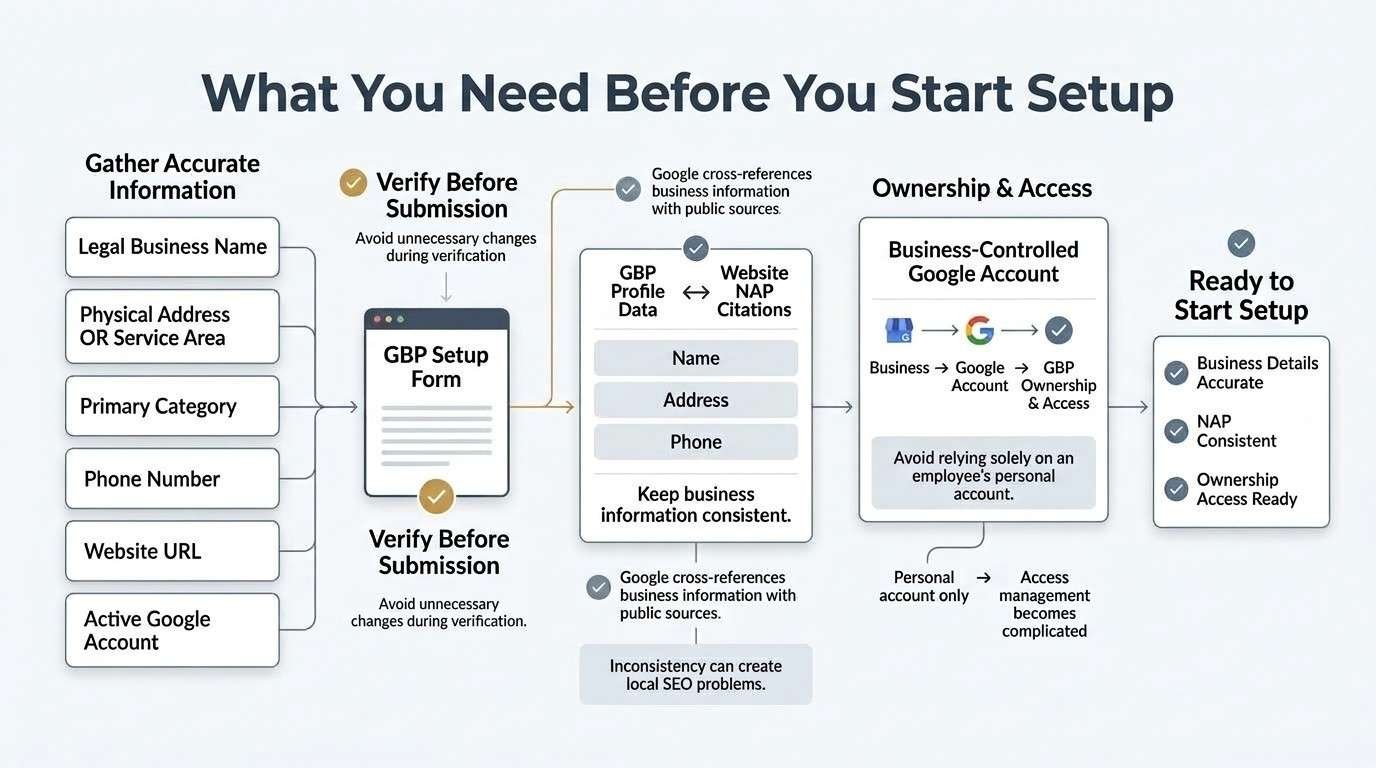
Setting up a profile correctly the first time requires a short list of accurate information gathered in advance. I always tell clients to have this ready before opening the setup form, because switching business categories or addresses mid-verification can trigger delays.
Business information requirements include the exact legal business name, a physical address or service area, a primary category, a phone number, and a website URL. Google cross-references this data against public records, so inconsistency between your profile and your website’s NAP (name, address, phone) citations can quietly hurt rankings.
You’ll also need an active Google account, ideally one tied to the business rather than a personal account, since profile ownership and access management get complicated when an employee’s personal account is the sole admin.
How to Create a Google Business Profile (Step-by-Step)
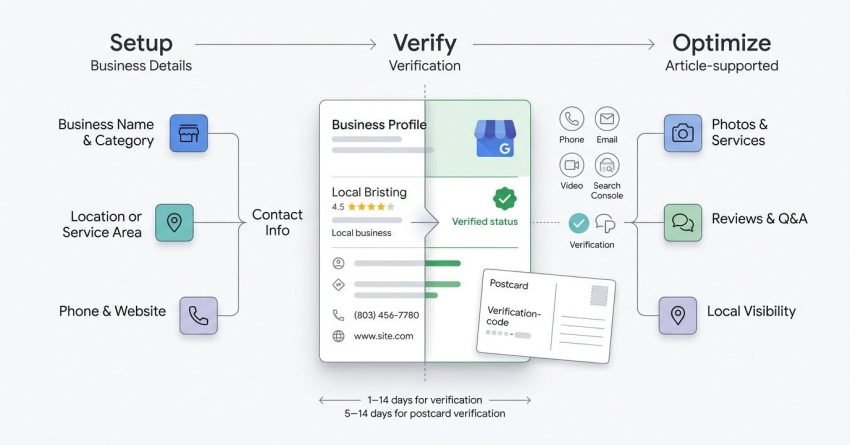
Creating a Google Business Profile takes about 10-15 minutes and follows three main steps: searching your business name, entering location and category details, and adding contact information.
Step 1 – Sign In and Search Your Business Name I start every setup at google.com/business, signed into the Google account meant to manage the listing long-term. Search your exact business name first, since Google sometimes has an unclaimed listing already generated from public data, and claiming an existing one avoids duplicate listings later.
Step 2 – Enter Business Category and Location Details Choose the most specific primary category available rather than a broad one “Italian Restaurant” outperforms “Restaurant” for relevance matching. Enter the physical address exactly as it appears on official documents, or mark the business as service-area only if there’s no public storefront.
Step 3 – Add Contact Information and Service Areas Add a local phone number over a toll-free or call-tracking number where possible, since Google weighs local numbers as a stronger relevance signal. Define service areas by city or zip code radius if the business travels to customers rather than operating from a fixed location.
| Step | Action | Common Pitfall |
| 1 | Search and claim existing listing | Creating a duplicate instead of claiming |
| 2 | Select category and enter address | Choosing a broad category |
| 3 | Add phone and service areas | Using a call-tracking number as primary |
How to Verify Your Google Business Profile
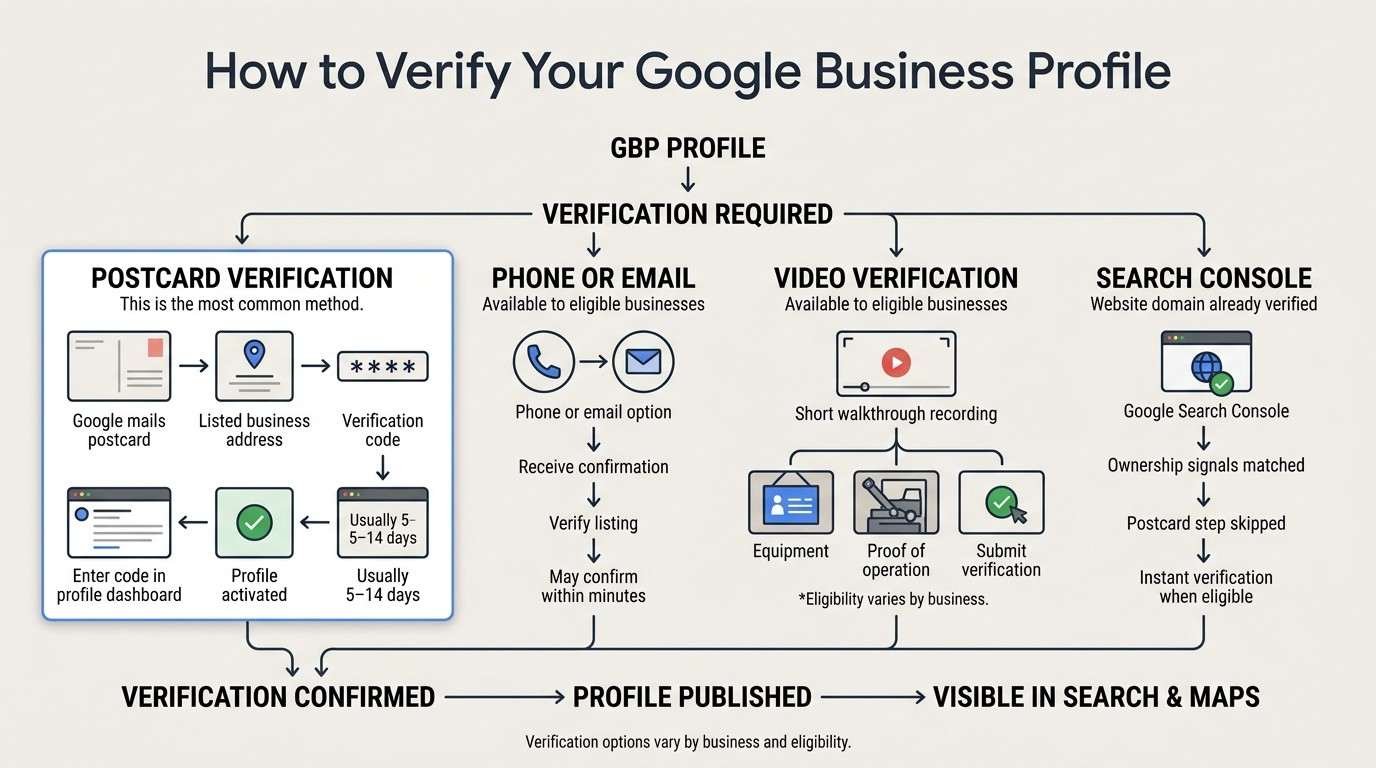
Google Business Profile verification confirms that a business is real and operating at the location or in the service area listed. Without verification, a profile stays unpublished and invisible in Search and Maps.
Postcard verification remains the most common method: Google mails a physical postcard containing a verification code to the listed address, usually arriving within 5 to 14 days. Entering that code in the profile dashboard activates the listing.
Phone, email, and video verification are offered to eligible businesses, appearing as options directly in the setup flow when available these methods can confirm a listing within minutes rather than days. Video verification, added for service-area and certain retail businesses, requires a short walkthrough recording showing signage, equipment, or proof of operation.
Instant verification via Search Console applies to businesses that have already verified their website domain in Google Search Console, allowing Google to match ownership signals and skip the postcard step entirely.
How Long Google Business Profile Verification Takes
Google Business Profile verification typically takes 1 to 14 days, depending on the method assigned. Postcard verification is the slowest at 5-14 days, while phone, email, and Search Console verification often complete within 24 to 48 hours.
Processing times can extend further during high-demand periods or when Google’s automated systems flag a listing for manual review. Businesses in regulated categories legal, medical, and financial services see manual review more often, adding several extra days.
What to Do If Verification Fails or Gets Delayed
Verification fails most often because of a mismatch between the entered address and public records, or because the postcard never arrived at the physical location. Requesting a new postcard resets the 5-14 day window, so catching address errors early matters.
If a postcard is lost or delayed past 14 days, requesting a resend through the profile dashboard is faster than waiting indefinitely. Businesses stuck in manual review status should use Google’s direct support contact form rather than resubmitting the whole profile from scratch, which can trigger duplicate-listing flags.
How to Optimize Your Profile After Verification
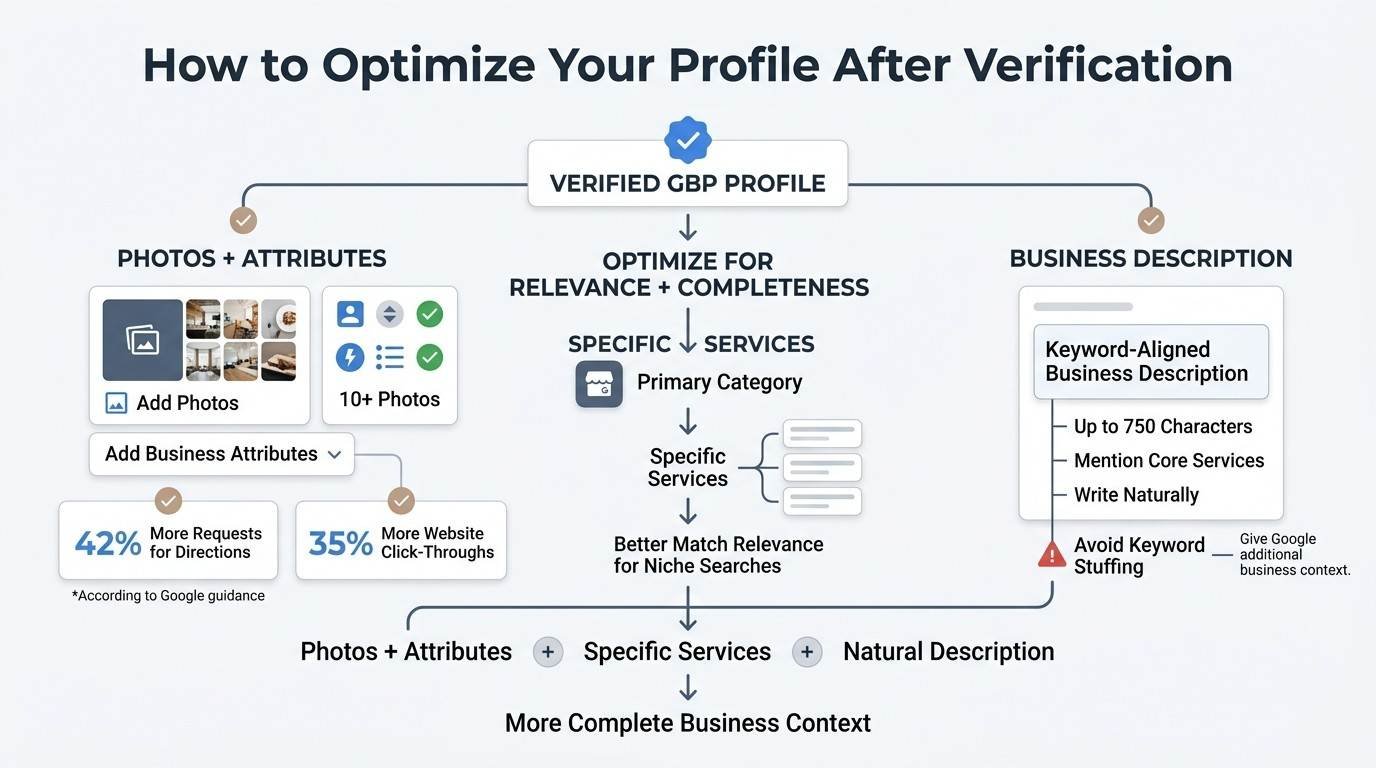
A verified profile is only the starting point; optimization is what determines whether it actually ranks and converts. I treat this stage as equally important as the setup itself.
Adding photos, services, and business attributes rounds out a profile’s completeness score. Profiles with at least 10 photos get 42% more requests for directions and 35% more click-throughs to their website according to Google’s own guidance for business owners. Listing specific services rather than relying only on the category also improves match relevance for niche searches.
Writing a keyword-aligned business description gives Google additional context beyond the category field. This 750-character description should read naturally, mention the core services offered, and avoid keyword stuffing, which Google’s guidelines explicitly discourage.
How Reviews and Q&A Affect Your Profile’s Performance
Customer reviews directly influence a profile’s ranking in the map pack, since Google factors review count, recency, and average rating into its local relevance scoring. Responding to reviews, both positive and negative, signals active management, which Google has confirmed factors into visibility.
The Q&A section lets potential customers ask questions publicly, and any user can answer them, including the business owner. Monitoring this section matters because incorrect answers from other users can sit unchallenged and mislead future customers if the business never responds.
How to Manage Multiple Locations or Franchise Profiles
Businesses with more than one location manage profiles through Google Business Profile Manager, a bulk dashboard that handles verification, updates, and reporting across every listing from a single account. This setup avoids the fragmented ownership problems that come from individual managers verifying separate locations independently.
Franchise and multi-location brands typically assign one primary account owner with manager-level access granted to regional staff, keeping brand-wide consistency in categories, descriptions, and photos while still allowing local teams to post updates and respond to reviews.
Common Google Business Profile Setup Mistakes to Avoid
The most frequent mistake I see is keyword stuffing the business name field, adding phrases like “Best Plumber NYC 24/7” instead of the actual legal name, which violates Google’s guidelines and risks suspension.
Other recurring errors include selecting an overly broad category, leaving service areas undefined, using a virtual office address for a business that doesn’t operate there, and abandoning the profile after initial setup instead of posting updates or responding to reviews regularly. Suspended profiles typically require a formal reinstatement request, which can take weeks to resolve.
How Google Business Profile Connects to Local SEO Strategy
A Google Business Profile functions as one input within a much broader local SEO strategy, working alongside citation consistency, on-page location signals, and backlink authority to determine map pack rankings. Profile signals alone rarely explain a full ranking picture without also accounting for a site’s overall domain authority and technical health.
Businesses evaluating how long SEO takes to produce results often overlook that local pack rankings can move faster than organic rankings, sometimes within weeks of full profile optimization, while broader organic SEO timelines typically run several months.
Conclusion
A verified, optimized Google Business Profile shapes how customers find and trust a business across Search and Maps. Setup, verification, and ongoing management each play a distinct role in visibility.
Local search keeps evolving, and profiles that stay active consistently outperform ones left static after launch. Reviews, photos, and posts all compound over time.
We help businesses build and maintain profiles that convert. Contact White Label SEO Service today to strengthen your local search presence.
Frequently Asked Questions
How long does it take to verify a Google Business Profile?
Verification typically takes 1 to 14 days depending on the method. Postcard verification is slowest, while phone, email, and Search Console verification often finish within 48 hours.
Is Google Business Profile free to set up?
Yes, creating and verifying a Google Business Profile is completely free. Google generates revenue from ads and other services, not from profile listings themselves.
Can I have a Google Business Profile without a physical address?
Yes, service-area businesses can hide their address and instead define the specific cities or regions they serve. This applies to plumbers, cleaners, and similar mobile businesses.
What happens if I don’t verify my Google Business Profile?
An unverified profile stays hidden from Search and Maps entirely. Verification is mandatory before any profile data becomes publicly visible to searchers.
Can I edit my Google Business Profile after verification?
Yes, verified profiles can be edited anytime through the dashboard. Some changes, like business name or address edits, may trigger a re-review period.
Why was my Google Business Profile suspended?
Suspensions usually result from guideline violations like keyword-stuffed names or fake addresses. Reinstatement requires a formal appeal through Google’s support process.
How many photos should I add to my Google Business Profile?
Google recommends at least 10 photos, since profiles with that many see notably higher engagement. More photos consistently correlate with more direction requests and website clicks.